Payouts
With Mantle, you can pay your affiliates your way—whether through Mantle Payouts, PayPal, or manually. Choose what works best and manage everything from your Affiliates Dashboard.
Payout settings
To configure your affiliate payout settings:
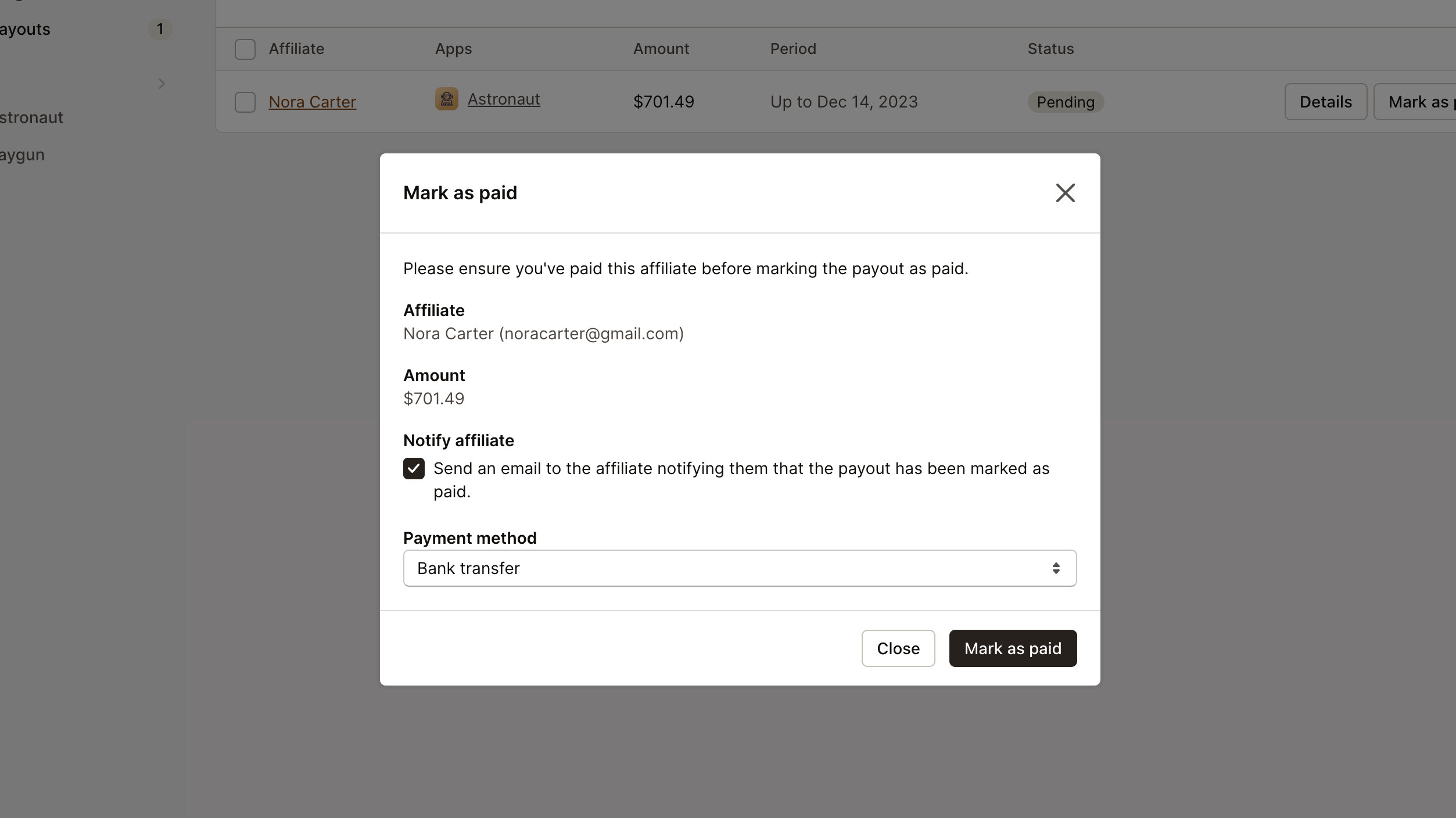
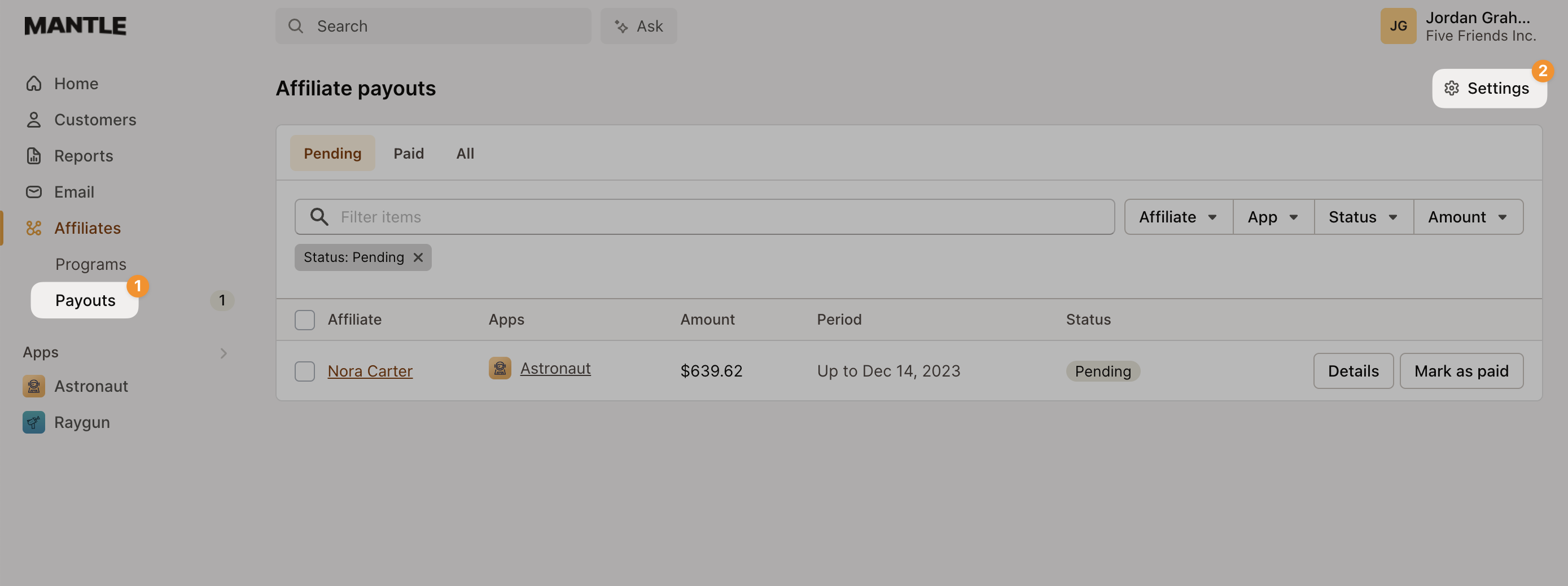
Go to Affiliates in the menu.
Click on Payouts.
Open the Settings.
In the settings modal, select Mantle Payouts.
From here you can adjust your settings:
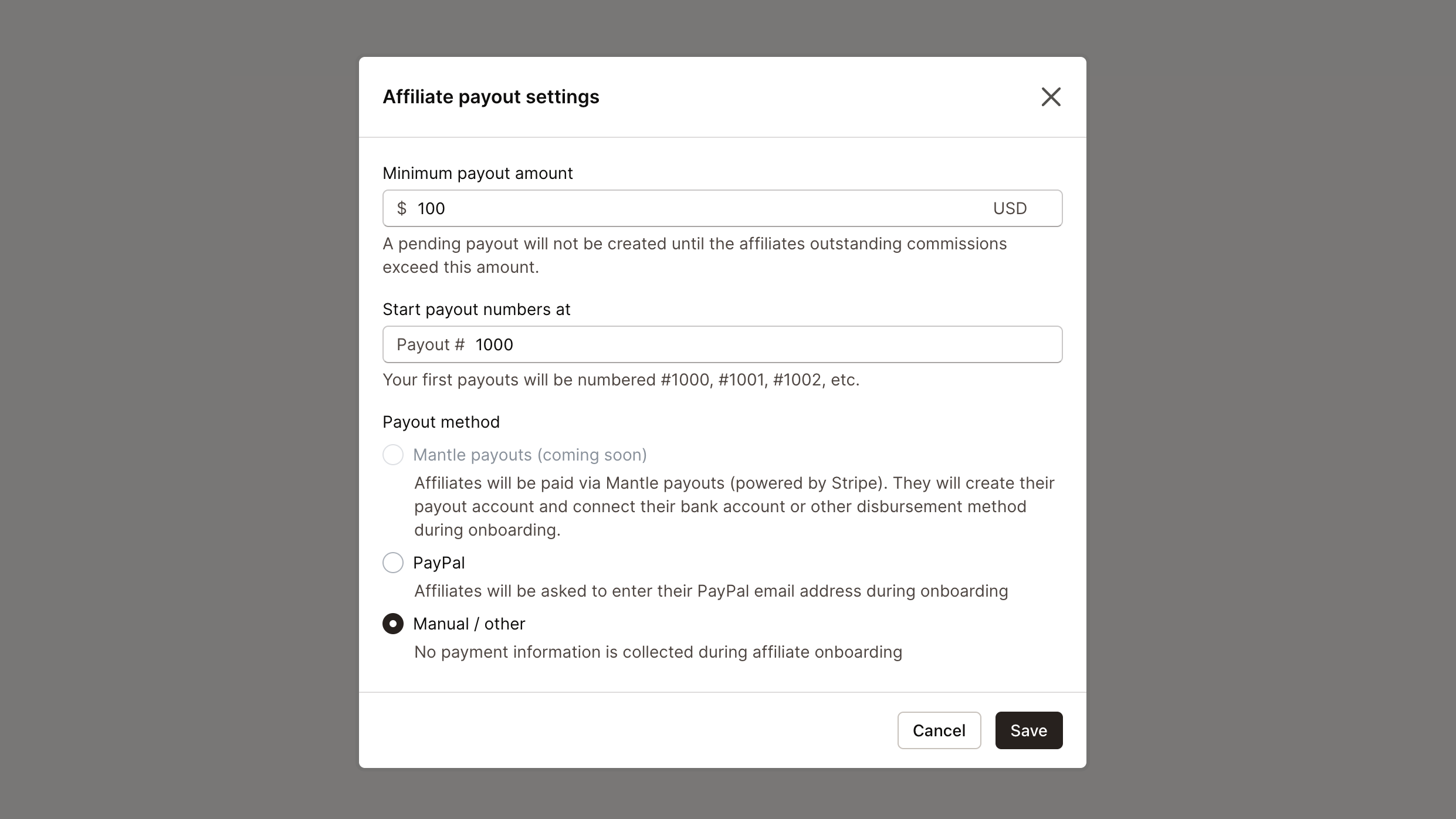
Minimum payout amount: A pending payout will not be created until the affiliate's outstanding commissions exceed this amount.
Start payout numbers at: Customize your starting payout number to organize and track payouts more efficiently, such as beginning from #1000.
Generating payouts
Payouts are automatically generated once an affiliate's commissions exceed the minimum payout amount you set. You can view these payouts in the Payouts tab:
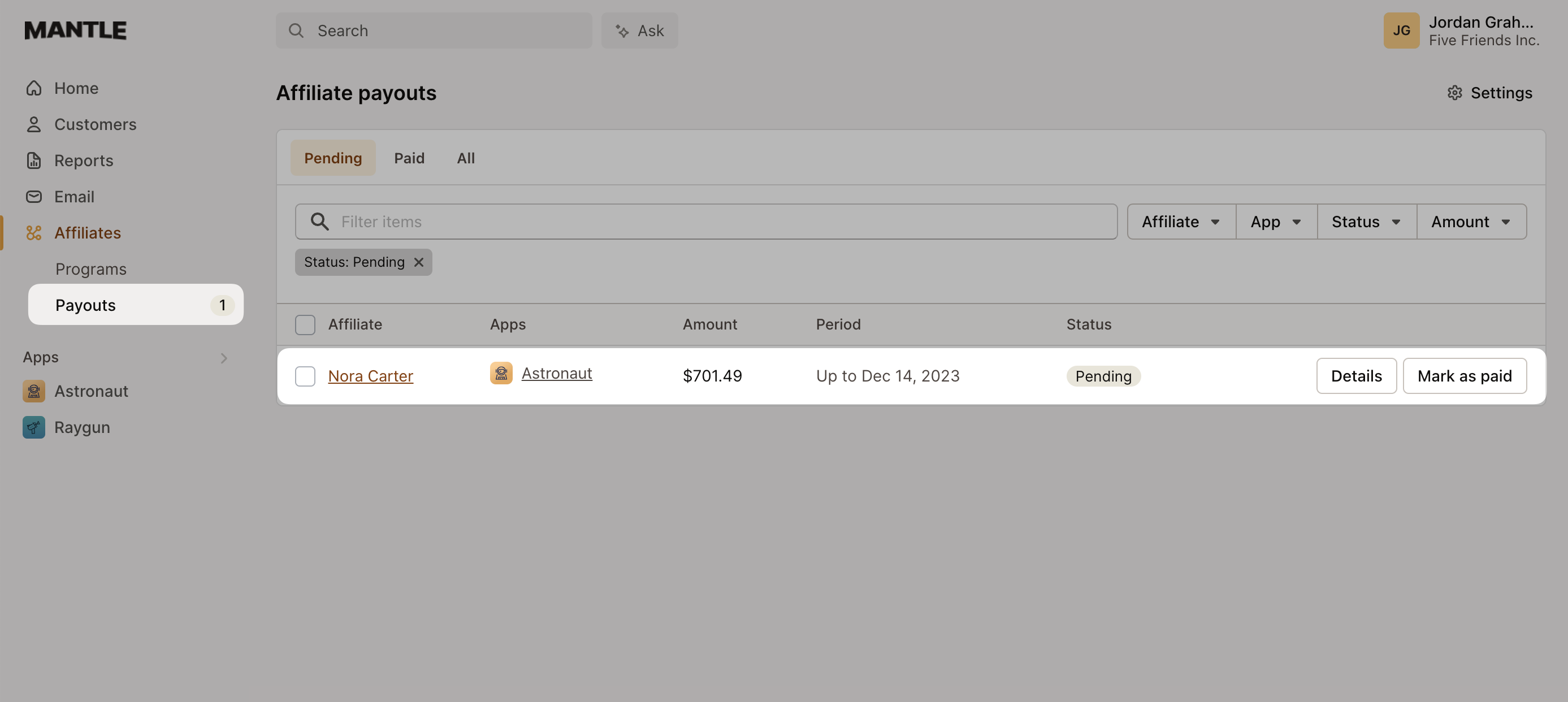
Once a payout is created, you can view the details and begin distributing payments to your affiliates using your preferred payment method.
Payout statuses
Each payout moves through the following statuses:
Pending: The payout was automatically generated by Mantle after the affiliate's commissions exceeded your minimum payout amount. It's ready to be paid whenever you choose, but no one has explicitly requested it yet.
Requested: The affiliate clicked Request payment in their affiliate portal, signaling that they'd like to be paid. Use this to help prioritize which payouts to process first.
Processing: The payout is currently being processed through your chosen payment method.
Paid: The payout has been completed and the affiliate has been paid.
Cancelled: The payout was cancelled. Commissions are released back to the affiliate's outstanding balance and will be included in their next payout.
Both pending and requested payouts can be paid manually, through batch payouts, or picked up automatically if you have automatic payouts enabled.
Paying your affiliates with Mantle Payouts
Mantle Payouts allows you to easily pay out earned commissions to your affiliates directly through your Affiliates Dashboard.
To get started, select Mantle Payouts from your affiliate payout settings:
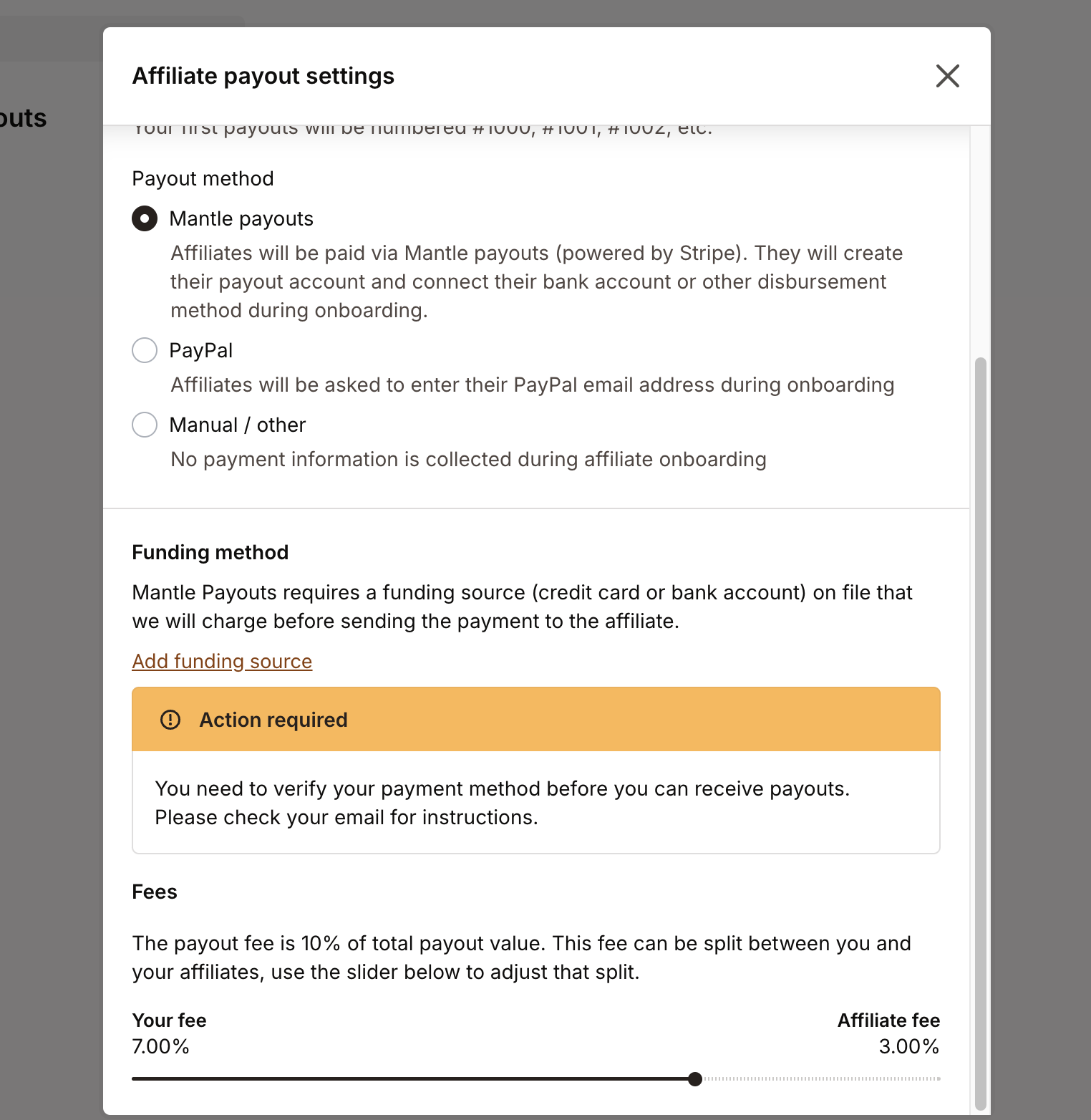
From here, you can add your funding method and decide how to handle any payout fees.
After configuring your payout settings, simply click Send payment from the Payouts view when a payout is generated to initiate the payment:
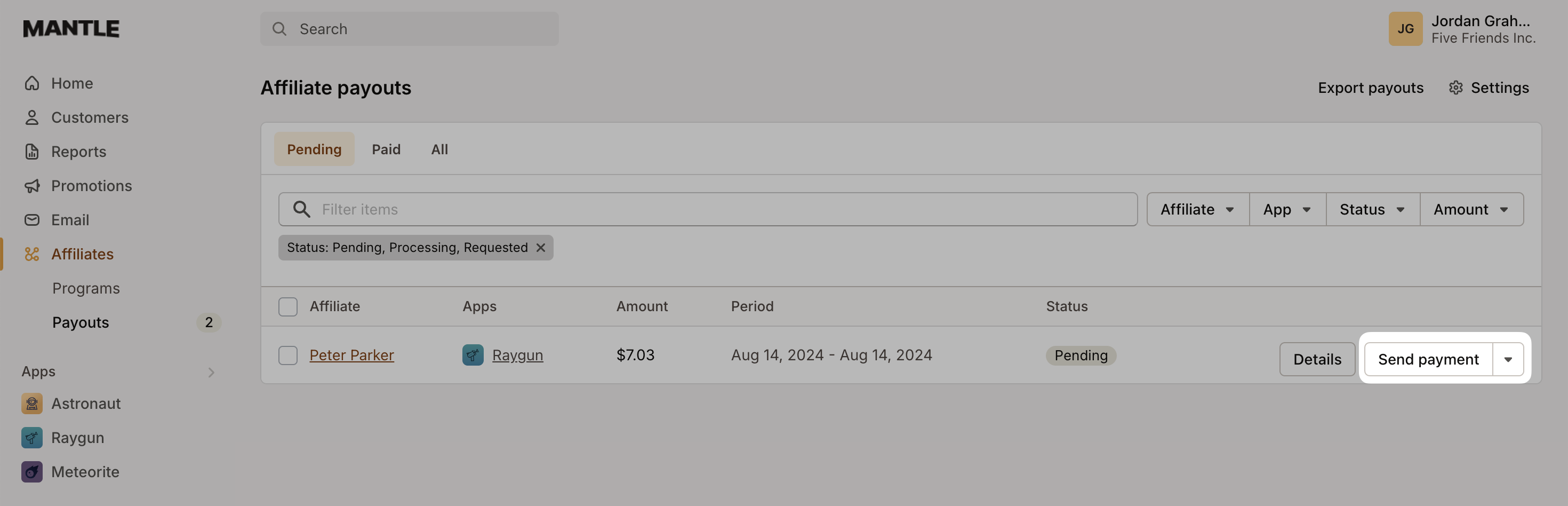
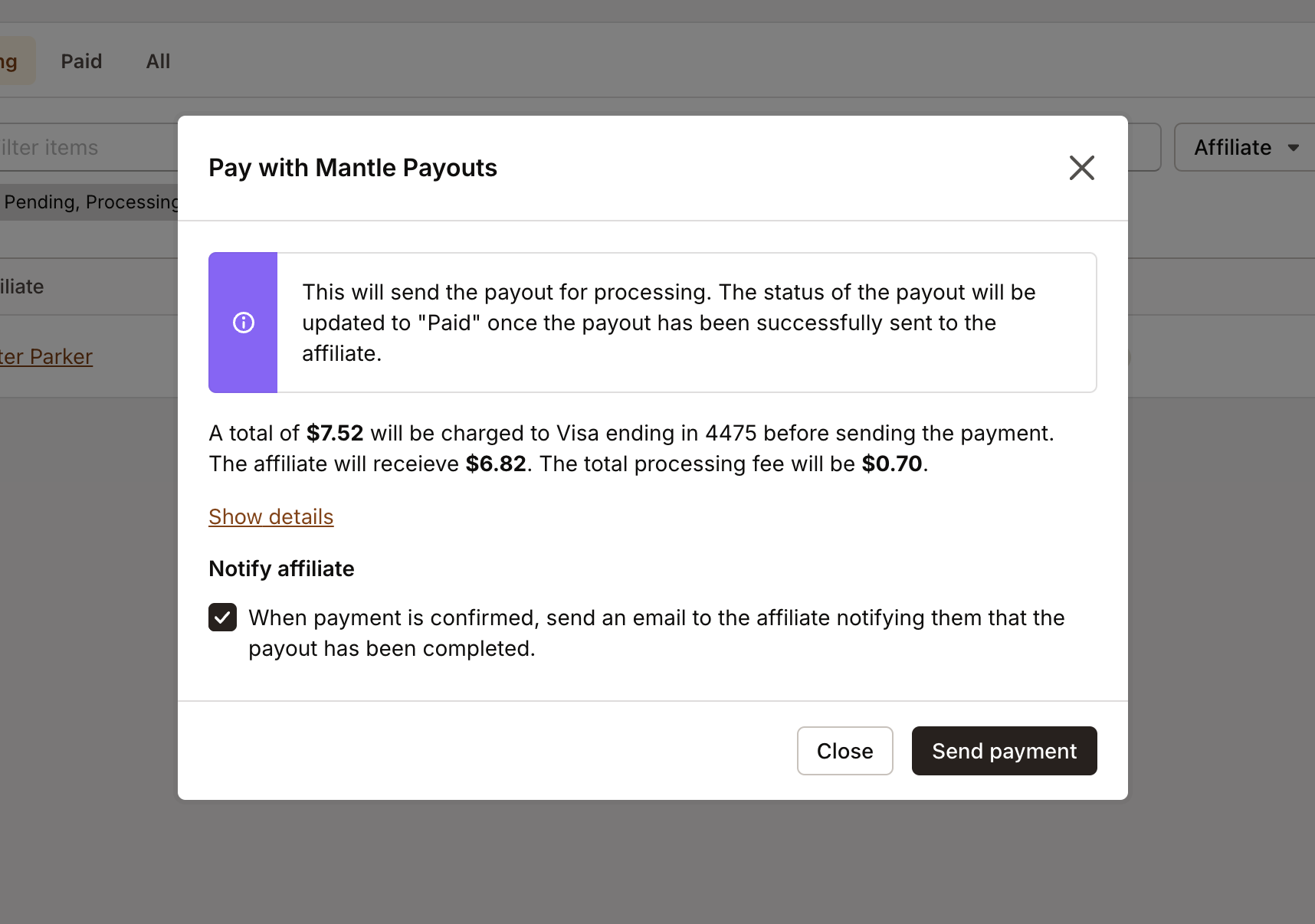
You'll then see a summary of the commission breakdown, the total fees deducted, and the final amount your affiliate will receive.
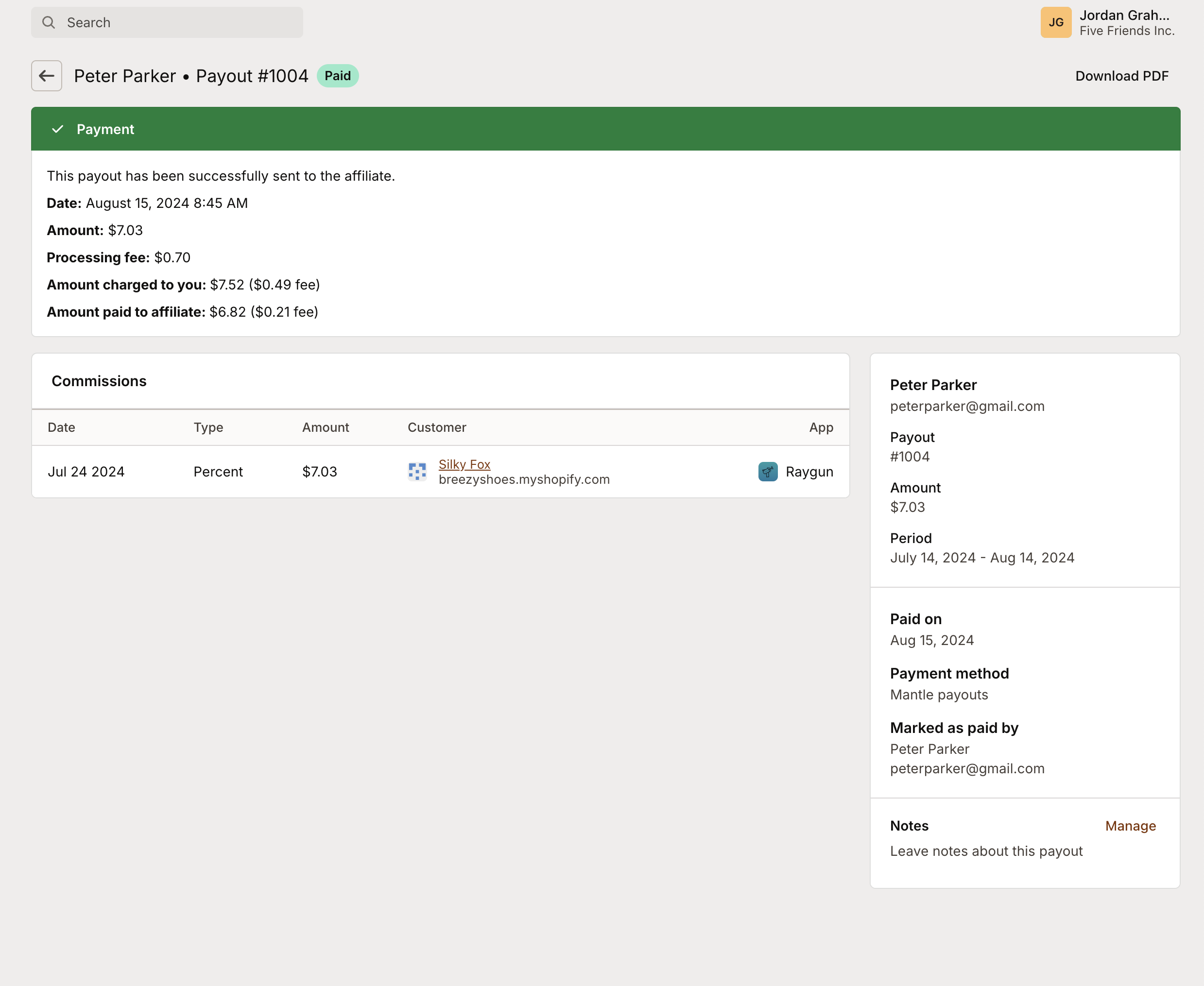
After you've completed the payment to your affiliate, you can view the transaction details under Payouts -> Paid and click the Details button next to the payout:
For affiliates receiving payments through Mantle Payouts, make sure they have their payout account set up and their bank account linked.
Automatic payouts
With automatic payouts, Mantle can process your affiliate payouts on a recurring schedule without any manual intervention. This is ideal if you want a hands-off approach to paying your affiliates.
Requirements
To use automatic payouts, you need:
Mantle Payouts selected as your payout method.
A funding source (credit card or bank account) added to your account.
On the affiliate side, only affiliates who have connected their Stripe payout account will receive automatic payouts. Affiliates who haven't connected their account yet will be skipped until they do.
Setting up automatic payouts
To enable automatic payouts:
Go to Affiliates > Payouts > Settings.
Make sure Mantle Payouts is selected and you have a funding source added.
In the Automatic payouts section, check Enable automatic payouts.
Choose a Payout schedule:
Weekly — payouts are processed once a week on the day you choose.
Every two weeks — payouts are processed every other week on the day you choose.
Monthly — payouts are processed once a month on the day you choose (1st through 28th).
Select the day of the week (for weekly or every two weeks) or the day of the month (for monthly).
Optionally, check Notify affiliates when they are paid to send an email notification to each affiliate when their payout is processed.
Click Save.
How it works
Once enabled, Mantle will automatically process all eligible pending and requested payouts on your chosen schedule. Here's what happens on each payout run:
Mantle checks for any pending or requested payouts that are ready to be paid.
Payouts for affiliates who haven't connected their Stripe account or who haven't met the minimum payout amount are skipped.
Your funding source is charged for the total payout amount (including fees).
Each affiliate receives their payout directly to their connected Stripe account.
If notifications are enabled, affiliates receive an email confirming their payment.
If a payout run fails for any reason (for example, a payment method issue), you'll receive an email notification so you can resolve the issue. The system will retry on the next scheduled payout date.
Batch payouts
When you have multiple affiliates ready for payment, you can process them all at once instead of paying one at a time.
In the Payouts tab, select the checkboxes next to the payouts you want to process. A bulk actions menu will appear with the following options depending on your payout settings:
Send payment — Process all selected payouts via Mantle Payouts (Stripe). You'll see a preview showing the breakdown for each affiliate, including fees, before confirming the batch.
Pay with PayPal — Send all selected payouts through PayPal in a single batch (requires PayPal to be enabled).
Mark as paid — Mark multiple payouts as paid at once after you've processed them through an external payment method. You can optionally notify affiliates by email.
Batch payouts save significant time when you have many affiliates to pay, especially around regular payout cycles.
Paying your affiliates with PayPal
When choosing to pay your affiliates via PayPal, they will be prompted to enter their PayPal email address during the sign-up process for your affiliate program. They can also view and update this information in their profile settings at any time.
The affiliate's PayPal email address can be viewed by selecting the affiliate and viewing their details:
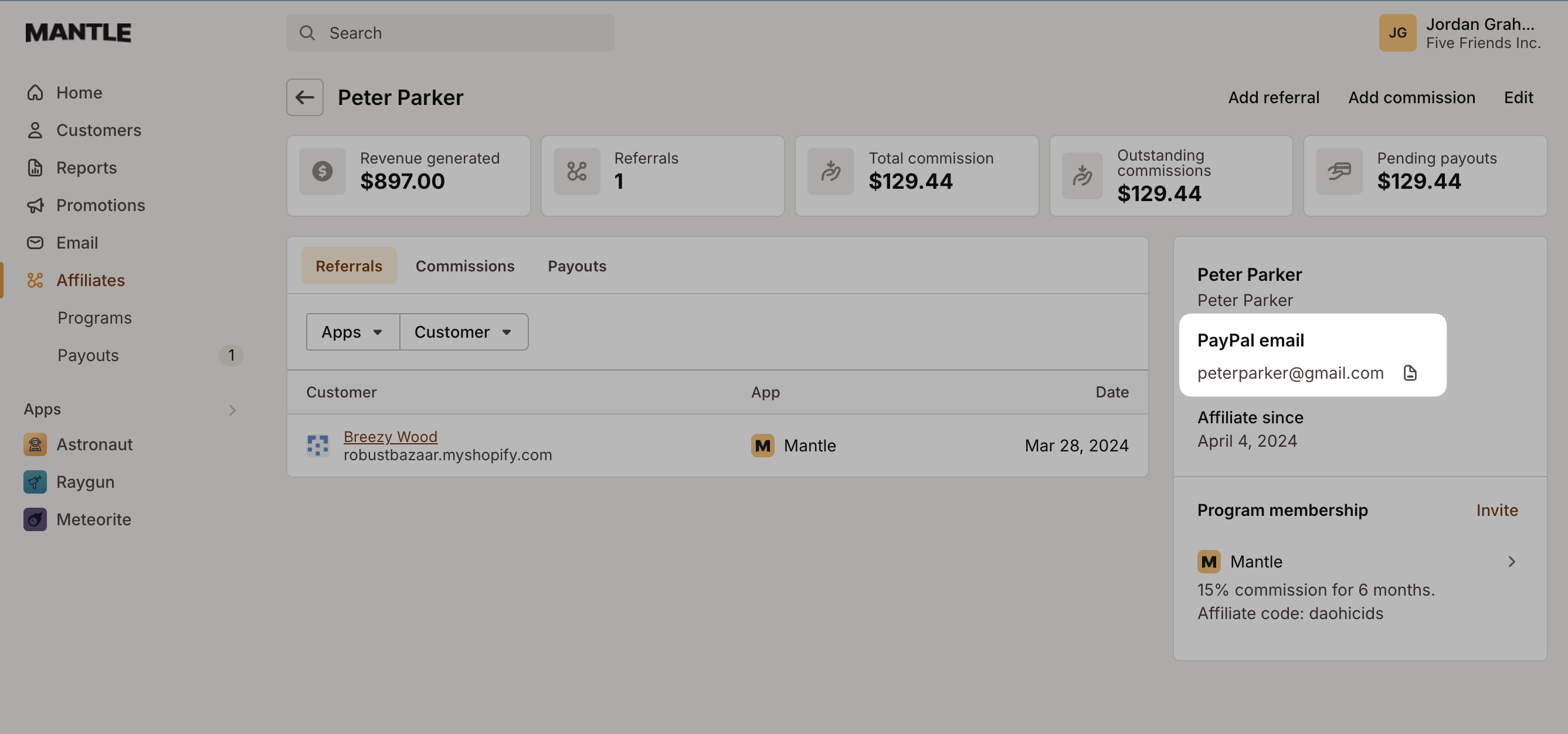
You can use that email address to pay the affiliate through your PayPal account and then mark the payout as paid.
Paying your affiliates manually
To pay your affiliates manually and mark a payout as paid, select Mark as paid on the payout:
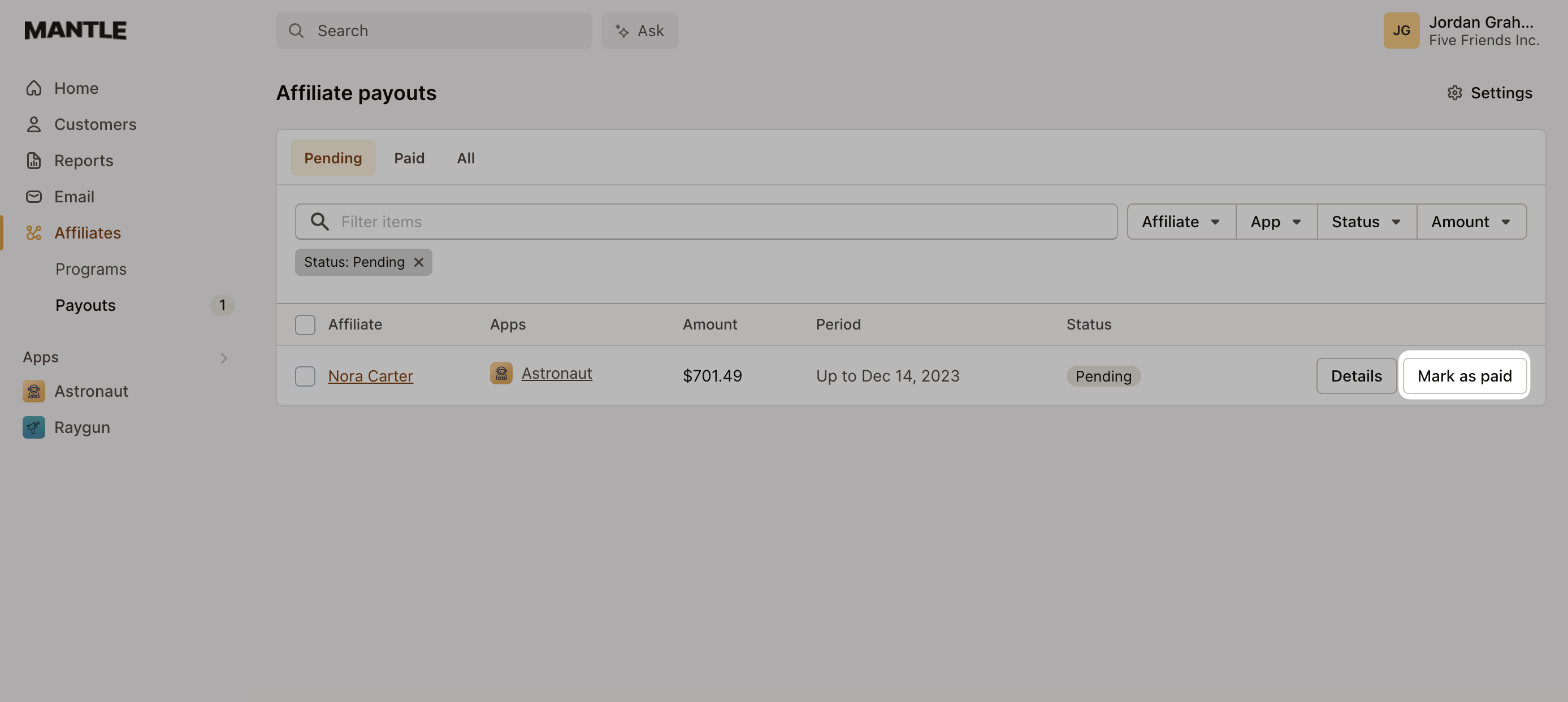
Confirm the payment, mark it as paid, and pay your affiliate using the chosen method: