
Agent use cases
Not sure where to start with AI agents? Here are real use cases from app businesses like yours.
Each agent can work in two ways:
Chat — Ask questions and get answers on demand. Perfect for exploration and ad-hoc analysis.
Flows — Automate tasks that run in the background based on triggers. Perfect for repetitive work and event-driven automation.
How agents work in flows
When you add an AI agent to a flow, you give it instructions—just like you would in chat. The agent runs those instructions automatically when the flow triggers, then passes its response to the next action (like sending a Slack message or tagging a customer).
Think of it as writing a prompt that runs on autopilot.
Start with templates, then build your own
Mantle includes pre-built template agents that are ready to use out of the box. These give you a head start—just enable the tools you need and start chatting. You can customize them by adding rules to match your workflow.
Want something more specific? You can create your own custom agents from scratch, tailored exactly to your needs.
Customer insights agent
Turn your customer data into actionable insights without building reports or writing queries.
Tools to enable:
Get apps
Search customers
Get customer
Get subscriptions
Get plans
Customer analytics (metrics)
For advanced flows (usage analysis):
Usage events (metrics)
Usage metrics
Search tickets
Get ticket
Chat example
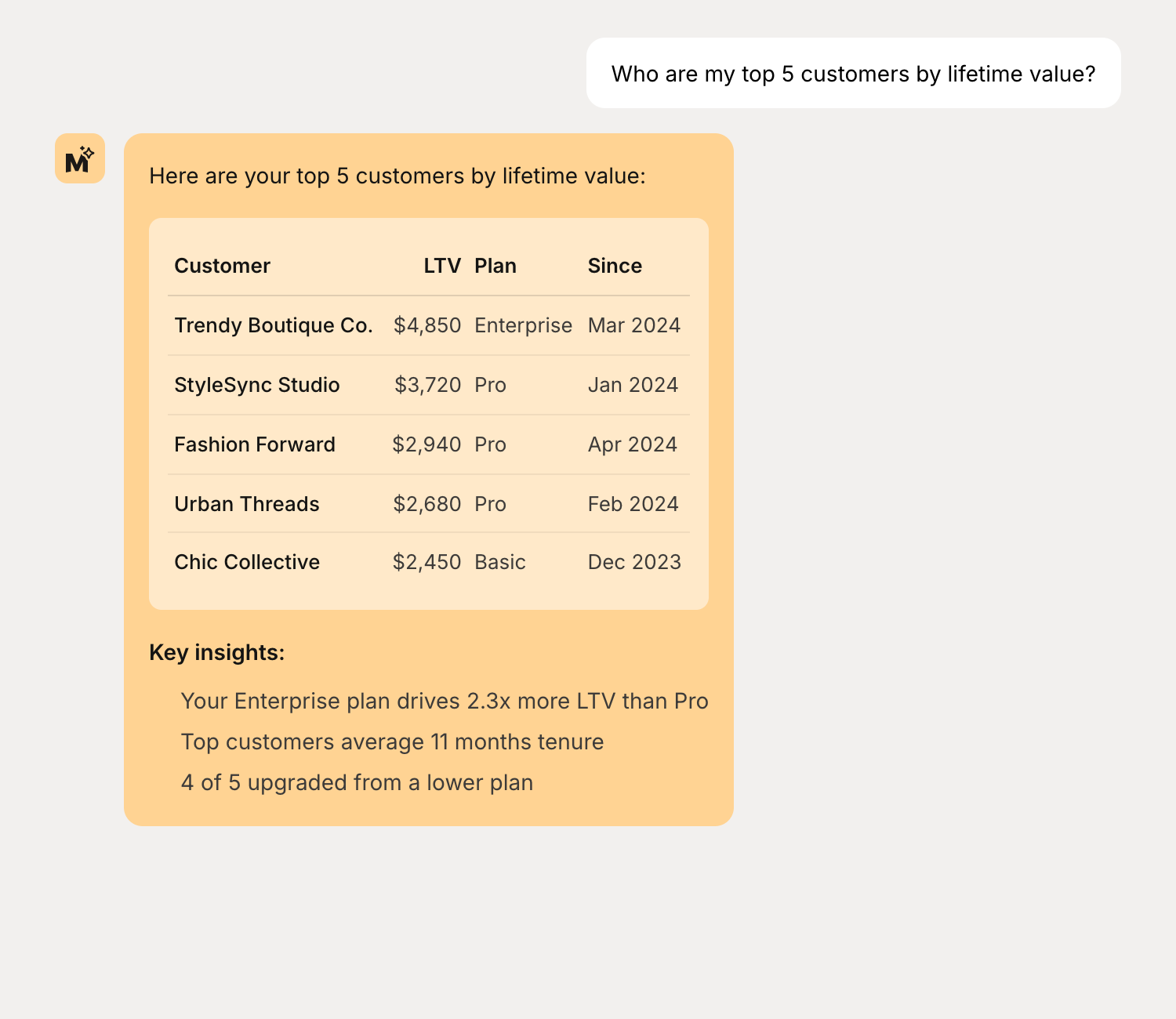
Ask questions about your customers and get instant answers:
"Who are my top 5 customers by lifetime value?"
"Show me customers who upgraded in the last 30 days"
"Find customers on trial that have been active in the last 7 days"
Simple flow
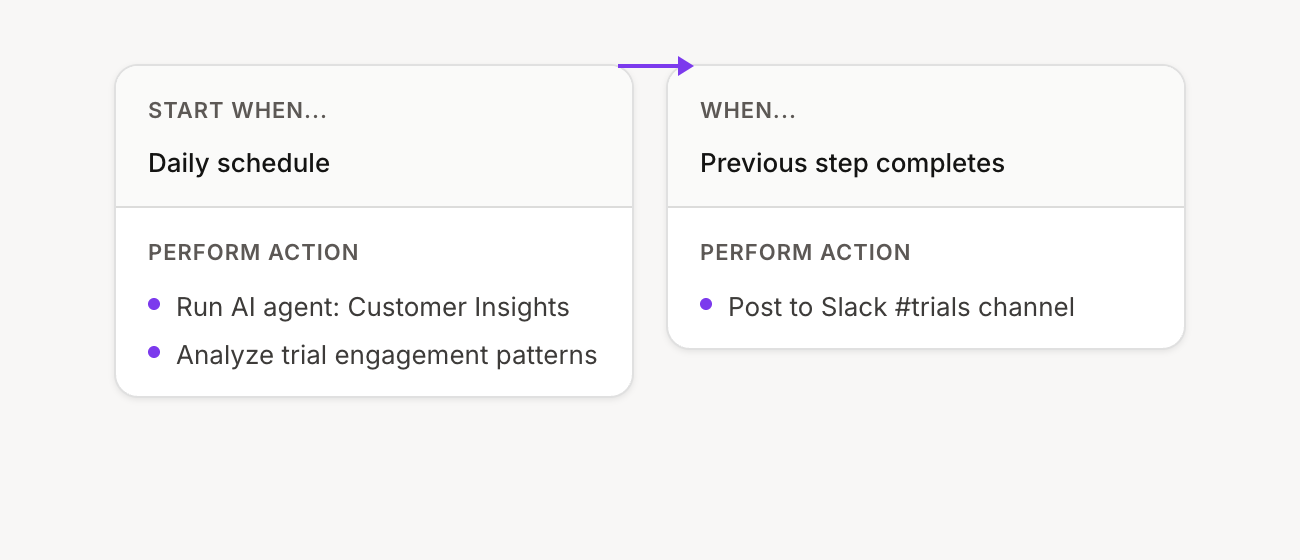
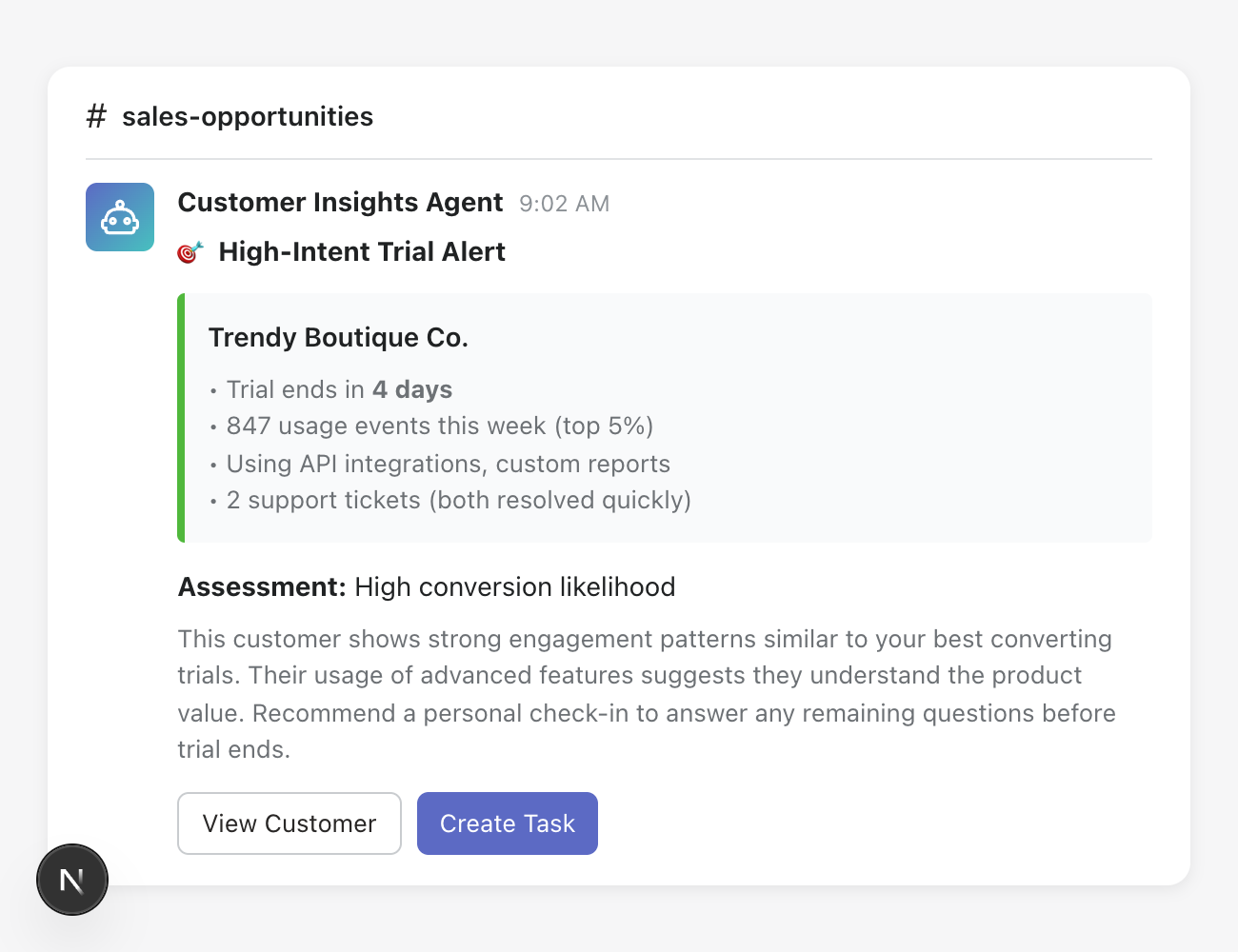
Trial activity check — Find active trial customers who haven't converted and notify your team.
Trigger: Daily schedule (9:00 AM)
AI instructions: "Find customers currently on trial who have been active in the last 7 days but haven't converted yet. Summarize their activity and recommend which ones to reach out to."
Then: Post the agent's response to Slack (#sales)
Flow configuration:
Example output:
Support sidekick agent
Help your support team resolve tickets faster by automatically gathering context, searching documentation, and suggesting responses.
Tools to enable:
Get apps
Search customers
Get customer
Get subscriptions
Search tickets
Get ticket
Search saved replies
Get app documentation repositories
Search app documentation
Get app documentation page
Optional (highly recommended):
Connect your codebase — lets the agent understand how your app actually works
Chat example
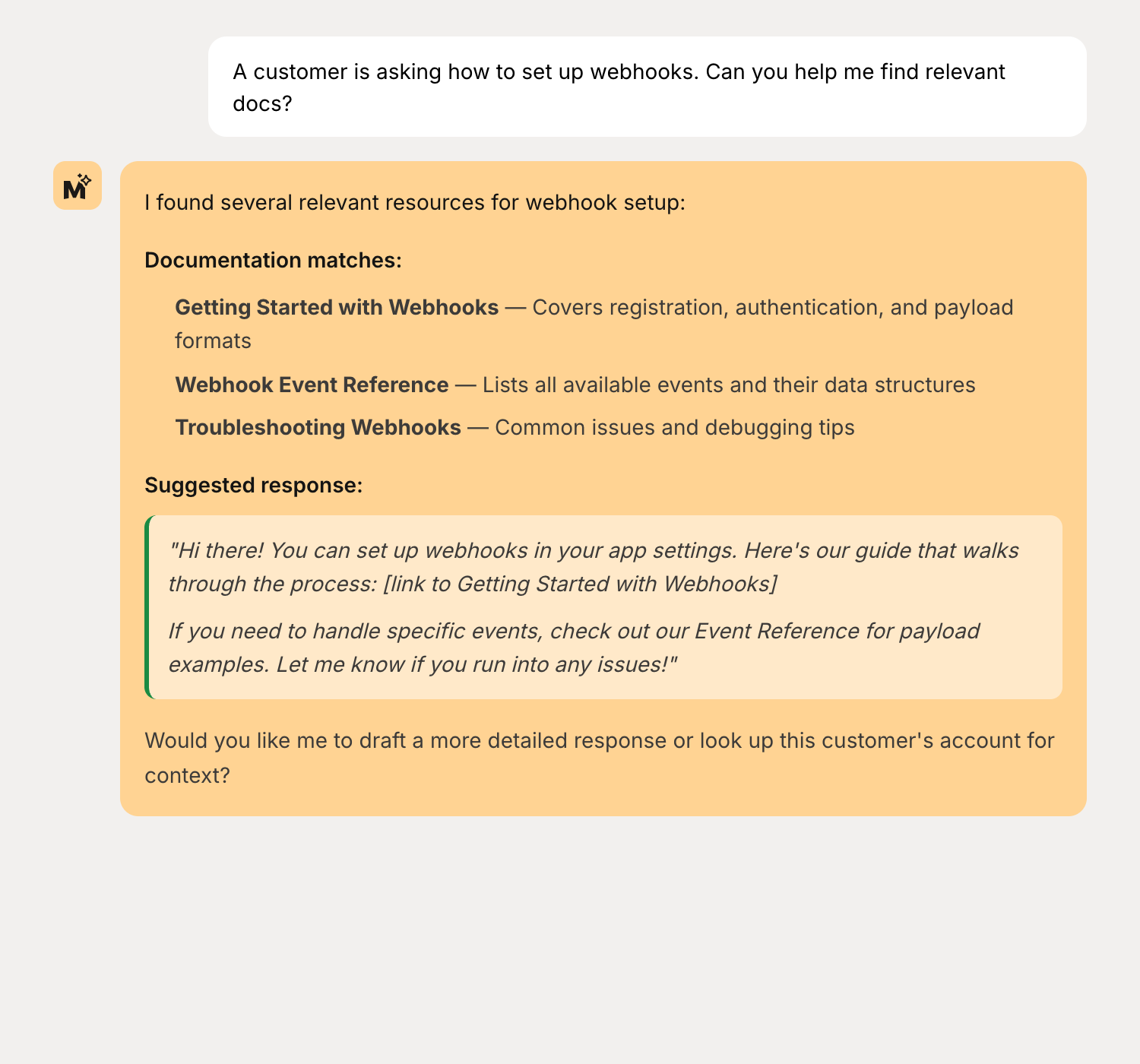
Get customer context and find answers without switching tabs:
"What plan is customer [email] on and when did they last login?"
"Show me this customer's subscription history"
"Search our docs for articles about webhooks"
Simple flow
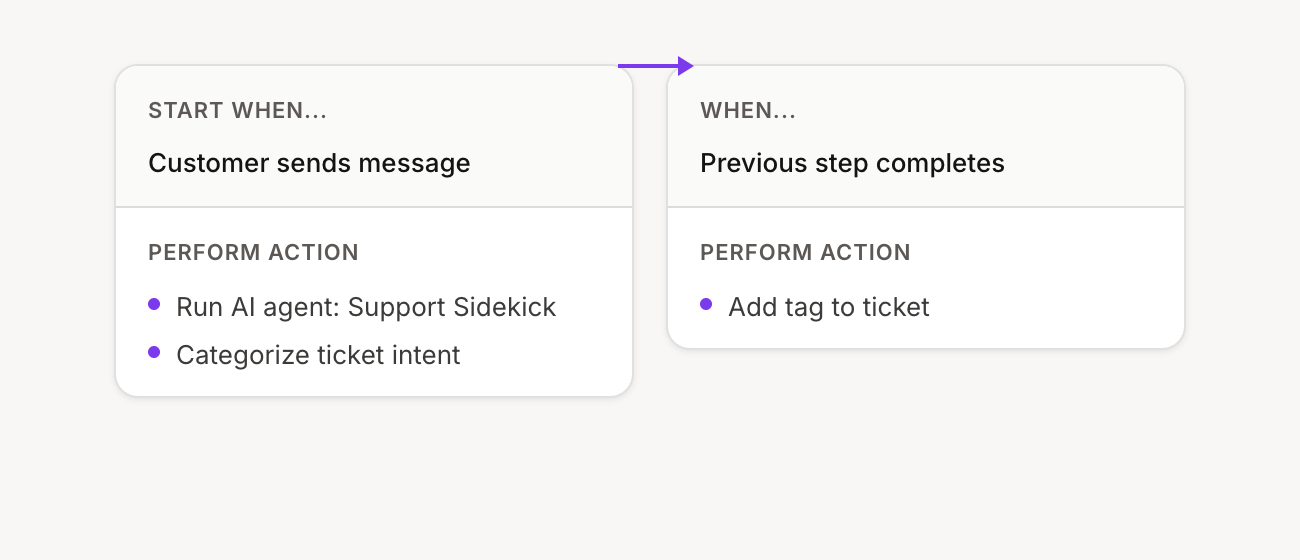
Auto-tag tickets — Categorize incoming tickets automatically based on content.
Trigger: Customer message received
AI instructions: "Read this support ticket and categorize it. Return a single category: billing, technical, feature-request, or general."
Then: Tag the ticket with the category
Flow configuration:
Advanced flow
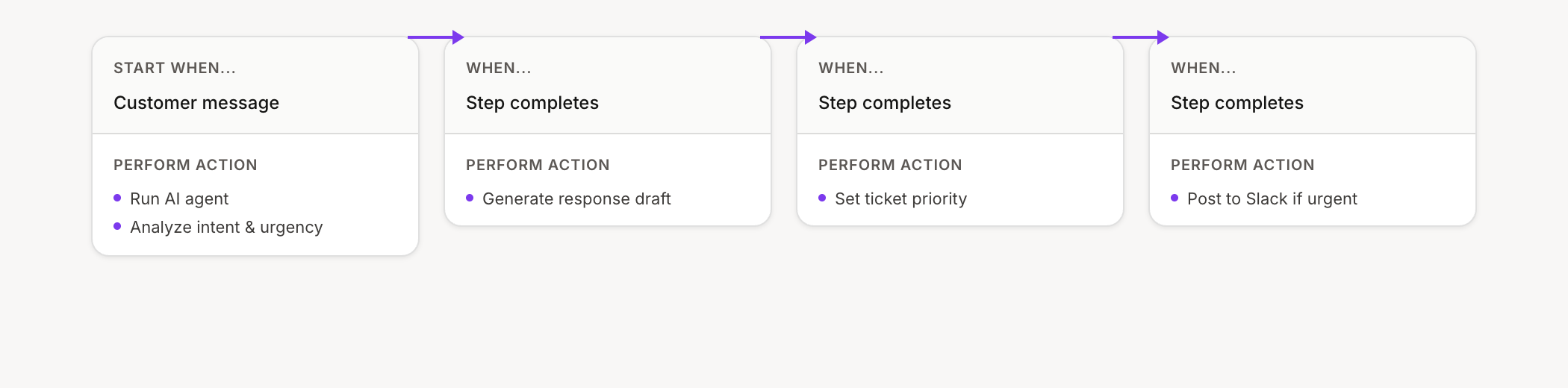
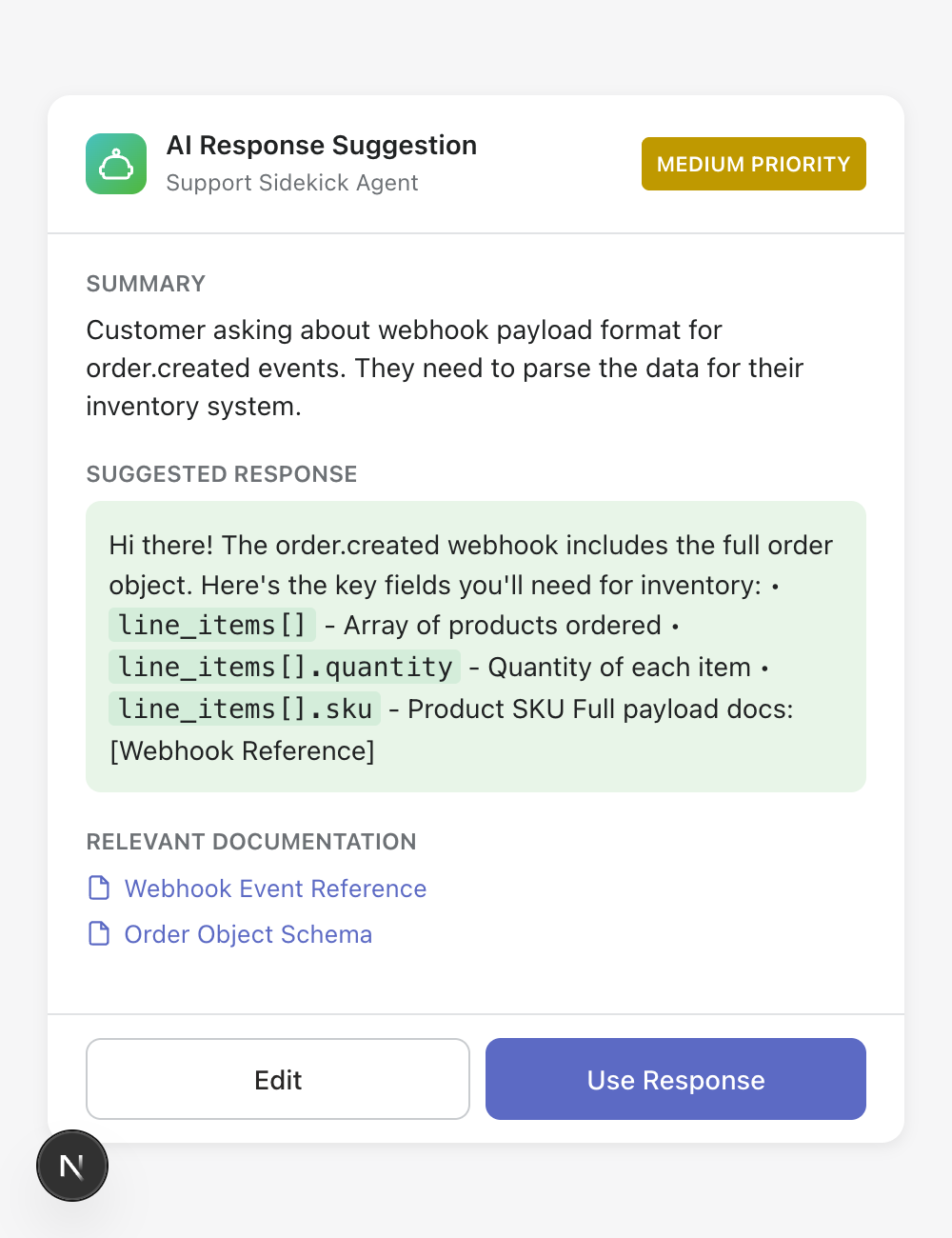
Smart response suggestion — Analyze tickets, gather context, search docs, and create response suggestions for your team.
Trigger: Customer message received
AI instructions: "Analyze this ticket. Look up the customer's account, search our docs for relevant articles, and draft a helpful response. Also assess priority (high/medium/low) based on urgency."
Then: Create response suggestion → Set ticket priority → Post to #support-queue
Flow configuration:
Example output:
Content writer agent
Keep your documentation up to date. The agent can write new docs, update existing ones, and identify gaps based on what your customers are actually asking about.
Tools to enable:
Get app documentation repositories
Get app documentation tree
Get app documentation page
Search app documentation
Create app documentation page
Update app documentation page
Create app documentation group
Create FAQ
Update FAQ
Chat example
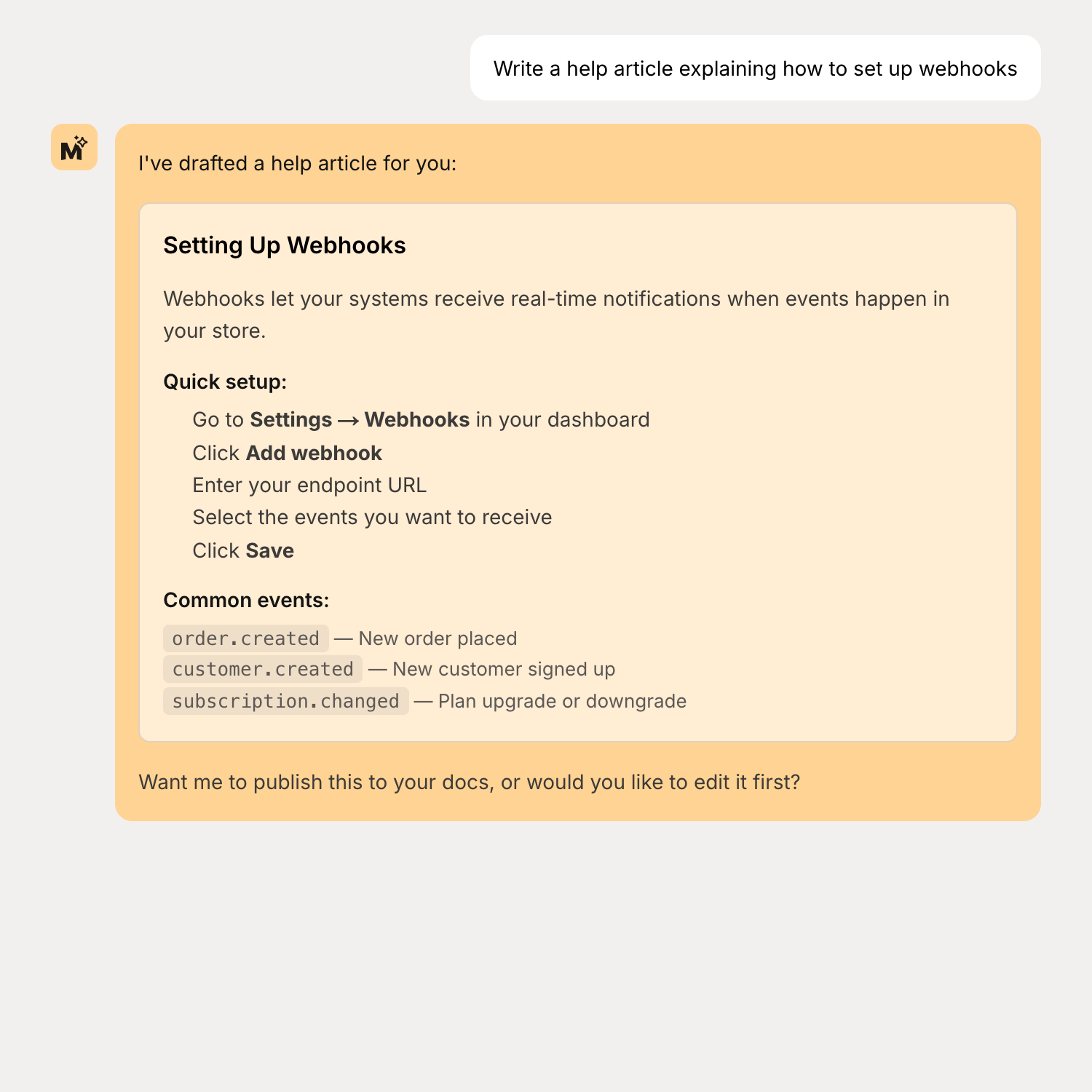
Write and update documentation through conversation:
"Write a help article explaining how to set up webhooks"
"Update the billing FAQ to include our new annual discount"
"What questions are customers asking that we don't have docs for?"
Simple flow
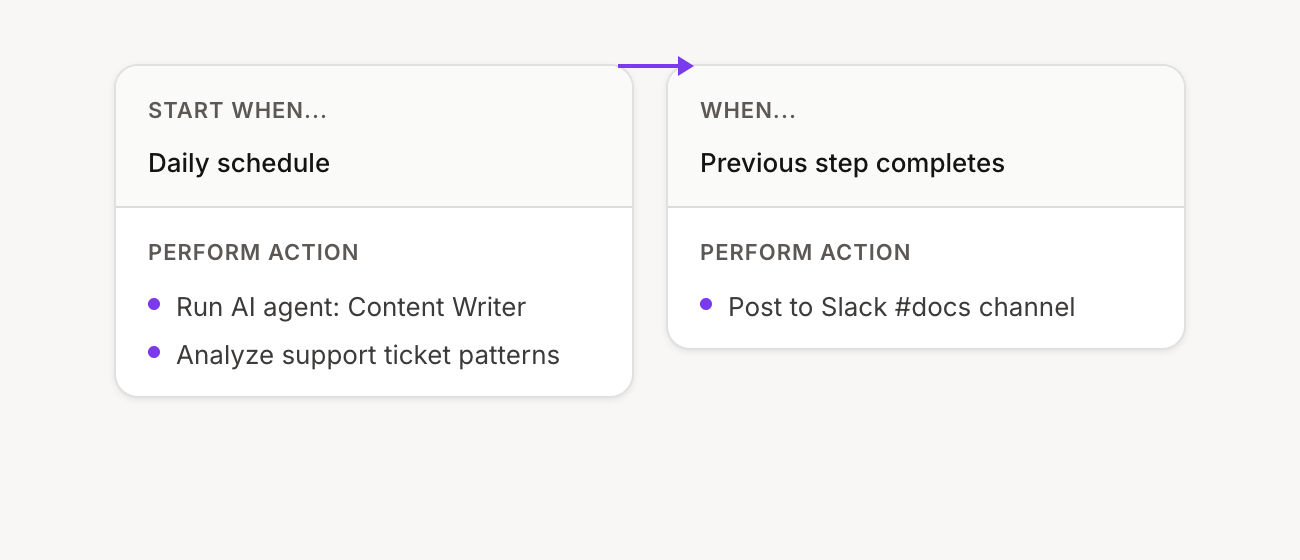
Daily docs gap report — Analyze recent support tickets and send a summary of documentation gaps.
Trigger: Daily schedule
AI instructions: "Review support tickets from the last 24 hours. Identify questions that our documentation doesn't answer well. List the top 3 gaps with suggestions for new articles."
Then: Post the report to Slack (#docs-team)
Flow configuration:
Advanced flow
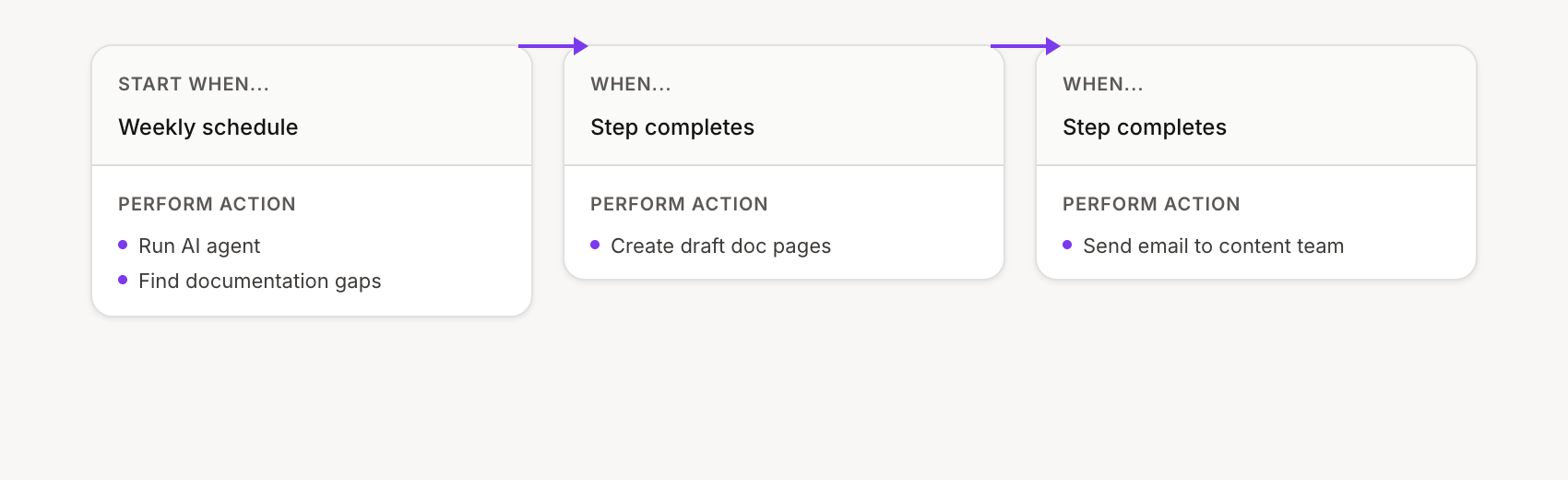
Auto-draft from support patterns — Review weekly tickets, identify top issues, and draft help articles for review.
Trigger: Weekly schedule (Friday)
AI instructions: "Analyze this week's support tickets. Find the top 3 recurring issues that need documentation. For each, draft a help article with clear steps to resolve the issue."
Then: Create draft docs → Send email summary with what was created
Flow configuration:
Marketing specialist agent
Connect your customer data to your marketing tools. Find audiences, draft campaigns, and analyze what's working.
Tools to enable:
Get apps
Search customers
Get customer
Traffic sources (metrics)
Funnel metrics
Email performance (metrics)
Get flows
Create flow
Chat example
Get marketing insights and draft campaigns:
"Draft a win-back email for customers who churned in the last 60 days"
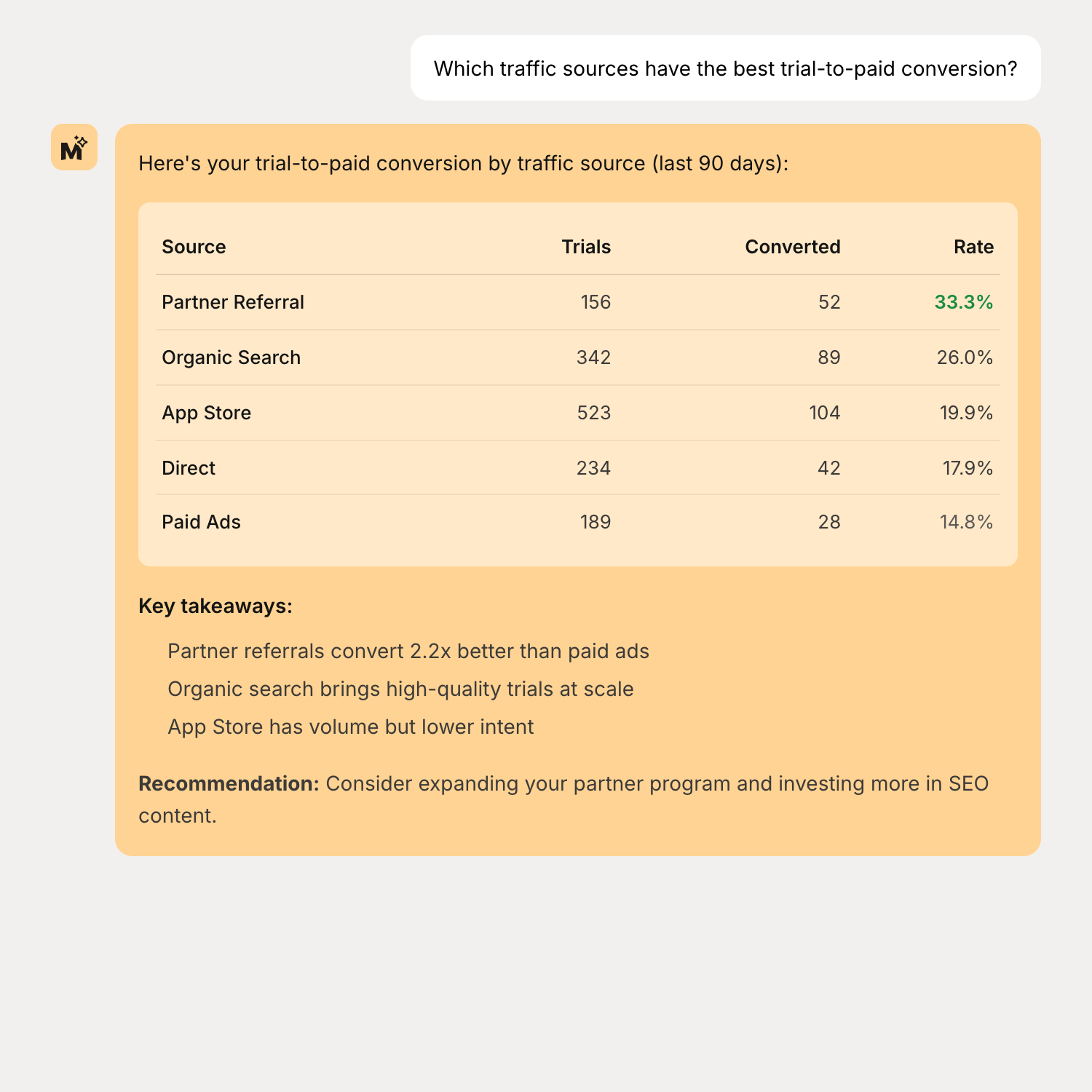
"Which traffic sources have the best trial-to-paid conversion?"
"Find customers who would be good candidates for a case study"
Simple flow
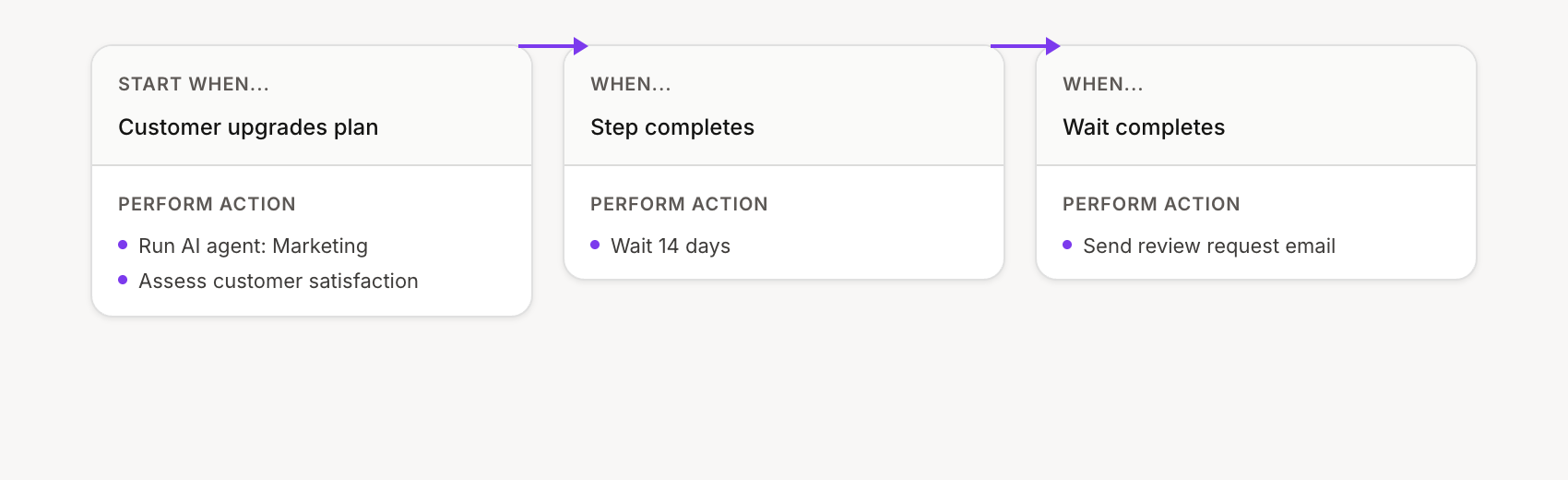
Review request after upgrade — Send a personalized review request to happy customers.
Trigger: Customer upgraded plan
AI instructions: "This customer just upgraded. Look at their usage and draft a short, personalized review request email. Mention specific features they've been using."
Then: Wait 14 days → Send the email
Flow configuration:
Advanced flow
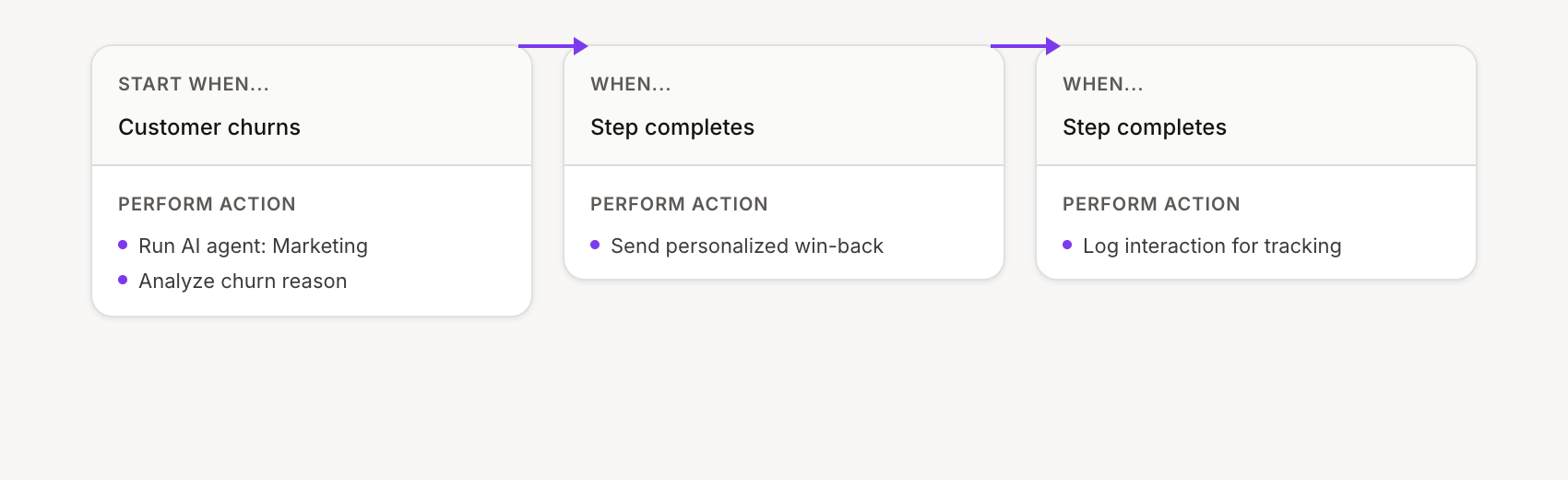
Smart win-back campaign — Analyze why customers churned and create personalized outreach based on the reason.
Trigger: Customer churned
AI instructions: "Analyze why this customer churned. Check their usage history, support tickets, and subscription details. Categorize the reason (price, feature gap, support issue, competitor) and draft a personalized win-back email with an appropriate offer."
Then: Send personalized email → Log campaign interaction
Flow configuration:
Product manager agent
Understand how your product is being used, identify growth opportunities, and spot trends before they become problems.
Tools to enable:
Get apps
Search customers
Get customer
Activity metrics
Funnel metrics
Trial metrics
Usage events (metrics)
Usage metrics
Churn metrics
Retention metrics
Chat example
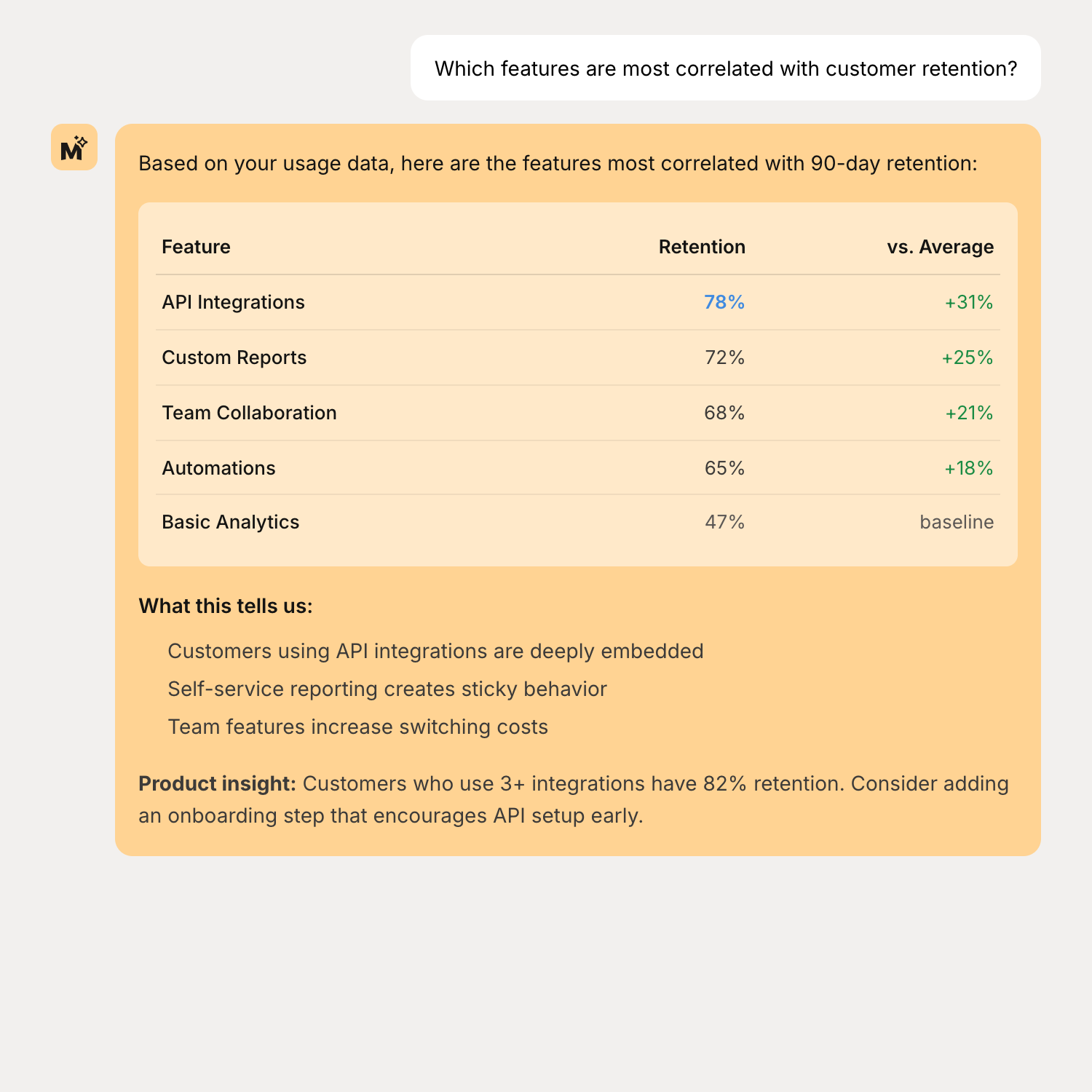
Get instant insights into feature usage and customer behavior:
"Which features are most correlated with customer retention?"
"Show me usage trends for our API over the last 3 months"
"What's driving our trial-to-paid conversion rate changes?"
Simple flow
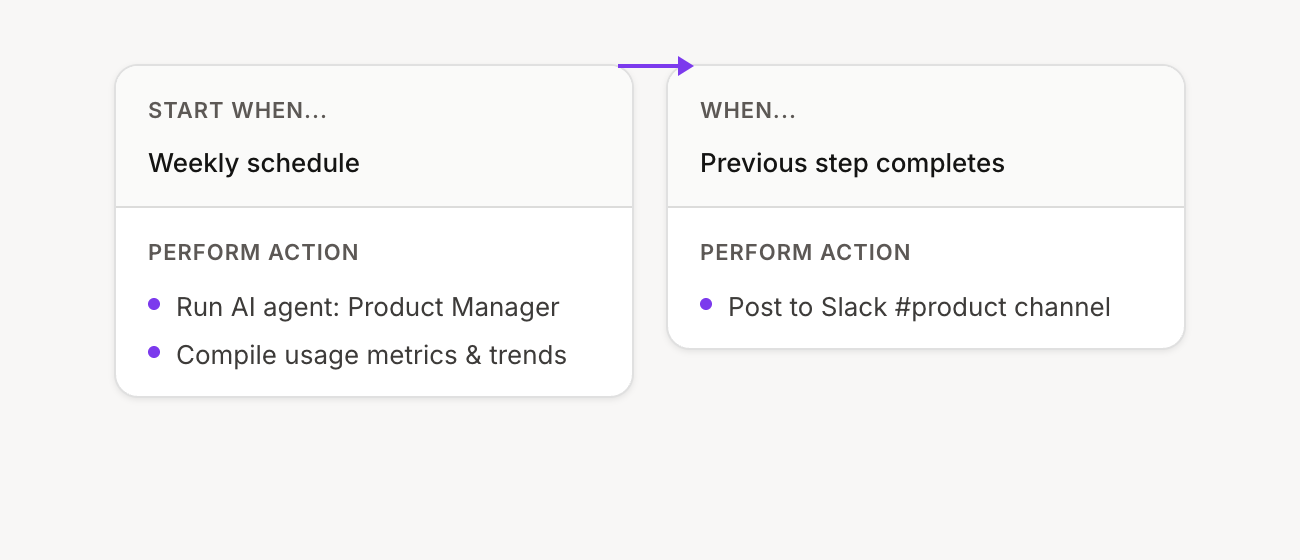
Weekly metrics digest — Compile key product metrics and send a Monday morning summary.
Trigger: Weekly schedule (Monday 9am)
AI instructions: "Generate a weekly product metrics digest. Include: active users, trial conversions, top features by usage, and any concerning trends. Keep it brief and actionable."
Then: Post to Slack (#product-team)
Flow configuration:
Advanced flow
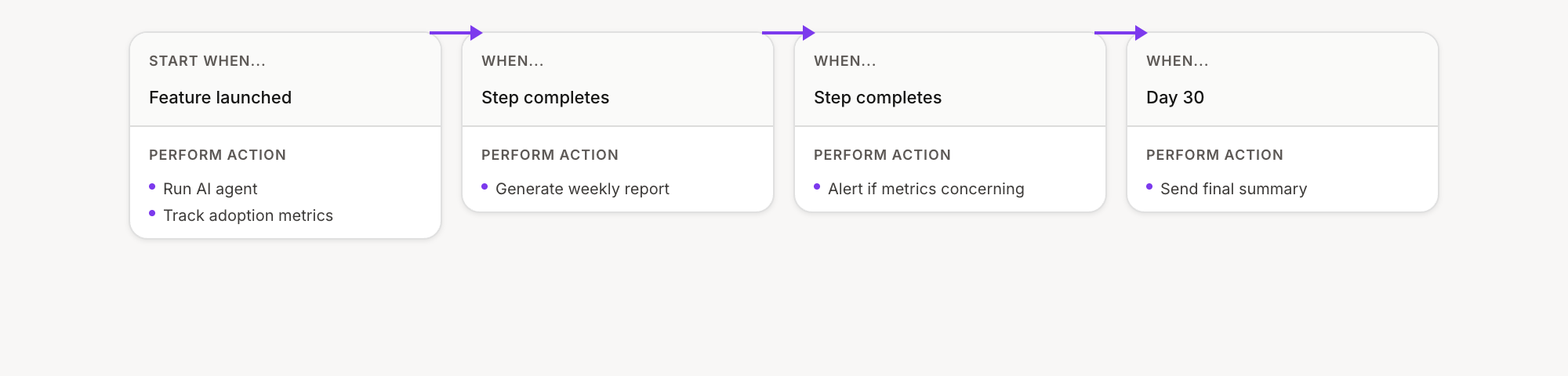
Feature launch tracker — Track new feature adoption over 30 days with weekly reports and trend alerts.
Trigger: Custom event (feature launched)
AI instructions: "Track adoption of this new feature. Compare usage to our baseline for similar features. Flag if adoption is below 20% after week 1, or trending down. Generate a weekly adoption report."
Then: Weekly report → Alert if concerning trends → Day 30 impact summary
Flow configuration:
Revenue operations agent
Analyze revenue performance, track subscription health, and identify risks and opportunities.
Tools to enable:
Get apps
Search customers
Get customer
Get subscriptions
Get transactions
MRR metrics
Subscription metrics
Revenue metrics
Churn metrics
Retention metrics
Chat example
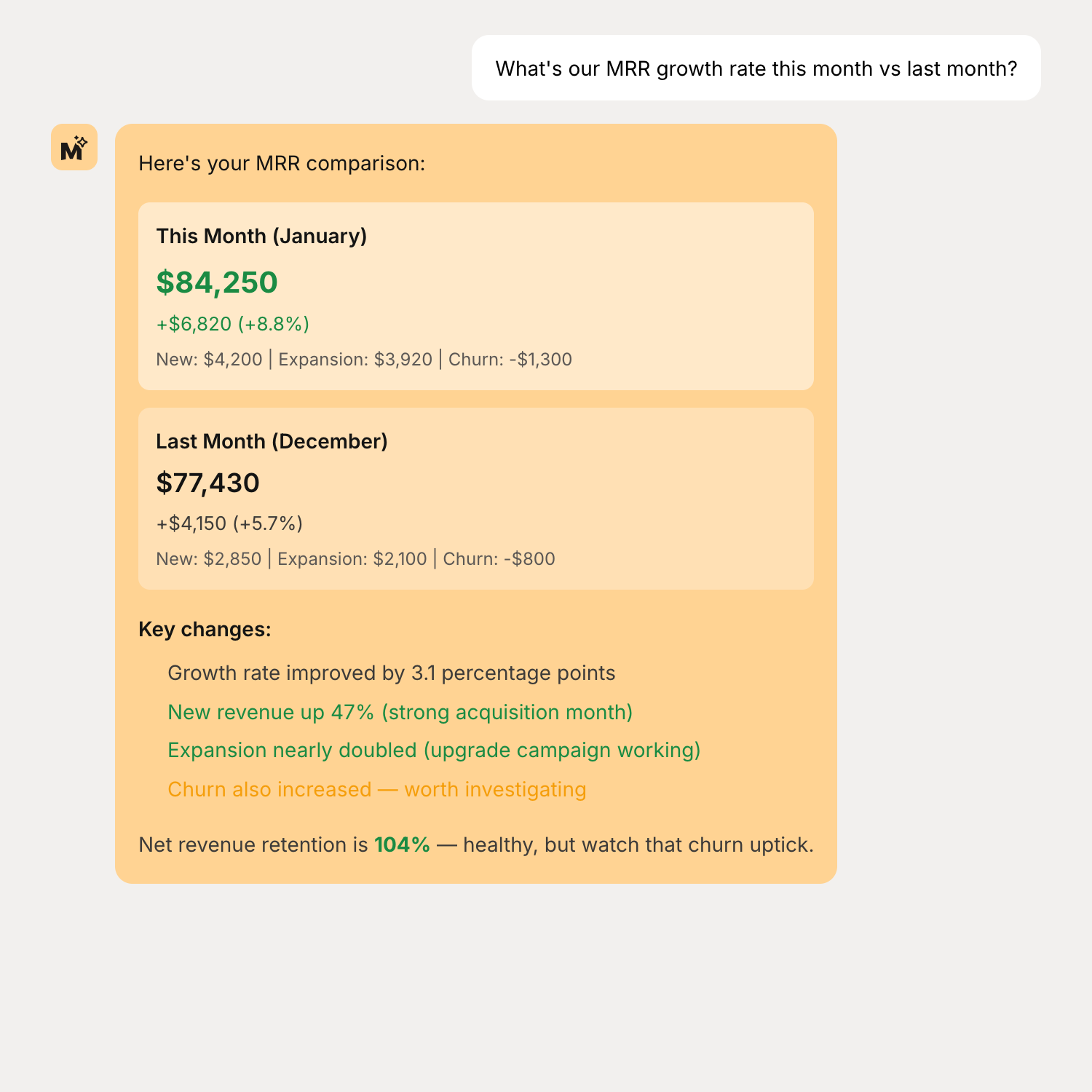
Get instant revenue visibility:
"What's our MRR growth rate this month vs last month?"
"Show me our revenue churn by plan tier"
"What's our net revenue retention for the last quarter?"
Simple flow
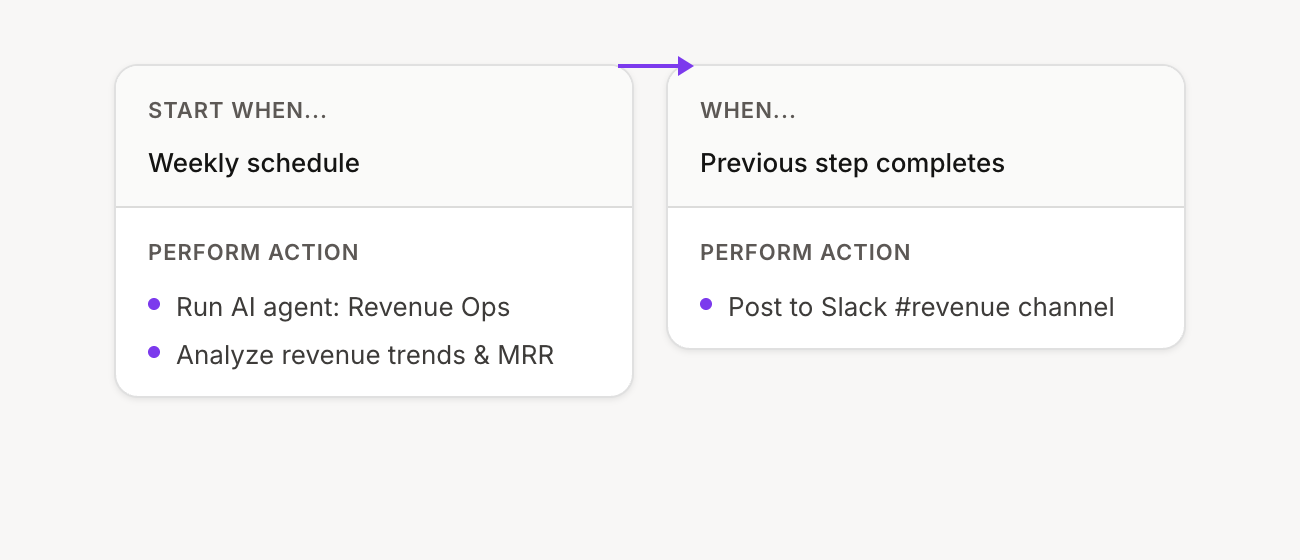
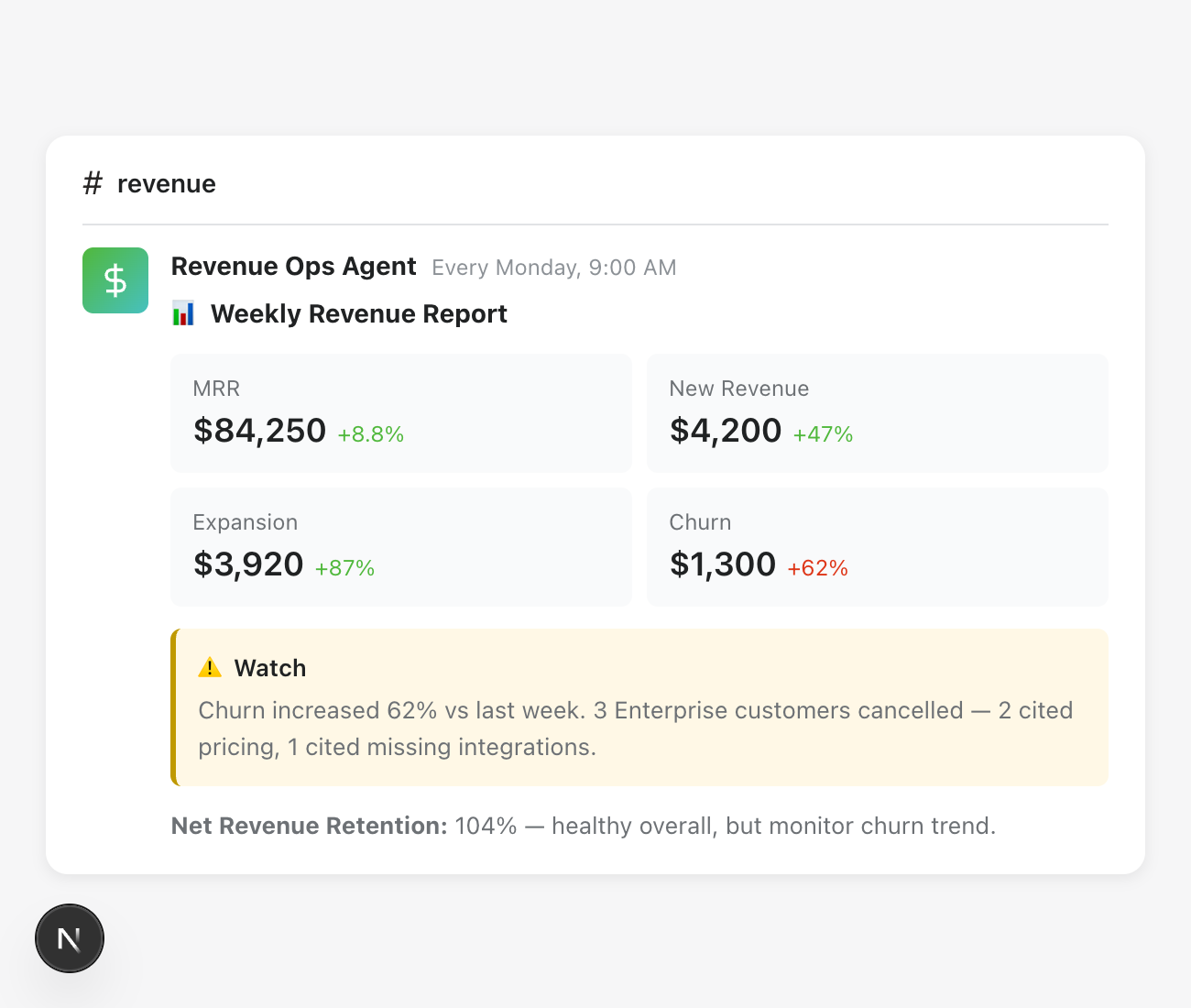
Weekly revenue report — Send a summary of key metrics every Monday morning.
Trigger: Weekly schedule (Monday 9am)
AI instructions: "Generate a weekly revenue report. Include: MRR, MRR growth, churn rate, new subscriptions, and upgrades/downgrades. Highlight any significant changes from last week."
Then: Post to Slack (#revenue)
Flow configuration:
Example output:
Advanced flow
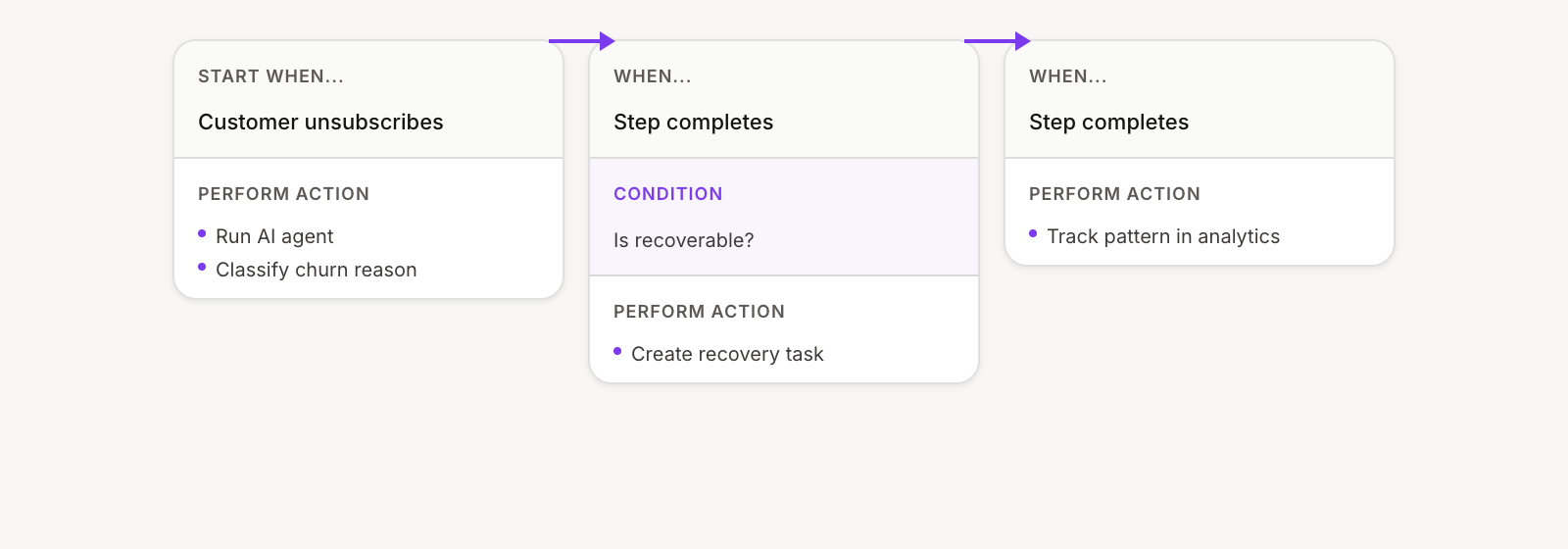
Churn prevention pipeline — Analyze why customers cancelled and automatically create save offers for recoverable situations.
Trigger: Customer unsubscribed
AI instructions: "Analyze this cancellation. Review their usage history, support interactions, and subscription details. Determine if this is recoverable (yes/no) and why. If recoverable, suggest a specific save offer."
Then: If recoverable → Create task with save offer → Track patterns monthly
Flow configuration:
Affiliate manager agent
Manage your affiliate program without jumping between screens.
Tools to enable:
Get apps
Search affiliates
Get affiliate details
Get affiliate programs
Get affiliate program details
Search referrals
List affiliate payouts
Affiliate metrics
Affiliate performance (metrics)
Chat example
Get instant affiliate program visibility:
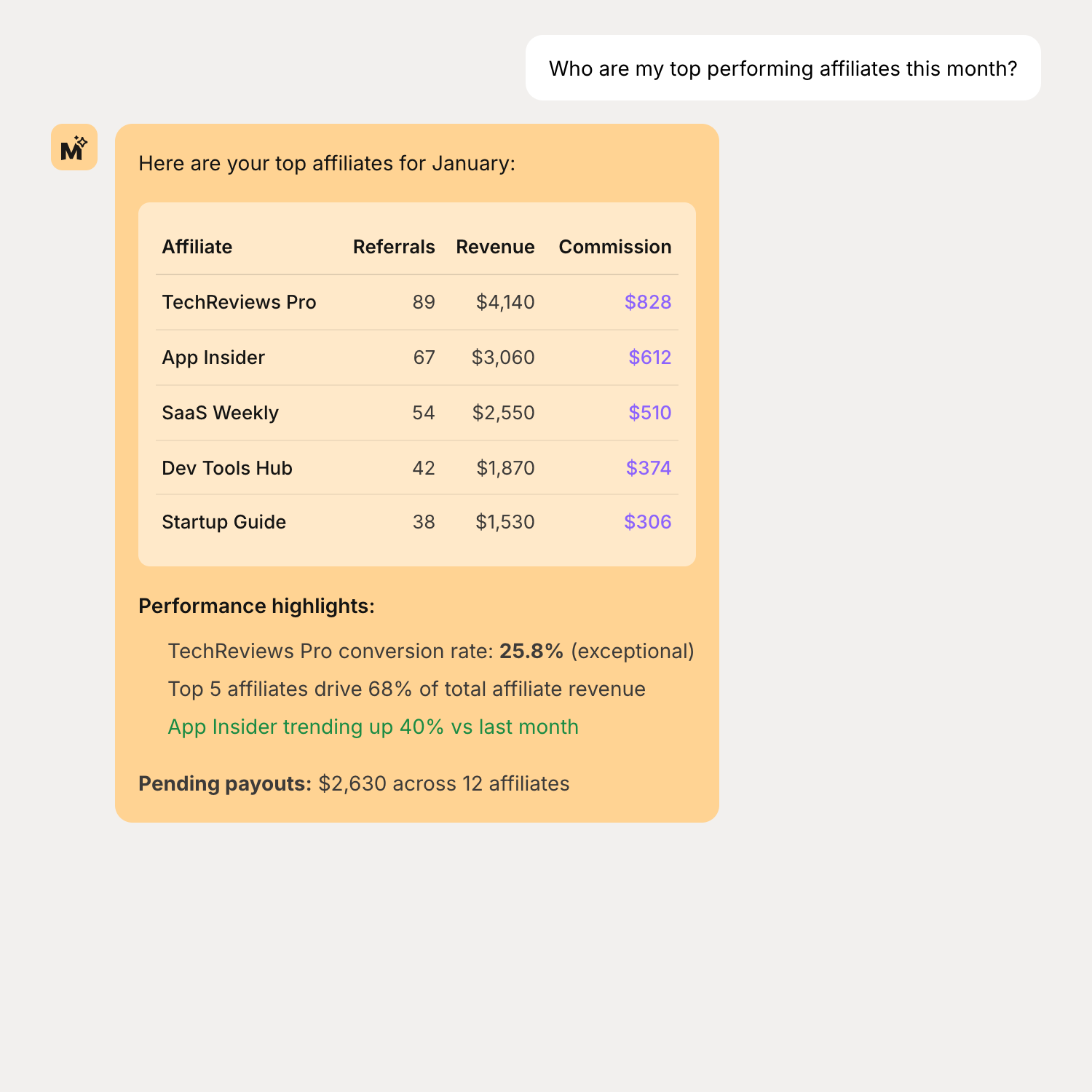
"Who are my top performing affiliates this month?"
"Show me pending commission payouts"
"What's the average LTV of customers referred by affiliates vs organic?"
Simple flow
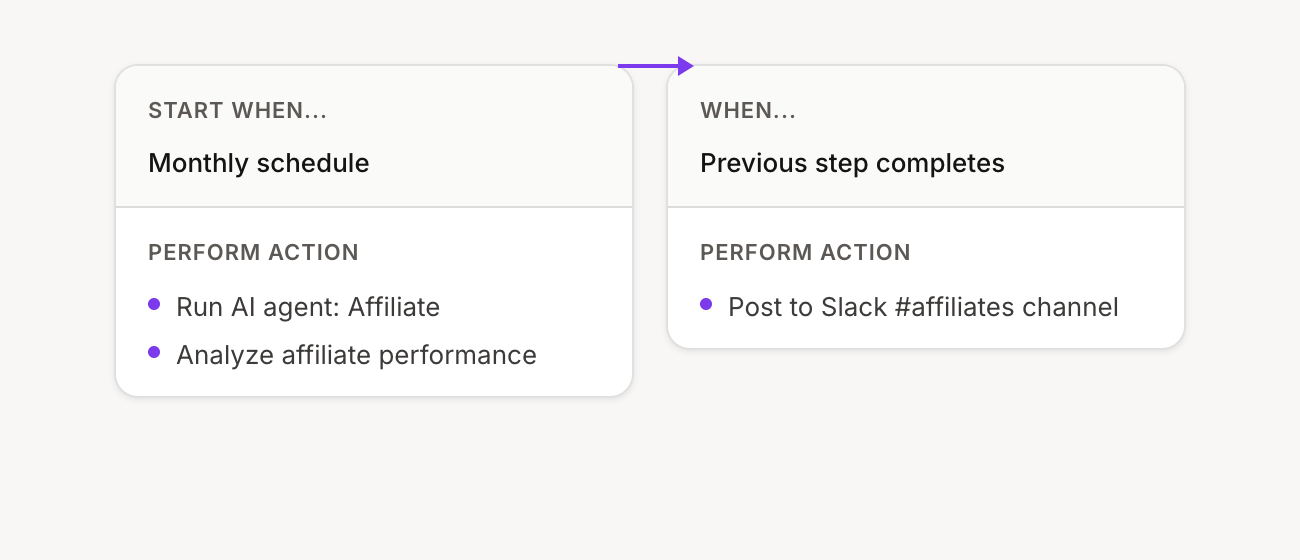
Monthly performance report — Compile last month's affiliate stats and send to your team.
Trigger: Monthly schedule (1st of month)
AI instructions: "Generate a monthly affiliate report. Include: total referrals, conversions, commissions earned, top 5 affiliates, and any affiliates trending up or down."
Then: Post to Slack (#partnerships)
Flow configuration:
Advanced flow
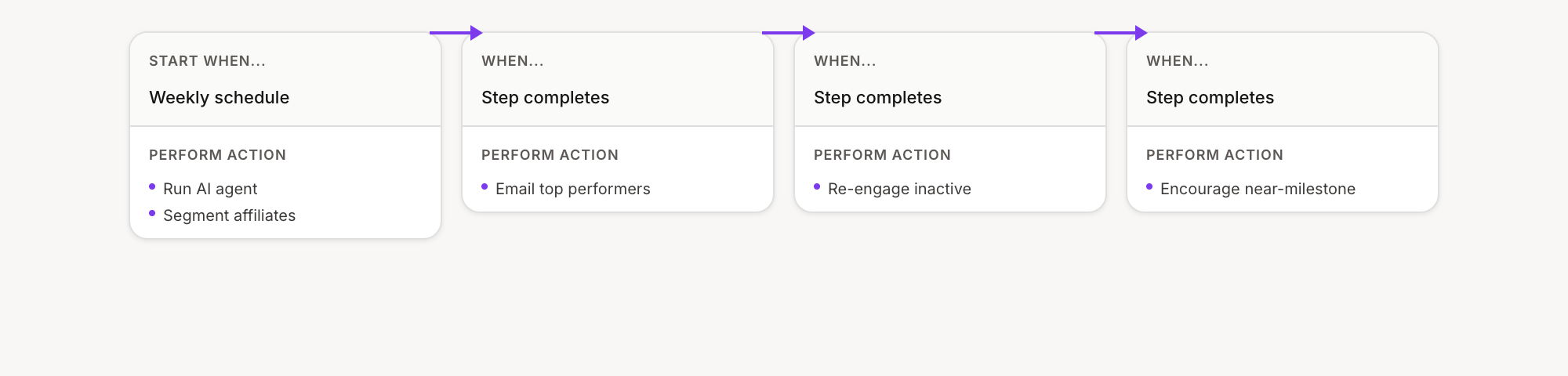
Affiliate engagement program — Automatically engage affiliates based on their performance tier.
Trigger: Weekly schedule
AI instructions: "Review affiliate performance this week. Identify: top performers (5+ conversions), inactive affiliates (no activity in 30 days), and near-milestone affiliates (close to a bonus tier). Draft appropriate messages for each group."
Then: Send thank-you to top performers → Re-engagement to inactive → Encouragement to near-milestone
Flow configuration:
Sales pipeline agent
Manage your sales pipeline, track deals, and stay on top of follow-ups.
Tools to enable:
Get apps
Get deal flows
Get deal activities
Get deals
Create deal
Update deal
Update deal stage
Log deal activity
Get tasks
Create task
Chat example
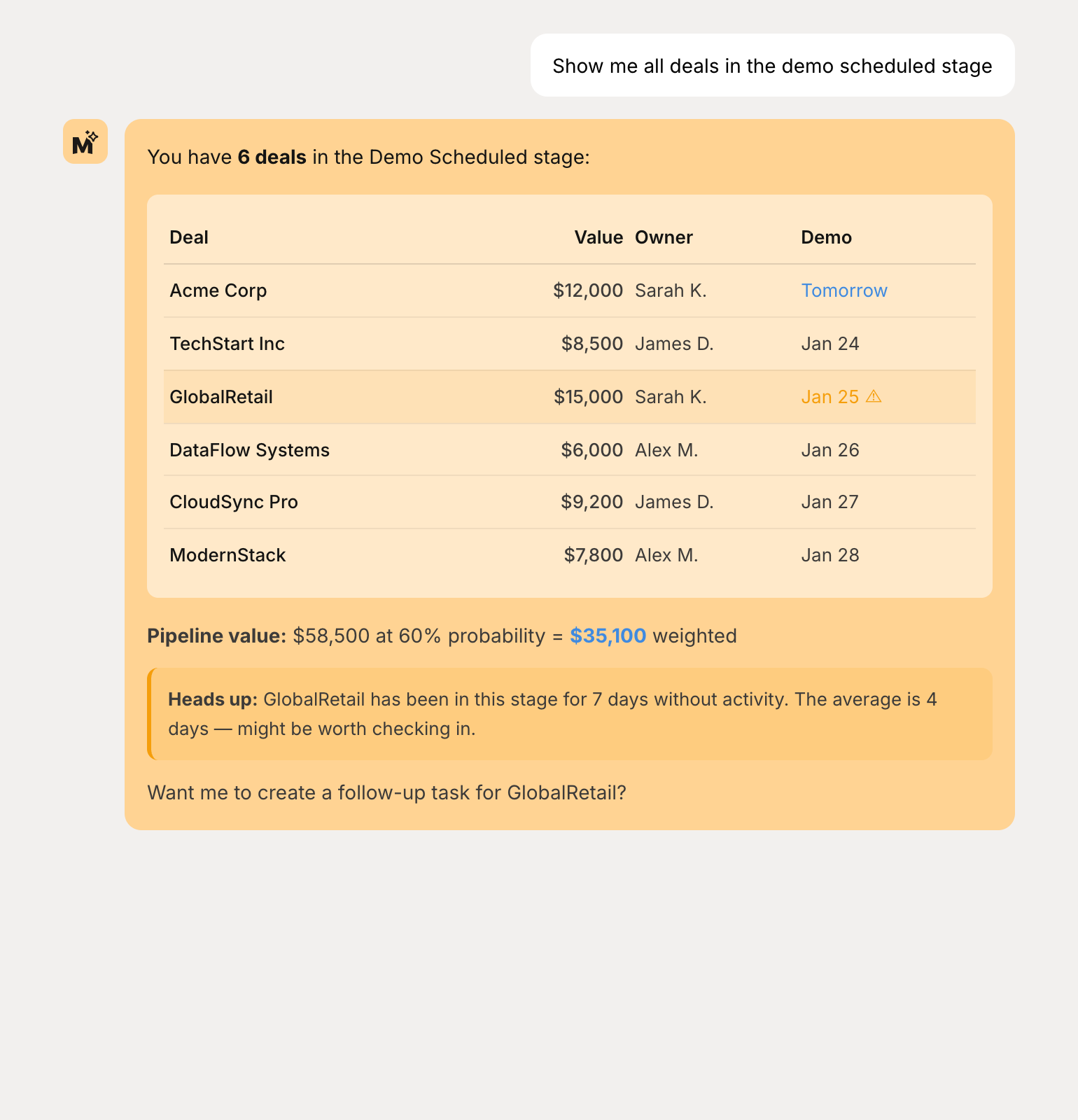
Manage your pipeline without leaving your workflow:
"Show me all deals in the demo scheduled stage"
"What deals are expected to close this month?"
"Log a demo completed activity for the Acme Corp deal"
Simple flow
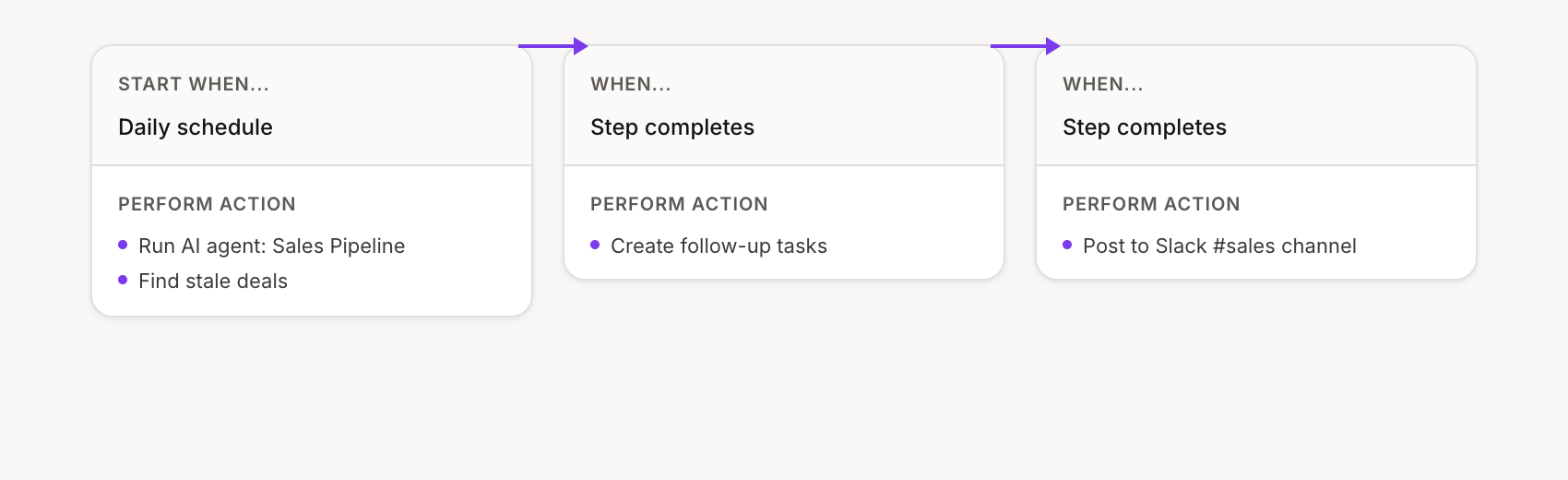
Stale deal alerts — Find deals with no recent activity and create follow-up tasks.
Trigger: Daily schedule
AI instructions: "Find deals with no activity in the last 7 days that aren't closed. For each, suggest a specific follow-up action based on the deal stage."
Then: Create follow-up tasks → Post summary to Slack (#sales)
Flow configuration:
Advanced flow
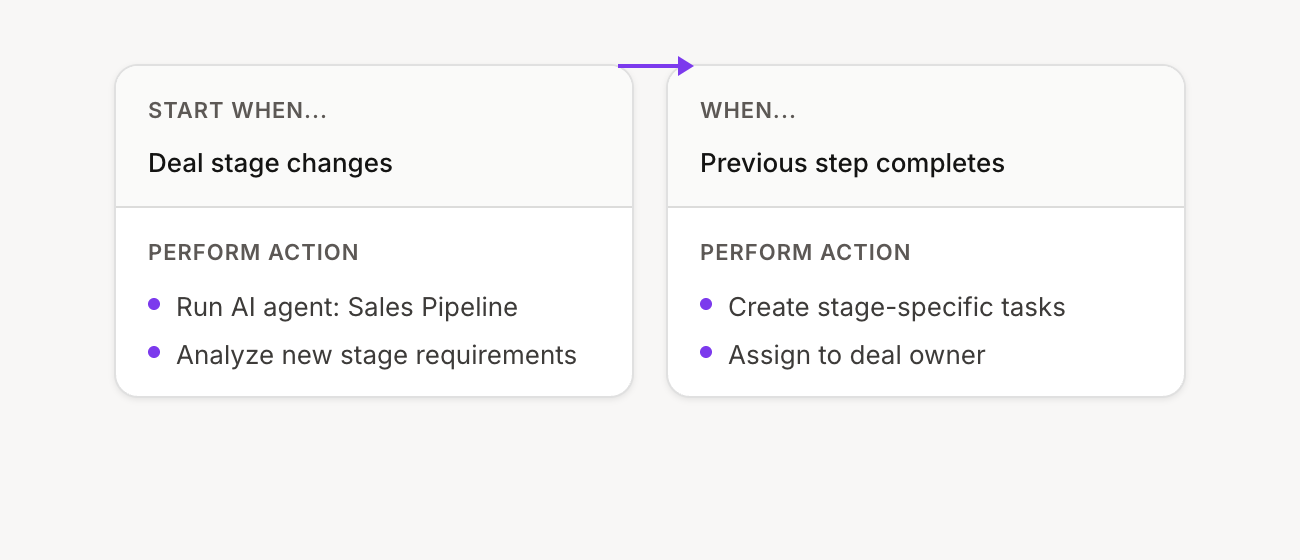
Deal progression automation — Automatically set up next steps when deals move stages.
Trigger: Deal stage changed
AI instructions: "A deal just moved to {{new_stage}}. Based on this stage, create the appropriate follow-up tasks. Demo scheduled: create prep task with research on the prospect. Proposal sent: create follow-up reminders. Won: trigger onboarding checklist."
Then: Create stage-specific tasks
Flow configuration:
These are starting points—your agents can do much more. Start with the use case closest to your daily work and expand from there.
Create your own agent — Build a custom agent tailored to your needs
Agent flows and triggers — Learn how to set up automated flows