
Managing your pipeline
The pipeline view is where you'll spend most of your time in Mantle Sales. It gives you a visual overview of all your deals organized by stage, so you can see exactly where every opportunity stands.
The pipeline board
Your pipeline is displayed as a Kanban-style board with columns for each stage. Each deal appears as a card that you can drag between columns to update its status.
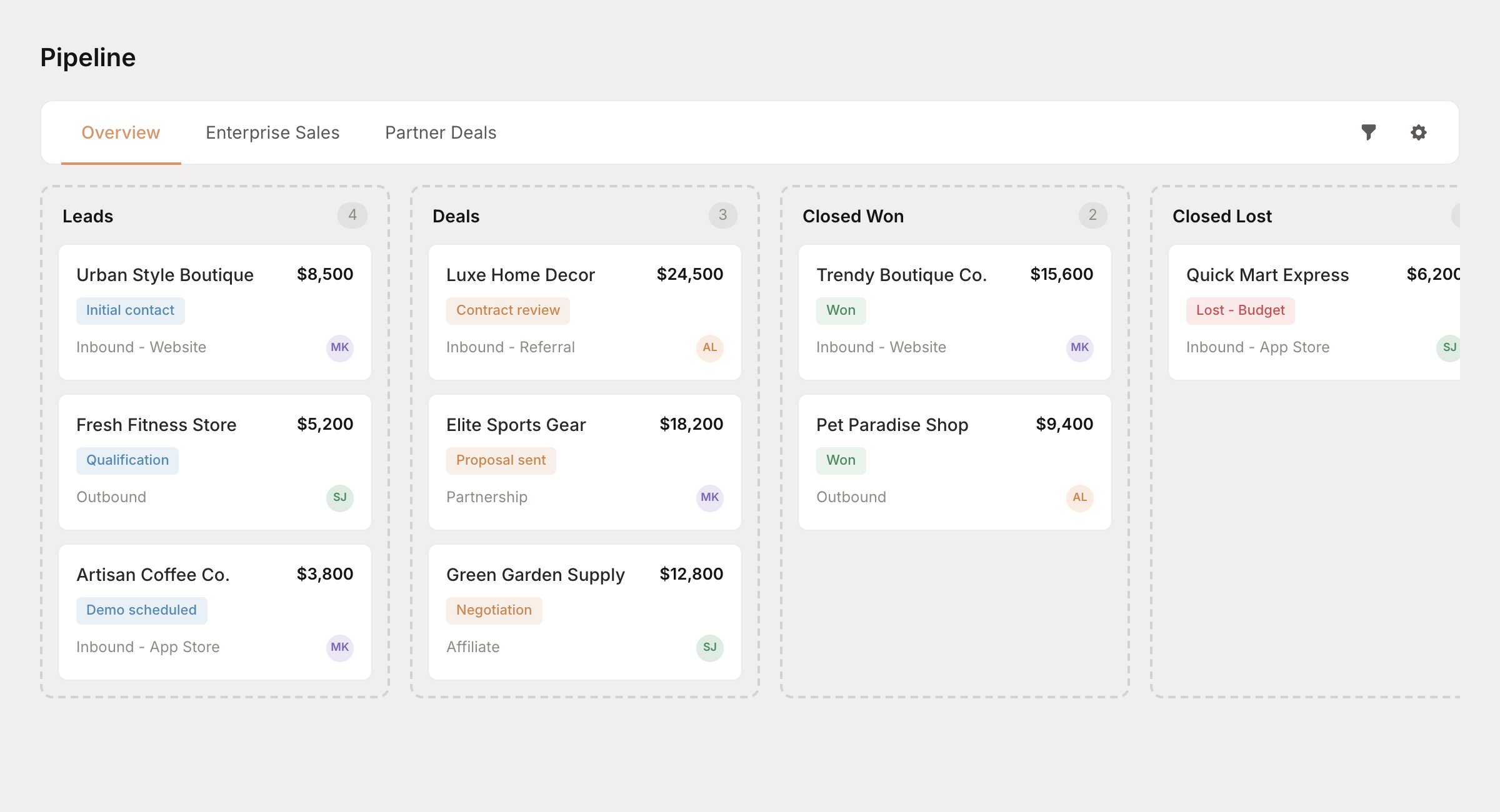
Pipeline views
The pipeline has two view modes:
- Overview - Shows all deals across all deal flows, grouped by standard lifecycle stages (Lead, Deal, Closed Won, etc.)
- Deal flow view - Shows deals for a specific deal flow, grouped by the custom stages you have defined
Switch between views using the tabs at the top of the pipeline. Each deal flow you create appears as its own tab.
Moving deals between stages
To move a deal to a different stage, simply drag its card and drop it in the new column. When you move a deal:
- The stage change is recorded in the deal timeline
- Any stage-based automation triggers run automatically
- Pipeline metrics update in real-time
Filtering your pipeline
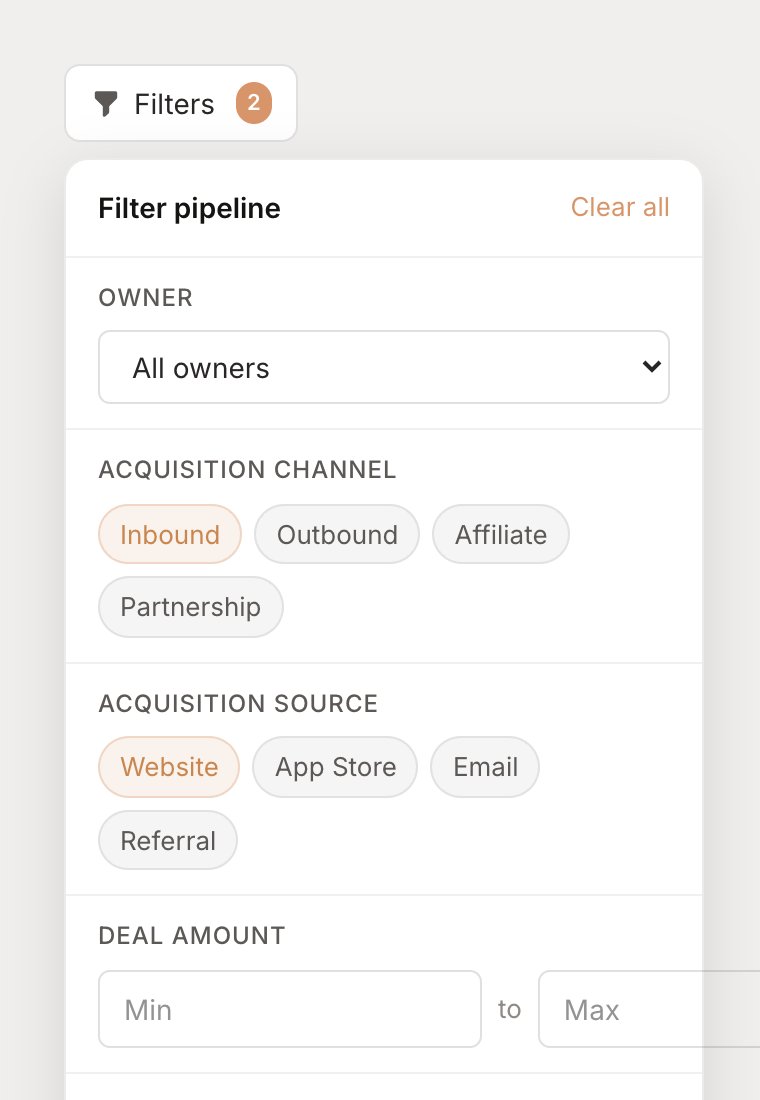
Use filters to focus on specific deals. Click the filter icon in the toolbar to open the filter panel.
| Filter | Description |
|---|---|
| Owner | Show deals assigned to a specific team member |
| Acquisition channel | Filter by how deals were acquired (inbound, outbound, affiliate, partnership) |
| Acquisition source | Filter by specific source (website, app store, email, referral) |
| Deal amount | Set minimum and maximum deal values |
| Include archived | Show archived deals in the pipeline |
| Missing data | Find deals that are missing key information |
Active filters show a badge on the filter button so you know when filters are applied.
View settings
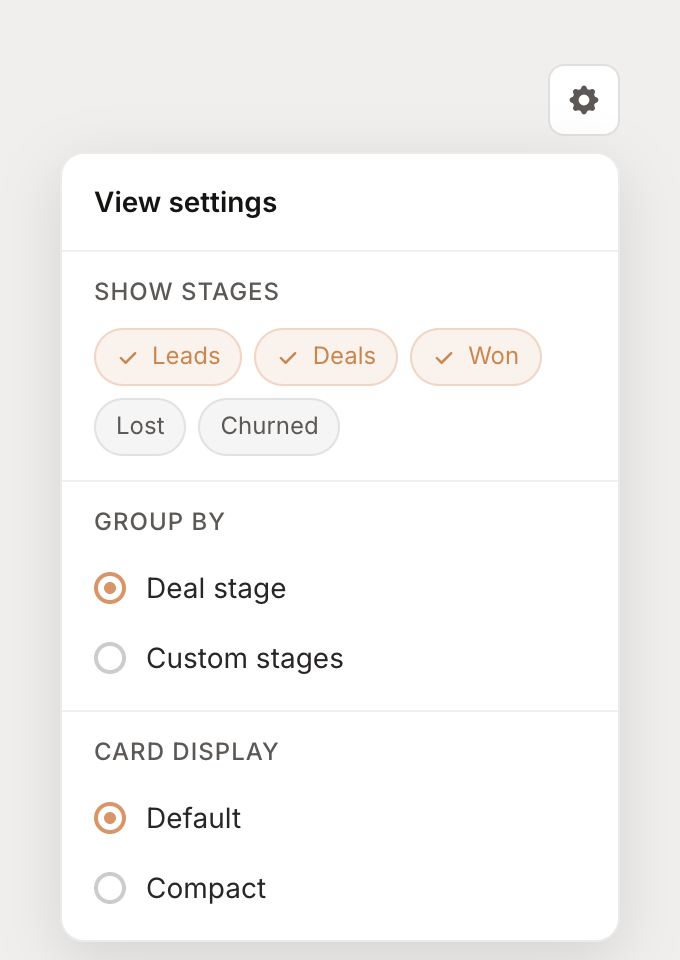
Click the settings icon to customize your pipeline view.
Show/hide stages
Choose which stages appear in your pipeline. This is useful when you want to focus on active opportunities and hide closed or churned deals.
Group by
When viewing a specific deal flow, you can group deals by:
- Deal stage - Standard lifecycle stages (Lead, Deal, Closed Won, etc.)
- Custom stages - The specific stages defined in your deal flow
Card display
Choose between:
- Default - Shows full deal information including customer name, deal value, and owner
- Compact - Condensed view showing just the essentials, useful when you have many deals
Working with deal cards
Each deal card shows key information at a glance.
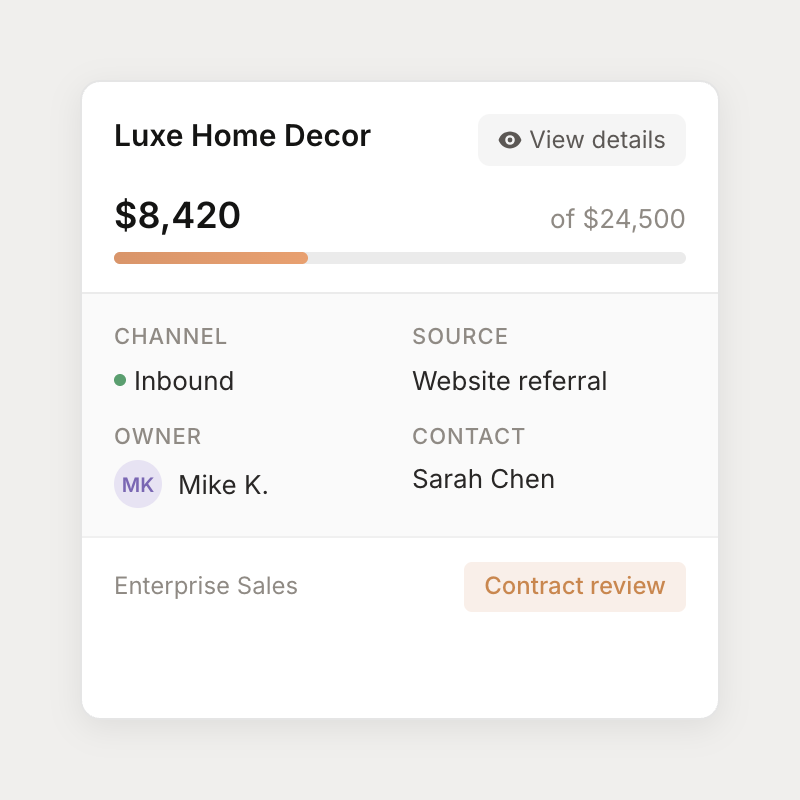
The card displays:
- Customer name - Click to open the customer profile in a new tab
- Progress bar - Shows current revenue vs. deal value with color-coded status
- Channel and source - How the deal was acquired
- Owner - The team member responsible for the deal
- Contact - Primary contact for the deal
- Deal flow and stage - Which process and step the deal is in
Click on any deal card to open the deal details modal where you can edit properties, view the timeline, add notes, and update custom fields.
Pipeline analytics
The sales dashboard shows key pipeline metrics at a glance:
| Metric | Description |
|---|---|
| Attributed revenue | Total revenue from closed-won deals |
| Active deals | Number of deals currently in the pipeline |
| Active deal value | Total value of all active deals |
| Lifetime avg. deal | Average deal size across all closed deals |
| Lifetime win rate | Percentage of deals that close successfully |
The dashboard includes charts for weighted pipeline value, deal distribution by stage, closed deals over time, and performance by acquisition channel.
Next steps
- Working with deals - Learn how to create and manage individual deals
- Creating deal flows - Set up custom sales processes