
Service Level Agreements (SLAs)
Service Level Agreements (SLAs) help you track and maintain response time commitments to your customers. Mantle tracks three key metrics for each ticket:
- First Response - Time until your team sends the first reply
- Resolution - Total time from ticket creation to resolution
- Reply Time - Time to respond to each customer message (tracked per message)
SLAs appear throughout the helpdesk—on individual tickets showing real-time status, and in reports showing historical performance and compliance trends.
SLA Status on Tickets
Every ticket with an applicable SLA policy displays its current status. You'll see this information in ticket lists and on the ticket detail view.
SLA Badge
In ticket lists, a compact badge shows the most critical SLA metric at a glance. The badge prioritizes showing:
- Breached metrics (red) - Any SLA that has already been violated
- Pending metrics (countdown) - Time remaining until the next deadline
- All met (green) - When all metrics have been satisfied
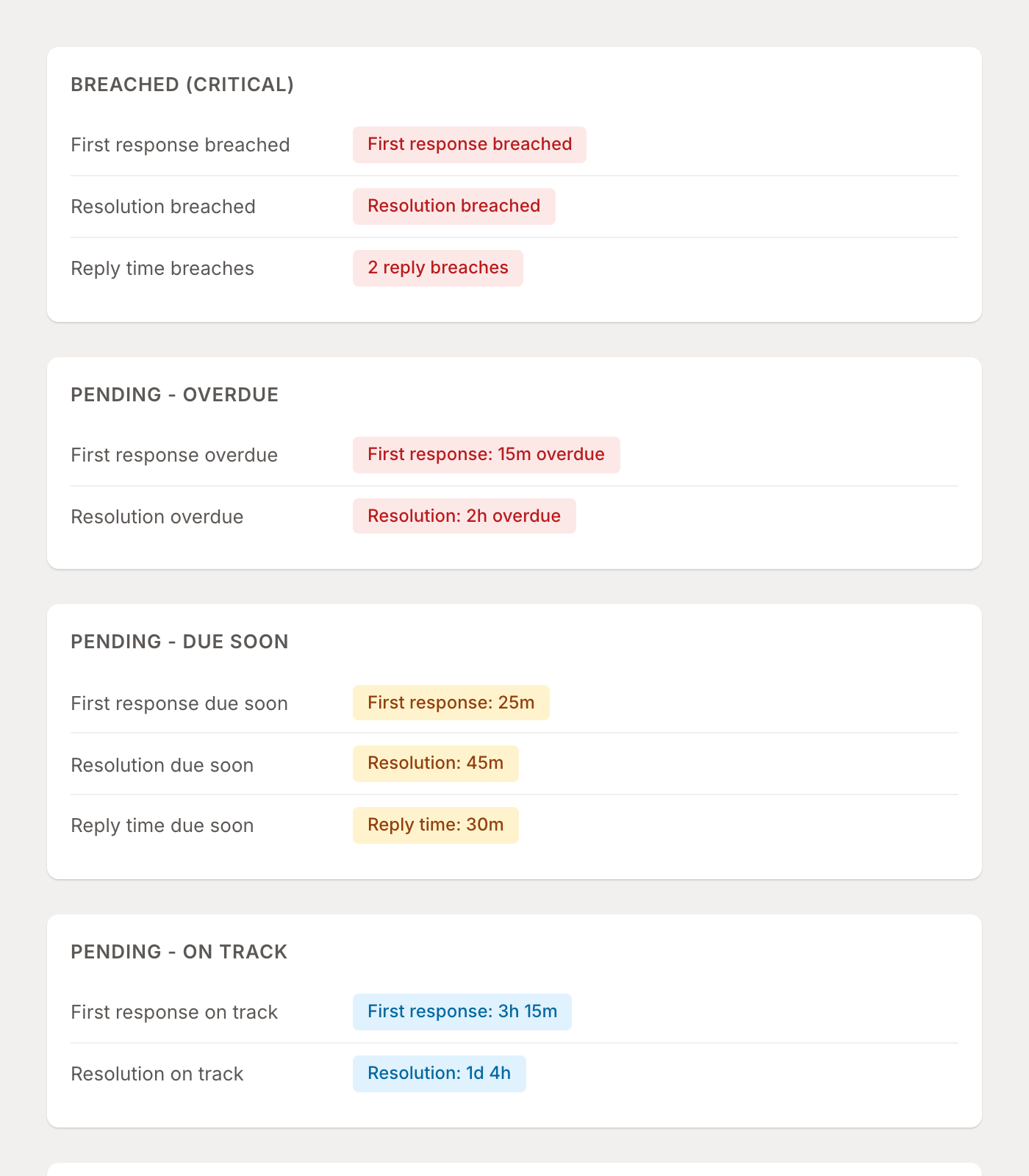
The badge color indicates urgency:
| Color | Meaning |
|---|---|
| Red (Critical) | SLA is breached or overdue |
| Orange (Warning) | Due within the next hour—needs attention soon |
| Blue (Info) | On track with time remaining |
| Green (Success) | All SLA metrics have been met |
SLA Detail Card
Click on a ticket to see the full SLA breakdown. The SLA card shows all applicable policies and the status of each metric.
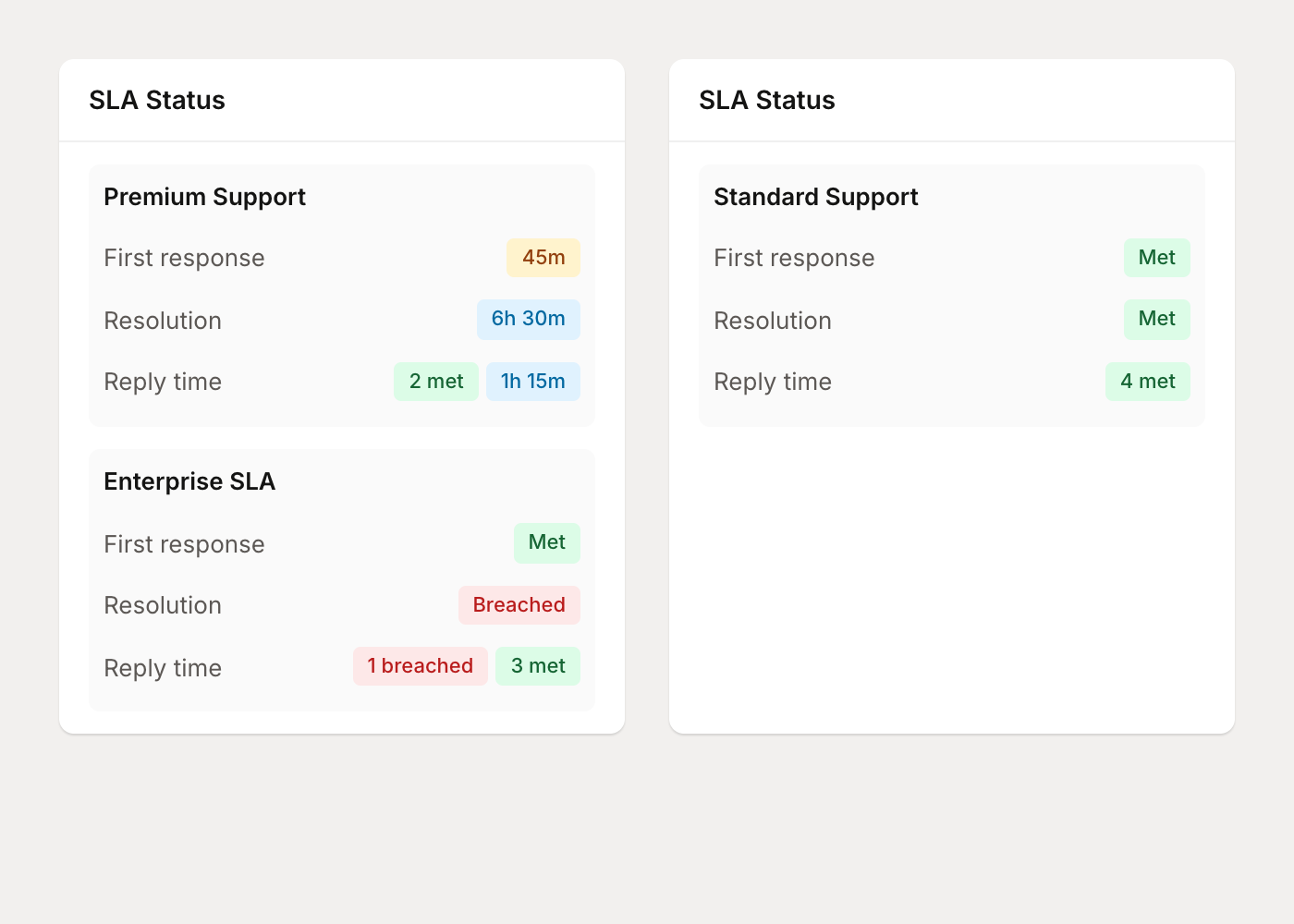
When multiple SLA policies apply to a ticket (for example, a general support SLA and a premium customer SLA), they're sorted by urgency with the most critical policy shown first.
SLA Reporting
Mantle provides two reports for monitoring SLA performance: the Support Operations report for real-time queue health, and the SLA Compliance report for historical analysis.
Support Operations Report
The Support Operations report (Reports → Support Operations) gives you a real-time view of your current queue health and at-risk tickets.
Queue Health
Four cards at the top show your current SLA status:
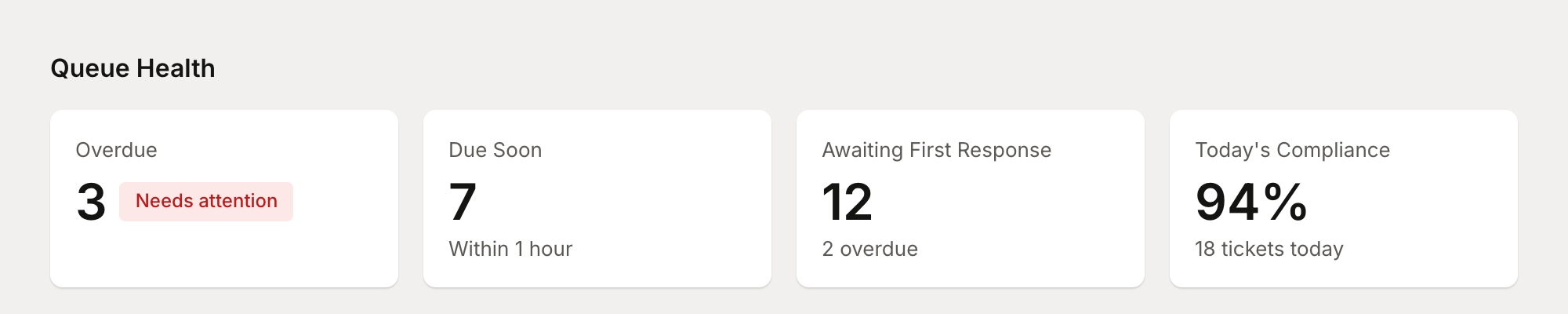
- Overdue - Tickets with at least one SLA metric past its deadline
- Due Soon - Tickets with an SLA deadline within the next hour
- Awaiting First Response - Open tickets that haven't received a first reply
- Today's Compliance - Percentage of today's tickets meeting SLA targets
At-Risk Tickets
Below the queue health cards, you'll find a table of tickets sorted by urgency. This helps your team prioritize which tickets need immediate attention.
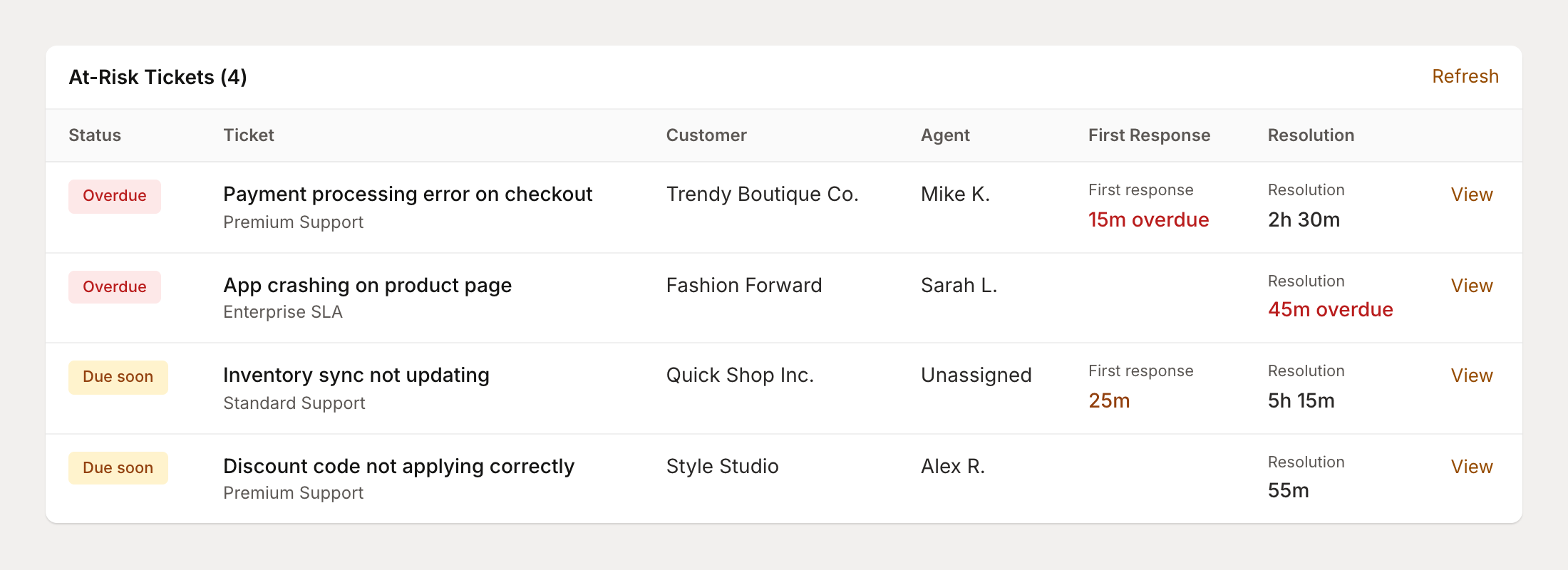
Each row shows:
- Urgency status (Overdue or Due Soon)
- Ticket subject and SLA policy name
- Customer and assigned agent
- Time remaining for first response and resolution
SLA Compliance Report
The SLA Compliance report (Reports → SLA Compliance) provides historical analysis of your team's SLA performance over time.
Performance Summary
The summary card shows median response times and compliance rates for each metric:
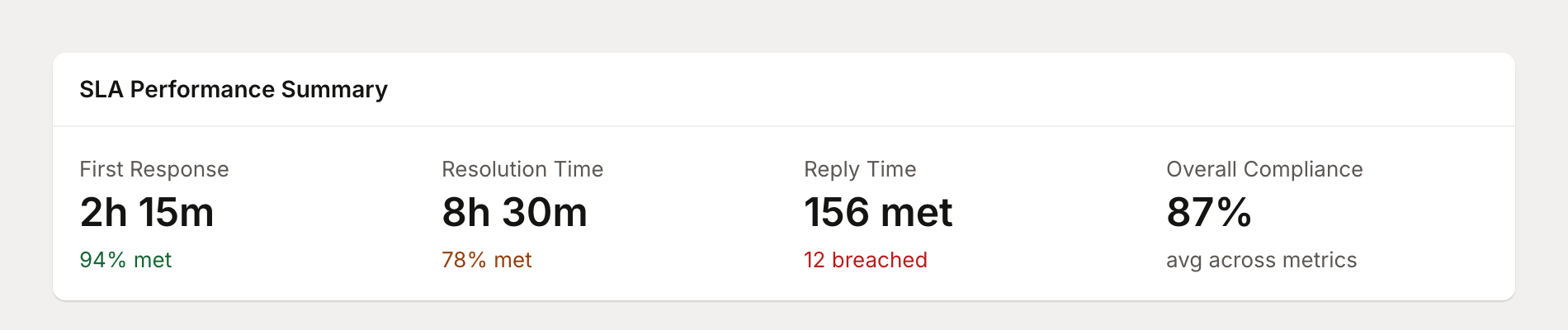
- First Response - Median time and percentage of tickets meeting the target
- Resolution Time - Median time and compliance rate
- Reply Time - Total replies met vs breached
- Overall Compliance - Average across all metrics
Compliance Analysis
Use the charts to analyze your SLA performance in detail:
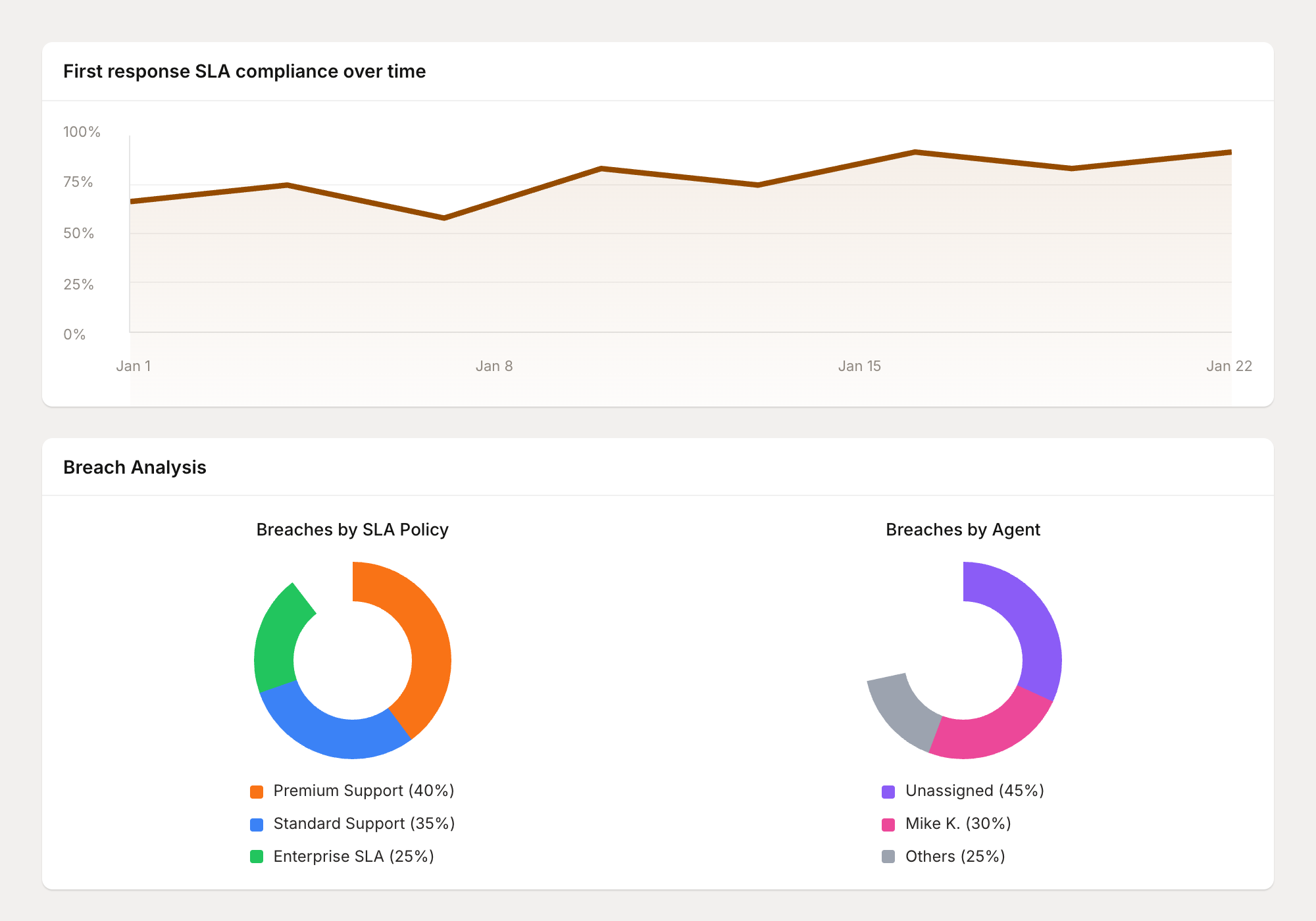
The compliance over time chart shows how your first response and resolution compliance rates trend day over day. Use this to spot patterns—for example, if compliance drops on certain days or after product releases.
The breach analysis shows where SLA breaches are concentrated:
- By SLA Policy - Which policies have the most breaches
- By Agent - Distribution of breaches across team members (including unassigned tickets)
- By Channel - Which support channels have the most SLA pressure
- By Time - When breaches occur most frequently
Next Steps
To configure SLA policies for your helpdesk, go to Settings → Help Desk → SLA Policies. You can create multiple policies with different targets and assign them based on customer segments, ticket priority, or channel.