
Working with tickets
This guide covers the day-to-day mechanics of managing support tickets in Mantle—statuses, assignment, organization, and tracking multiple issues within a single conversation.
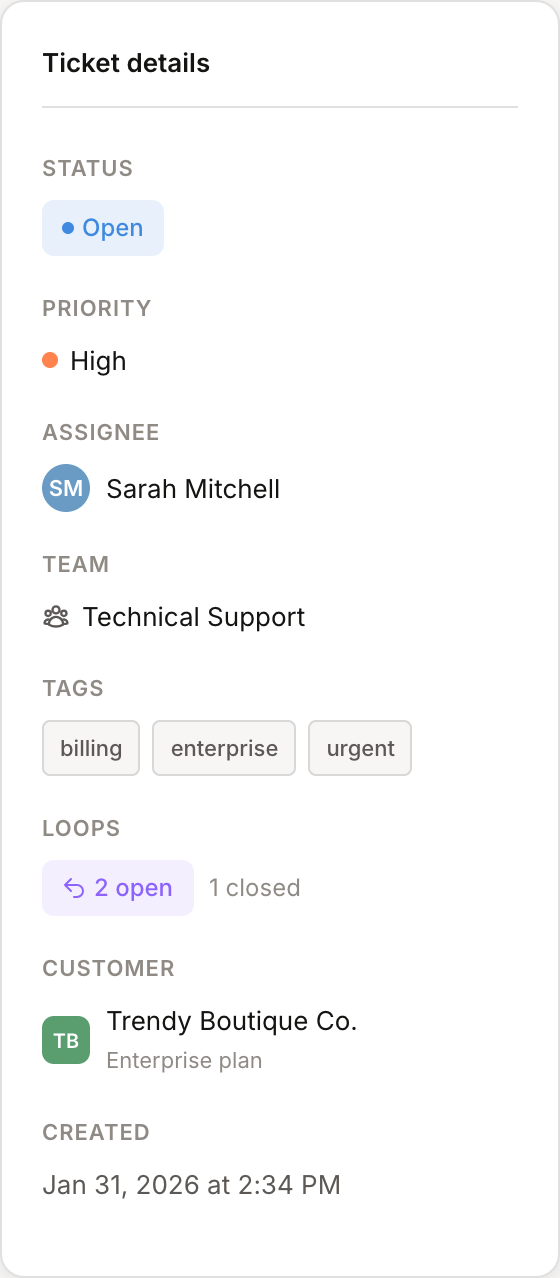
Ticket statuses
Every ticket has a status that reflects where it is in your workflow:
Status | When to use |
|---|---|
Open | Needs attention from your team. New tickets start here. |
Pending | Waiting for the customer to respond. Use this after you've replied and are waiting for more info. |
Resolved | The issue has been addressed. The customer can still reply, which will reopen it. |
Closed | Fully complete and archived. Use this for tickets that need no further action. Like Resolved, a customer reply will reopen the ticket, so a closed ticket isn't permanently locked, it just signals the conversation is done from your side. |
Click the status badge on any ticket to change it. You can also set status automatically using Flows—for example, auto-resolve tickets after 7 days of no response.
Assigning tickets
Tickets can be assigned to individual agents, teams, or both.
Agent assignment
Assign a ticket to a specific person on your team. The assignee sees the ticket in their personal queue and is responsible for responding.
To assign a ticket:
Open the ticket
Click the assignee field in the sidebar
Select an agent from the list
Team assignment
Assign tickets to a team when anyone in that group can handle it—like "Billing" or "Technical Support." Team members see these tickets in their shared queue.
You can assign both an agent and a team. This is useful when someone specific owns the ticket but the broader team should have visibility.
Priority levels
Set priority to help your team focus on what matters most:
High — Urgent issues that need immediate attention
Medium — Standard priority (default)
Low — Can wait, not time-sensitive
Priority shows as a colored dot on tickets in the list view, making it easy to spot urgent items at a glance.
Tags
Tags let you categorize tickets however makes sense for your team. Unlike status or priority, tags are freeform—create whatever labels you need.
Common uses for tags:
Issue type:
bug,feature-request,billingProduct area:
checkout,dashboard,apiUrgency context:
enterprise,trial-user,churned
To add tags, click the tags field on a ticket and type. Existing tags autocomplete as you type. You can apply multiple tags to a single ticket.
Internal notes
Sometimes you need to communicate with your team without the customer seeing it. Internal notes let you:
Leave context for the next agent who picks up the ticket
Ask a teammate a question about the issue
Document troubleshooting steps you've tried
To add an internal note:
Click Add internal note in the ticket composer
Write your note—you can use formatting, mentions, and attachments
Click Add note
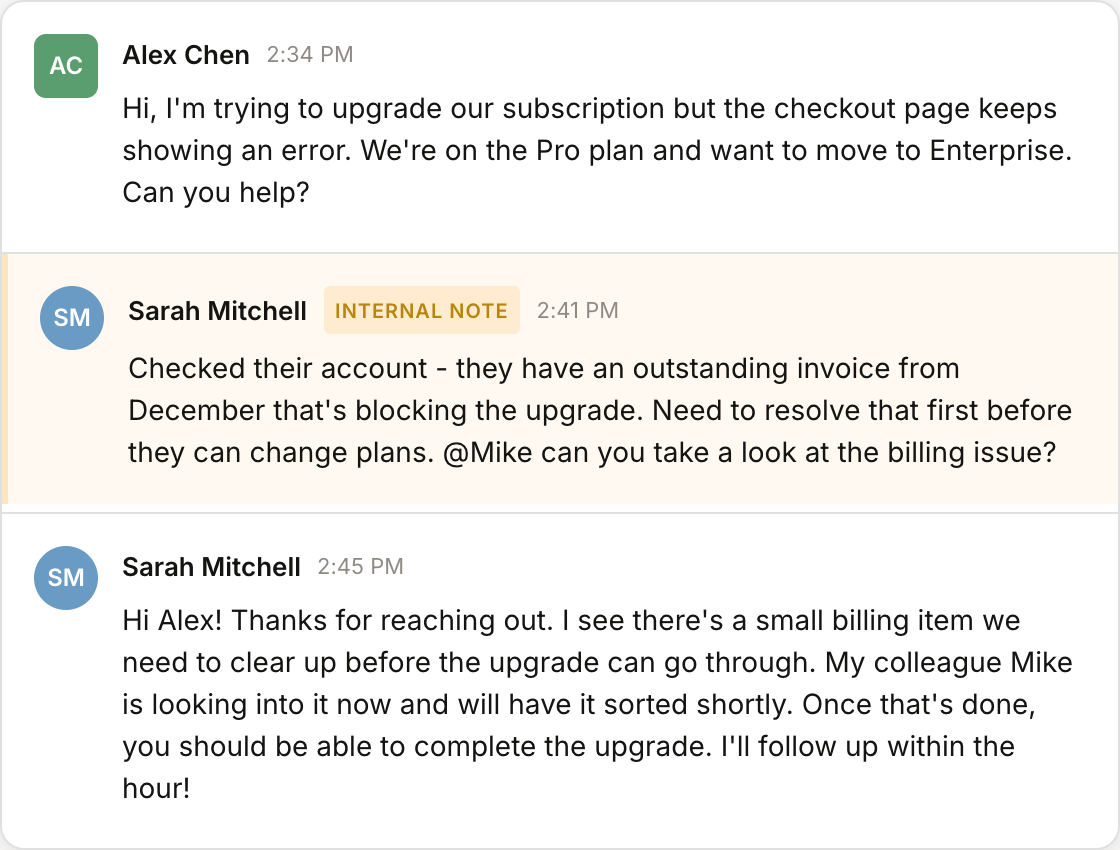
Internal notes appear in the ticket timeline with a distinct yellow background so you can tell them apart from customer messages.
Tracking issues with Loops
Real support conversations aren't one question, one answer. Customers often ask multiple questions in a single message, or new issues come up as you troubleshoot.
Loops help you track each individual topic within a ticket so nothing falls through the cracks. When a customer asks three different things in one message, create three separate Loops to track each one independently.
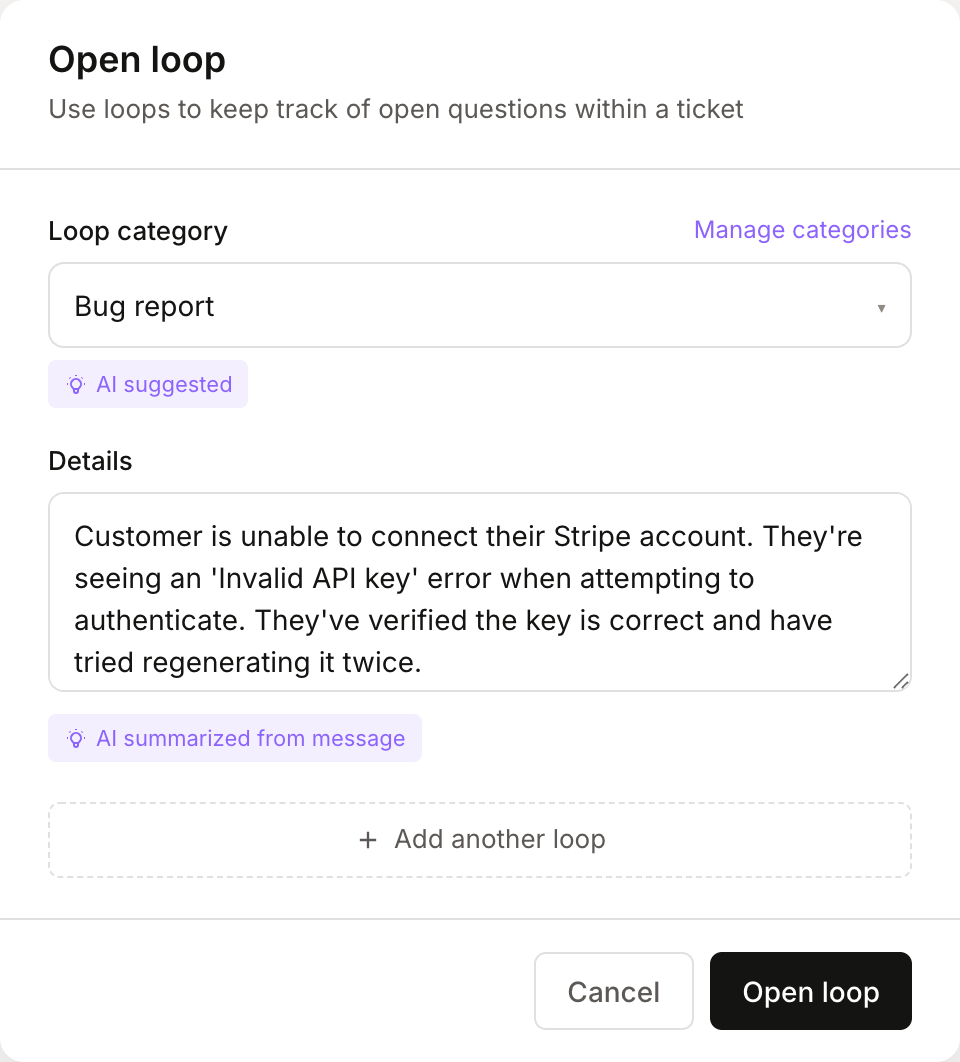
Creating a Loop
To create a Loop from a customer message:
Click the menu icon (⋯) on the message
Select Open loop
Review the details—Mantle's AI suggests a summary and category
Click Open loop
You can create multiple Loops at once by clicking Add another loop before saving.
Managing Loops
Open Loops appear in the ticket sidebar. You can see at a glance how many are open vs. closed. Click any Loop to see its details or close it when that specific issue is resolved.
Pinned messages
Long ticket threads can get hard to navigate. Pin important messages—like the original problem description or a key piece of context—so they're easy to find.
To pin a message, click the menu icon (⋯) on any message and select Pin message. Pinned messages are accessible from the ticket header.
Bulk actions
Need to update multiple tickets at once? Select tickets from the list using the checkboxes, then use bulk actions to:
Change status across all selected tickets
Assign to an agent or team
Set priority
Add or remove tags
This is especially useful for triaging a backlog or reassigning tickets when someone is out.