

Scheduling and bulk runs
Most flows trigger when an event happens - a customer installs your app, a ticket is created, a deal moves stages. But sometimes you need flows that run on a schedule or target a batch of resources all at once. That's where scheduled and bulk runs come in.
How scheduled flows work
A scheduled flow uses the Scheduled trigger type instead of an event-based trigger. When the schedule fires, the flow runs against all matching resources (customers, tickets, deals, etc.) that meet the flow's filter criteria.
This is different from event-based flows:
Event flows run once per event, for the specific resource that triggered the event
Scheduled flows run on a schedule, against all matching resources at once
Setting up a scheduled flow
To create a scheduled flow:
Create a new flow (or open an existing one)
Add a trigger and select Scheduled / Bulk run as the trigger type
Configure your schedule and filters
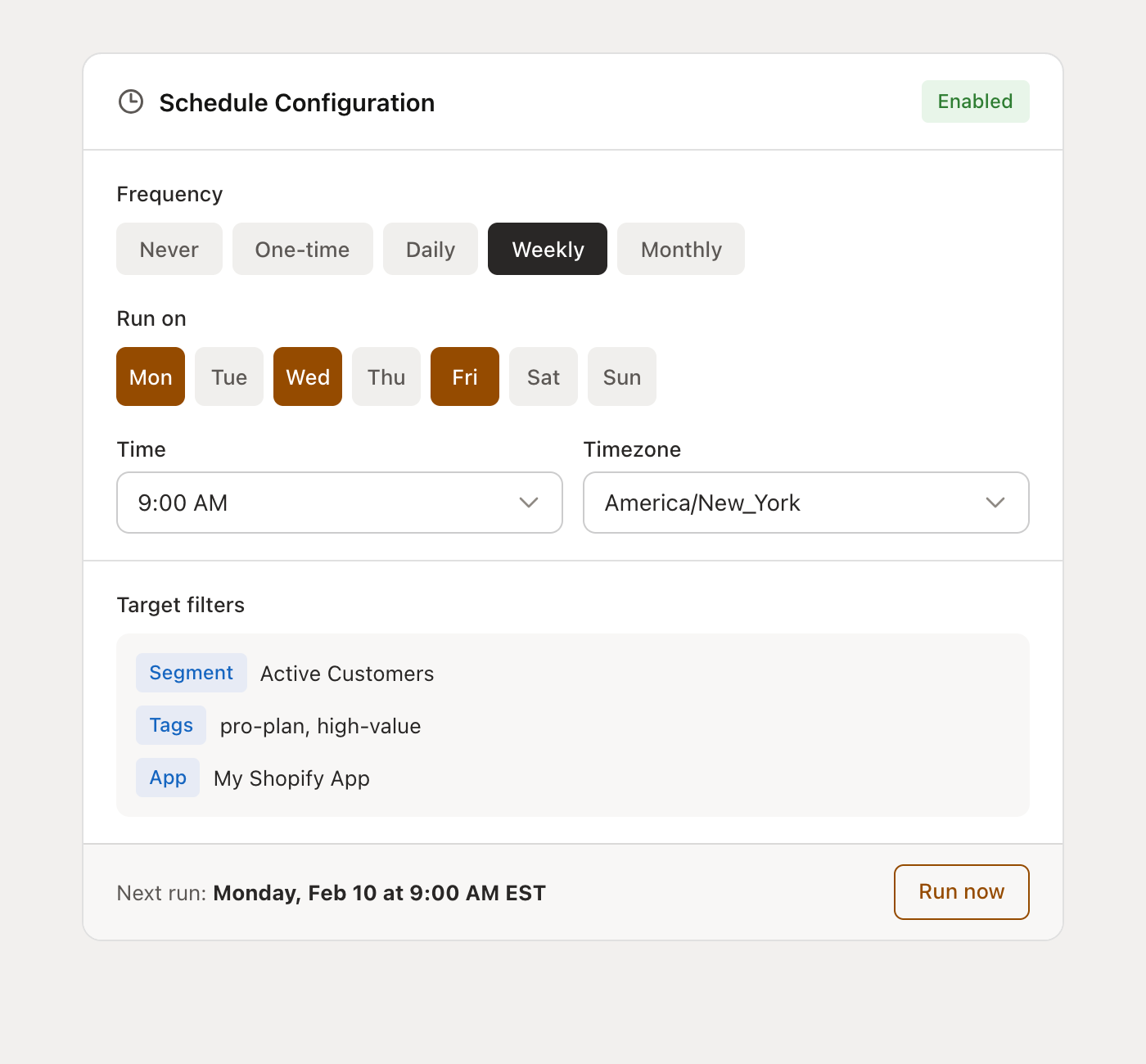
Schedule frequency
You can set flows to run at different intervals:
Frequency | Description |
|---|---|
Never (manual only) | Flow only runs when you manually trigger it |
One-time | Runs once at a specific date and time |
Daily | Runs every day at a specified time |
Weekly | Runs on selected days of the week |
Monthly | Runs on a specific day of each month (1-28) |
All schedules are configured with a timezone, so your flows run when you expect them to.
Targeting resources
Scheduled flows can target specific subsets of resources using filters. The available filters depend on your flow's resource type:
Customer flows:
Filter by customer segment
Filter by app
Filter by tags
Ticket flows:
Filter by ticket status (open, pending, closed)
Filter by priority level
Filter by channel type
Filter by tags
Affiliate flows:
Filter by affiliate status (active, pending, rejected)
Filter by affiliate program
Deal flows:
Filter by deal flow/pipeline
Filter by deal stage
Contact flows:
Filter by contact tags
Filter by contact source
The conditions on your flow steps still apply too - the schedule filters determine which resources enter the flow, and the step conditions determine which ones continue through each step.
Manual (bulk) runs
You can also trigger a scheduled flow manually at any time without waiting for the next scheduled run. This is useful for:
Testing your flow against real data before setting up a recurring schedule
Running a one-off batch operation
Re-running a flow after making changes
To trigger a manual run, go to the flow detail page, open the Scheduled runs tab, and click Run now on the schedule you want to trigger.
Monitoring run progress
Every scheduled or manual run is tracked. On the flow detail page, the Scheduled runs tab shows:
Status - Pending, Preparing, Running, Completed, Failed, or Cancelled
Triggered by - Whether it was a scheduled run, manual trigger, or API call
Progress - How many steps have completed
Resource count - How many resources were processed
Started - When the run began
Click on any run to see detailed results, including which resources were processed, what actions were taken, and any errors that occurred.
Organization-level flows
Flows with the Organization resource type only support the Scheduled trigger. These flows don't iterate over individual resources - they run once at the organization level. This is useful for:
Sending periodic summary reports via HTTP requests
Running maintenance scripts on a schedule
Triggering external integrations at regular intervals
Scheduled flows are powerful for batch operations and recurring tasks. Combine them with flow conditions to create targeted, time-based automations that keep your business running smoothly.