

Testing and debugging flows
Before you publish a flow that touches real customers, you want to be sure it does what you expect. Mantle provides a flow debugger, activity monitoring, and version history so you can test, troubleshoot, and roll back changes with confidence.
Flow debugger
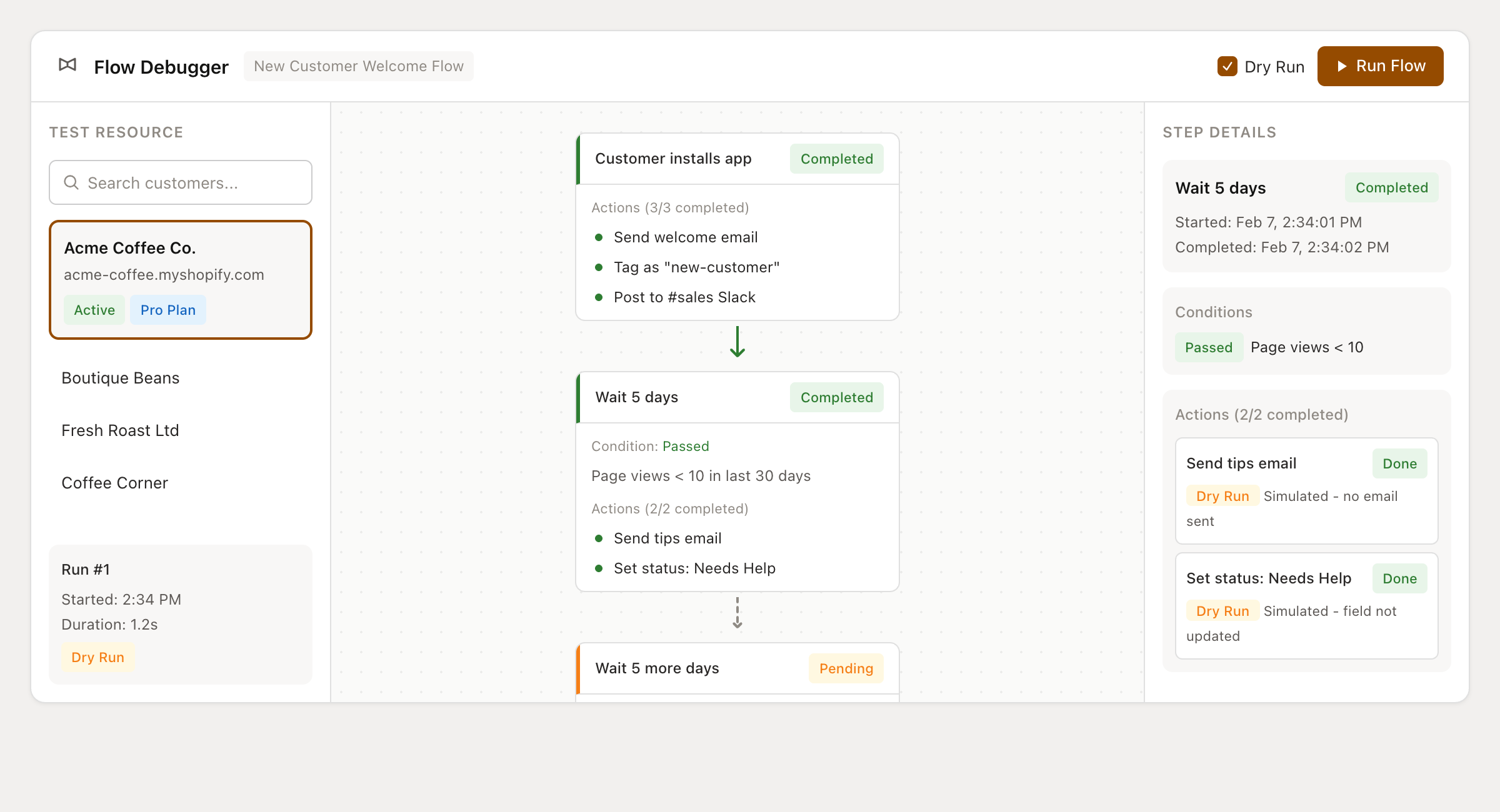
The flow debugger lets you test a flow against a specific resource (customer, ticket, deal, etc.) and see exactly what happens at each step. You can run in dry run mode to simulate execution without actually performing any actions.
To open the debugger:
Open your flow in the editor or on the flow detail page
Click the action menu and select Flow debugger
Running a debug session:
Select a resource - Use the search field on the left to pick a customer, ticket, affiliate, or other resource to test against. This determines what data the flow uses when evaluating conditions and executing actions.
Choose dry run mode (recommended) - Check the Dry Run checkbox to simulate the flow without executing any actions. This lets you see what would happen without sending emails, changing tags, or calling webhooks.
Click Run Flow - The debugger will execute the flow and show you results on the debug canvas.
Reading debug results:
The debug canvas shows your flow visually with status indicators on each step:
Completed (green) - The step ran successfully
Pending (yellow) - The step hasn't run yet
Processing (blue) - The step is currently running
Failed (red) - The step encountered an error (click for details)
Skipped (gray) - The step was skipped because conditions weren't met
Click on any step to see detailed information in the debug panel, including the resource data, condition evaluation results, and action outputs.
Multi-step testing:
For flows with time-based delays between steps, you can continue a previous debug run to test subsequent steps. Select an existing run from the run dropdown to pick up where you left off.
Flow activity
Once a flow is published and running, the Activity tab on the flow detail page shows every time the flow has triggered. For each execution you can see:
The resource that triggered the flow (with a link to their profile)
Which trigger fired
Step-level status badges showing what completed, failed, or is still pending
Timestamps for each execution
Click on any execution to see a detailed breakdown of what happened, including action results and any error messages.
Use the search and filter options to find specific executions - for example, to see all failed runs or runs for a specific customer.
Version history
Every change you make to a flow is automatically tracked in version history. This gives you a complete audit trail and the ability to roll back if needed.
To access version history:
Open your flow
Click the action menu and select History
The history modal shows two panels:
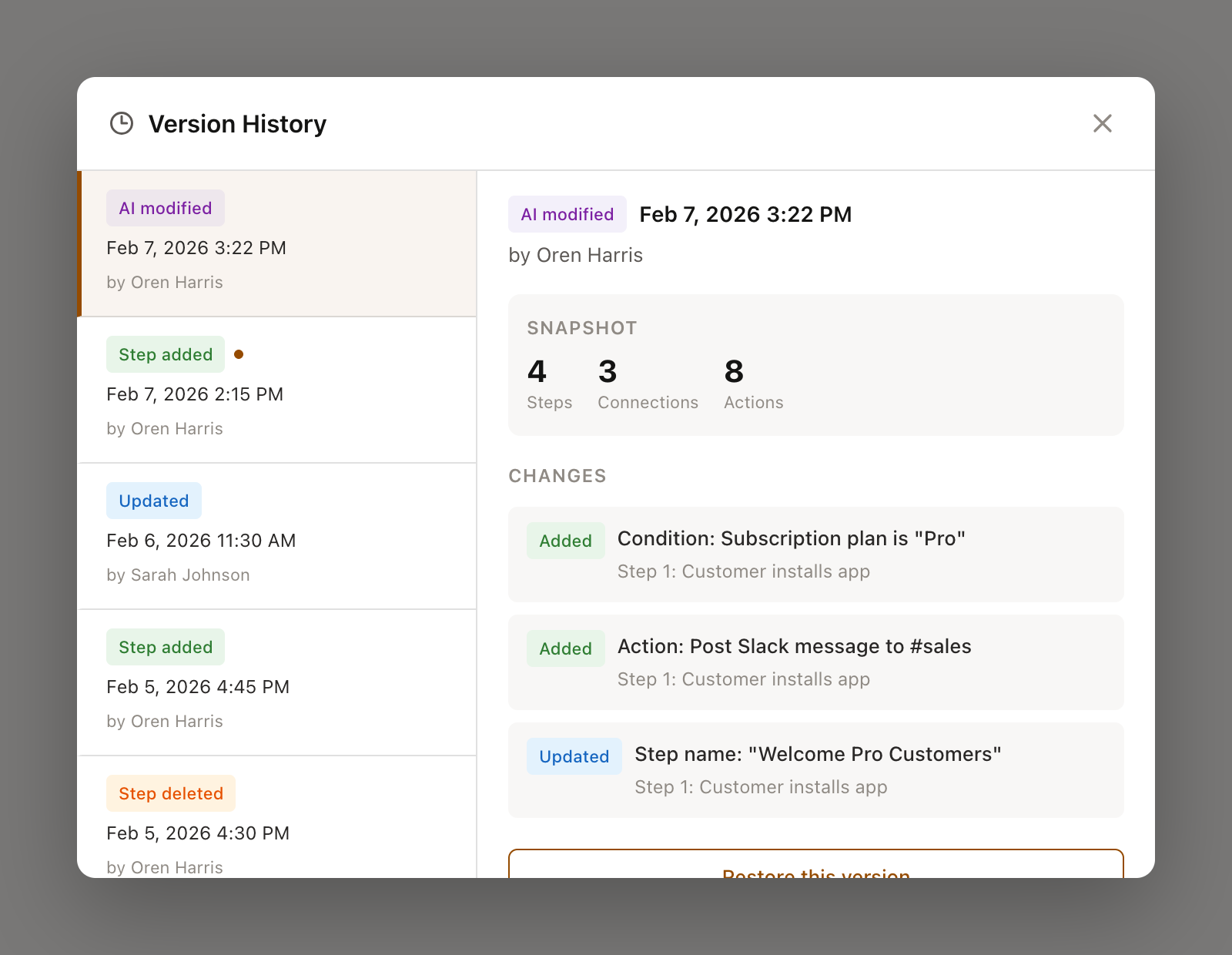
Version list (left side)
A chronological list of all versions with:
Date and time of the change
Change type badge (Created, Updated, Step added, Step deleted, AI modified, Restored)
Who made the change
A dot marker on the current version
Version details (right side)
When you select a version, you'll see:
A snapshot of the flow at that point (step count, connection count)
A detailed changes list showing what was added, updated, or deleted compared to the previous version
Restoring a version:
If you need to undo changes, select the version you want to go back to and click Restore this version. This will revert the flow to that state. The restore itself is also recorded in version history, so you can always see when and why a restore happened.
Troubleshooting common issues
Flow isn't triggering
Make sure the flow is published (not in draft)
Verify the trigger event is actually happening
Check if conditions are too restrictive
For usage event triggers, confirm events are being sent correctly
Actions are failing
Check the flow activity for specific error messages
For email actions: does the customer have an email address?
For Slack actions: is the integration properly configured?
For HTTP requests: check the URL, authentication, and request format
Flow is running too often
Check flow settings for repeat run configuration
Add more specific conditions to narrow targeting
Use custom fields to track flow state and prevent re-entry
Testing and debugging is a critical part of building reliable flows. Use the debugger before publishing, monitor activity after going live, and lean on version history if you need to undo changes. For more on building flows, see Creating your first flow.