

AI-powered flows
Building flows doesn't have to mean clicking through menus and configuring every trigger and action by hand. With AI-powered flow creation, you can describe what you want in plain English and let Mantle build the flow for you.
Creating flows with AI
To create a flow with AI, head to Flows and click Create with AI.
You'll see a modal where you can:
Choose a resource type - Select what your flow operates on (Customer, Ticket, Deal, Contact, Affiliate, or Organization)
Describe your flow - Write a natural language description of what you want your automation to do
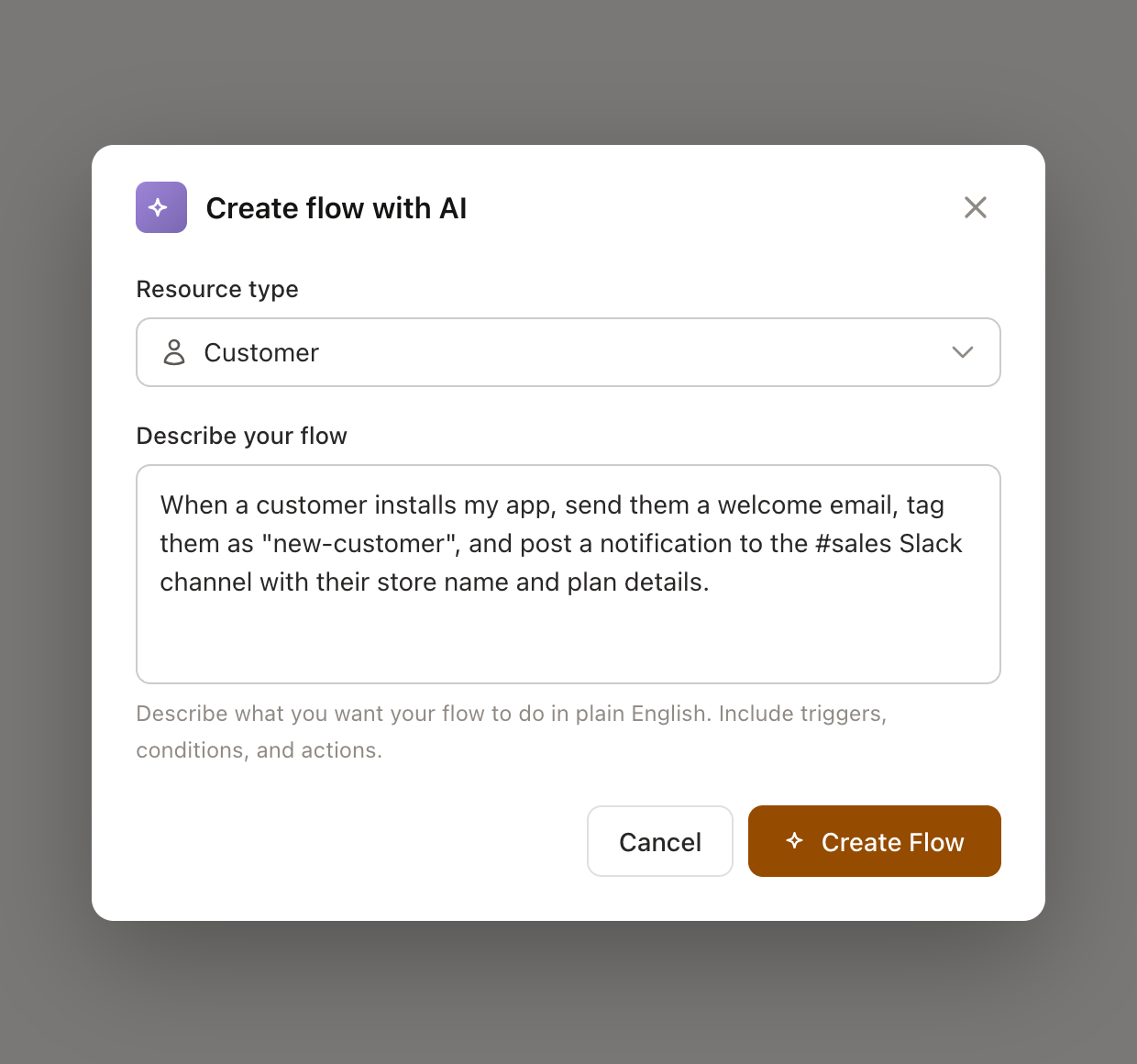
For example, you might type:
"When a customer installs my app, send them a welcome email, tag them as 'new-customer', and notify the sales team on Slack"
"When a support ticket is created with urgent priority, assign it to the on-call team and generate an AI response suggestion"
"When a customer's trial expires in 3 days and they haven't subscribed, send a reminder email and create a deal for the sales team"
Click Create Flow and the AI will generate a complete flow with the right triggers, conditions, and actions.
Modifying existing flows with AI
Already have a flow that needs tweaking? You can use AI to modify it too. Open any flow and click the Describe changes button (the magic wand icon) in the flow editor or on the flow detail page.
Describe what you want to change in plain English:
"Add a Slack notification after the email is sent"
"Add a condition to only run for customers on the Pro plan"
"Add a new branch that waits 7 days and then checks usage"
The AI understands your existing flow structure and will add, modify, or remove steps accordingly.
Reviewing AI changes
Before any AI-generated changes are applied to your flow, you'll see a review modal that shows exactly what will change. This includes:
Your request - The description you provided
Summary - An AI-generated summary of the proposed changes
Changes list - A detailed breakdown of what's being added, updated, or removed
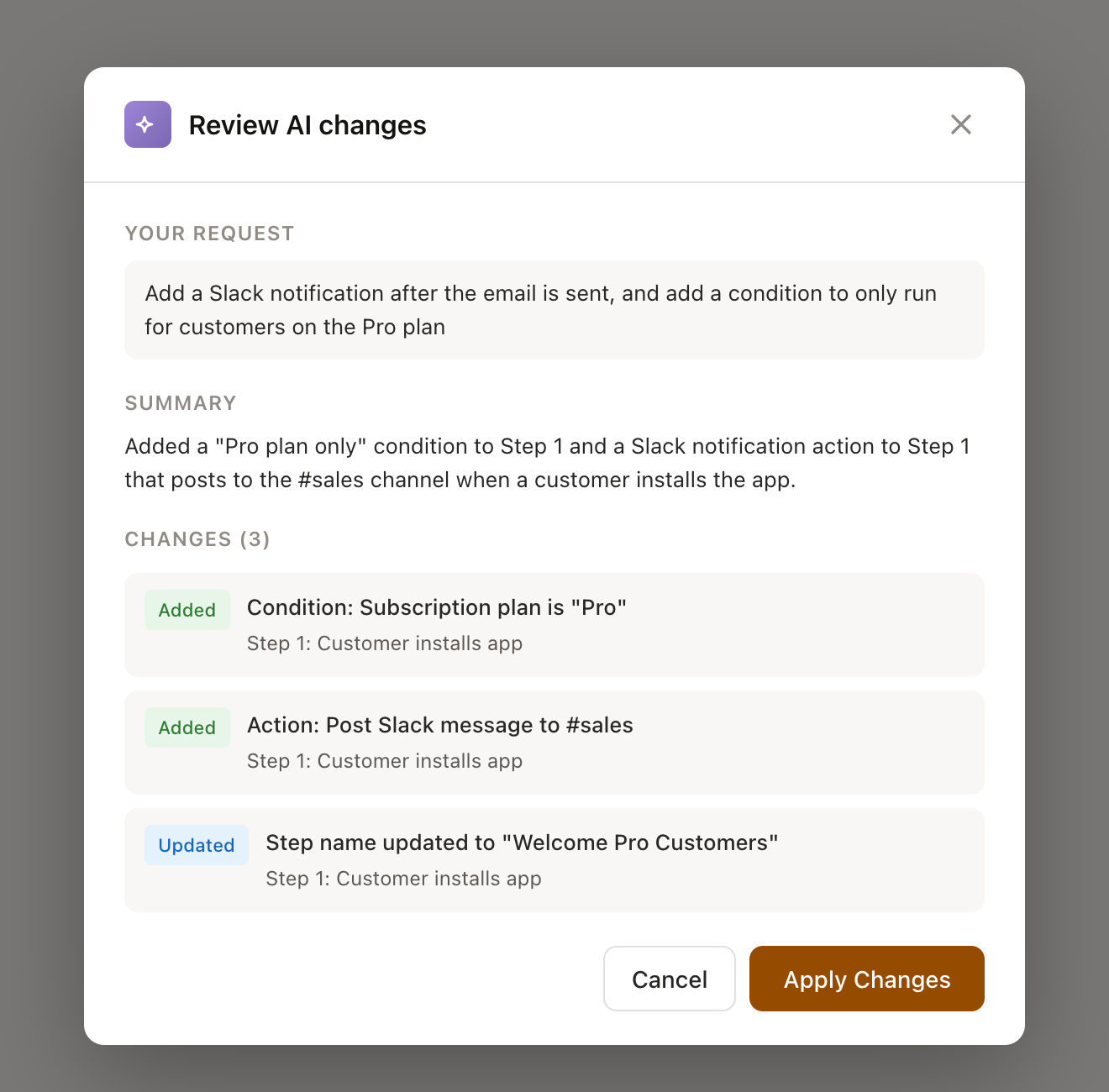
Review the changes carefully. If everything looks right, click Apply Changes. If not, click Cancel and try rephrasing your request.
All AI-applied changes are tracked in version history, so you can always restore a previous version if needed.
Run AI Agent action
Beyond creating and modifying flows, you can also use AI inside your flows with the Run AI Agent action. This lets you run a Mantle AI agent as a step in your flow to analyze data, generate content, or make decisions.
Common use cases:
Analyze incoming support tickets and generate response suggestions
Evaluate customer data and produce structured insights
Generate personalized content for emails or notifications
Make routing decisions based on message content
To learn more about configuring AI agents and using them in flows, see Using agents in Flows.
Tips for writing good AI descriptions
The better your description, the better the flow the AI will generate. Here are some tips:
Be specific about triggers
Instead of "when something happens with a customer," say "when a customer installs my app" or "when a subscription is cancelled."
Include conditions when needed
If you only want the flow to run in certain cases, say so: "only for customers on the Pro plan" or "if their usage is below 10 page views."
Name your actions
Be clear about what you want to happen: "send a welcome email," "tag them as VIP," "post a message to the #sales Slack channel."
Describe the sequence
If timing matters, include it: "wait 3 days, then check usage, and if it's low, send a follow-up email."
Start simple
You can always modify a flow after it's created. Start with a basic version and iterate using the "Describe changes" feature.
AI flow creation works best when combined with the other tools Mantle provides. Create a flow with AI, test it with the flow debugger, and refine it over time. You can also browse flow templates for inspiration before describing your flow to the AI.