

Using agents in Flows
AI agents can be used as actions inside your Mantle Flows. This lets you combine the automation power of flows with the intelligence of AI—trigger an agent when something happens, give it instructions with dynamic data, and use its output to drive what happens next.
How it works (the key concept)
Adding AI intelligence to a flow requires two steps, not one:
Step 1: Run the AI agent — Give it instructions and define what output you want back
Step 2: Use the output — A separate step triggered by "Action completed" that can access the agent's response and take action
This two-step pattern is important because the AI agent runs asynchronously. The flow waits for the agent to complete, then triggers the next step with access to the agent's output.
Flow types and resource types
Flows in Mantle can work with different resource types, each with its own set of available triggers and actions. AI agents work with all of them:
Customer flows
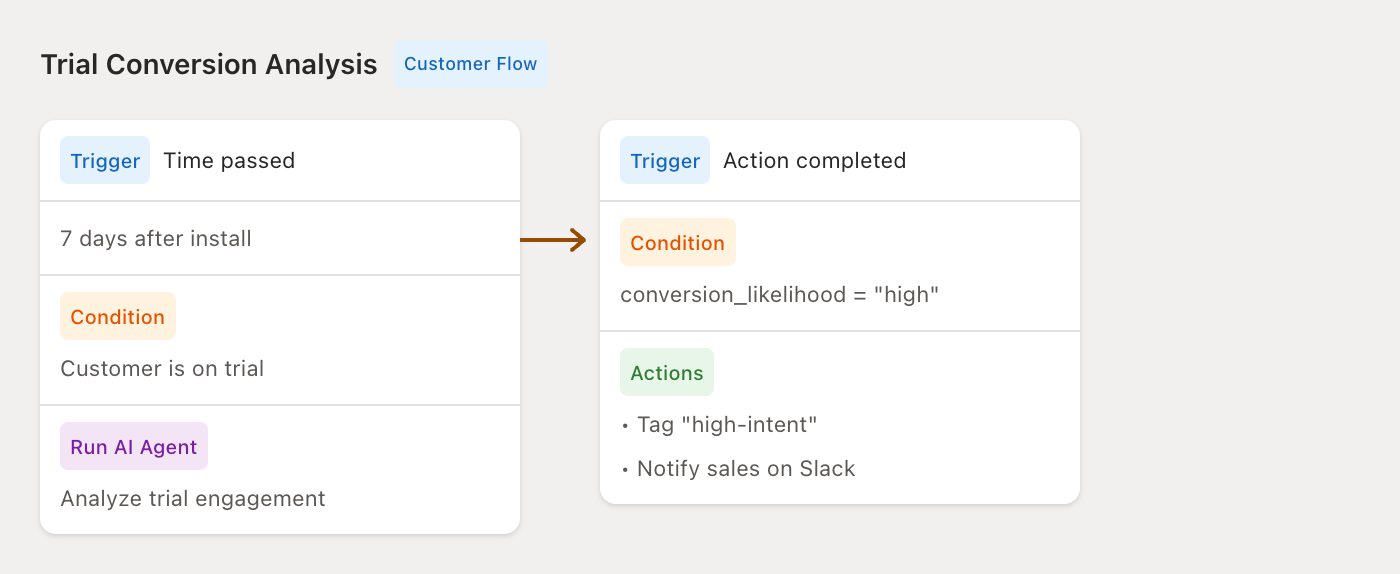
Triggered by customer events (installs, subscriptions, tags, custom fields, etc.). You can run agents to analyze customer data, determine next steps, and trigger customer-specific actions like tagging, emails, or Slack notifications.
Ticket flows
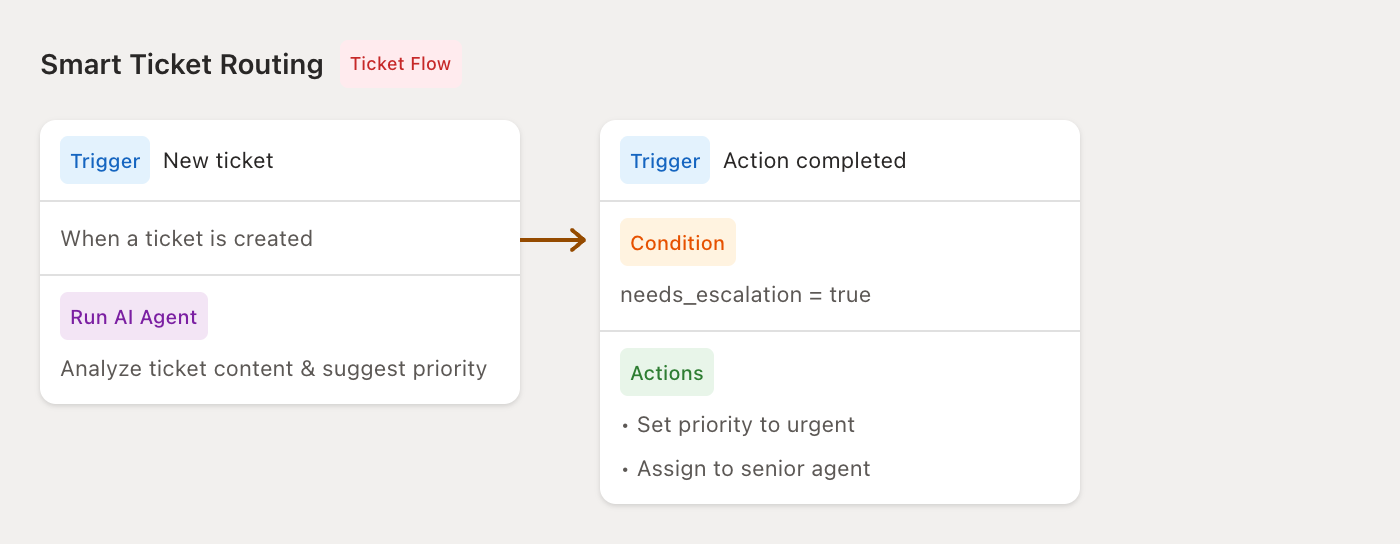
Triggered by support ticket events (new ticket, reply received, status changed). Use agents to analyze ticket content, suggest responses, or route to the right team member. Actions include replying to tickets, setting priority, and adding notes.
Affiliate flows
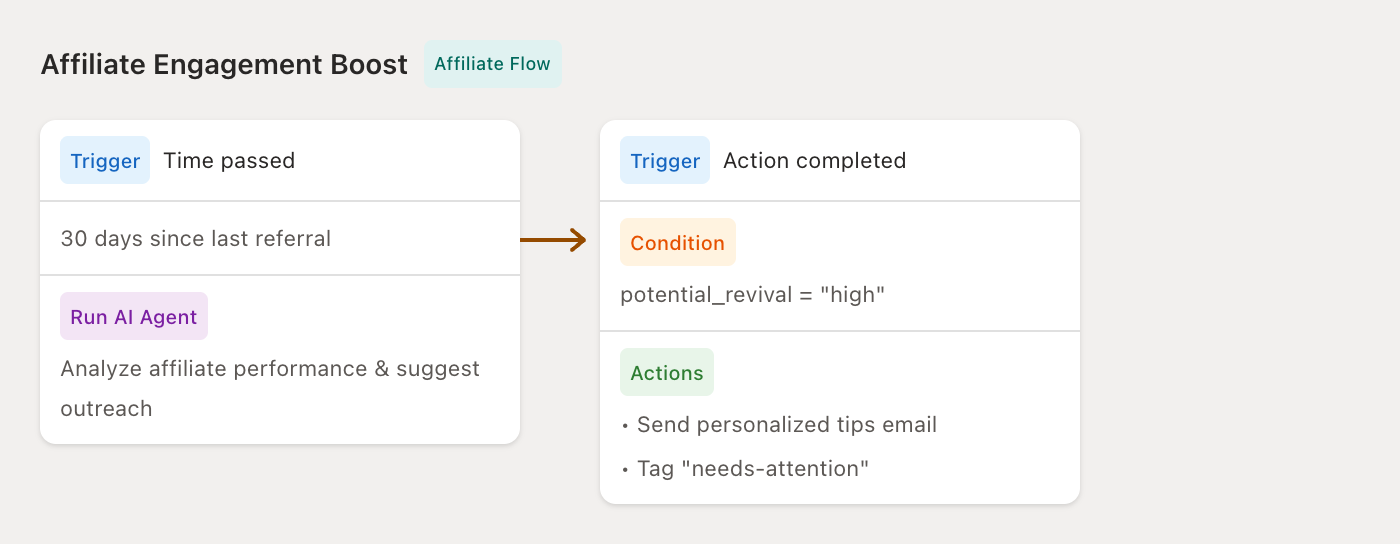
Triggered by affiliate events (signup, referral, conversion). Use agents to analyze affiliate performance or automate affiliate management tasks.
App flows
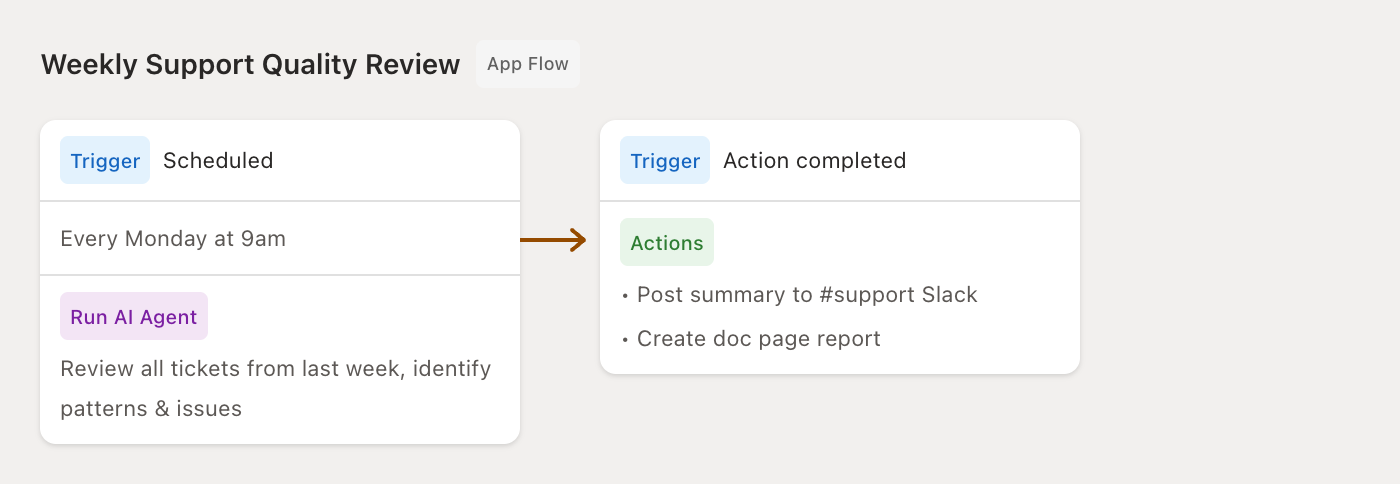
Run flows at the app level to analyze all your customers at once. For example, identify trial users most likely to convert, find high-value customers, or run weekly quality reviews across all support tickets. Perfect for bulk analysis and insights that span your entire customer base.
Step-by-step setup
1. Create your first step with the AI agent action
Start by adding a step with whatever trigger makes sense for your use case. Then add a Run AI Agent action.
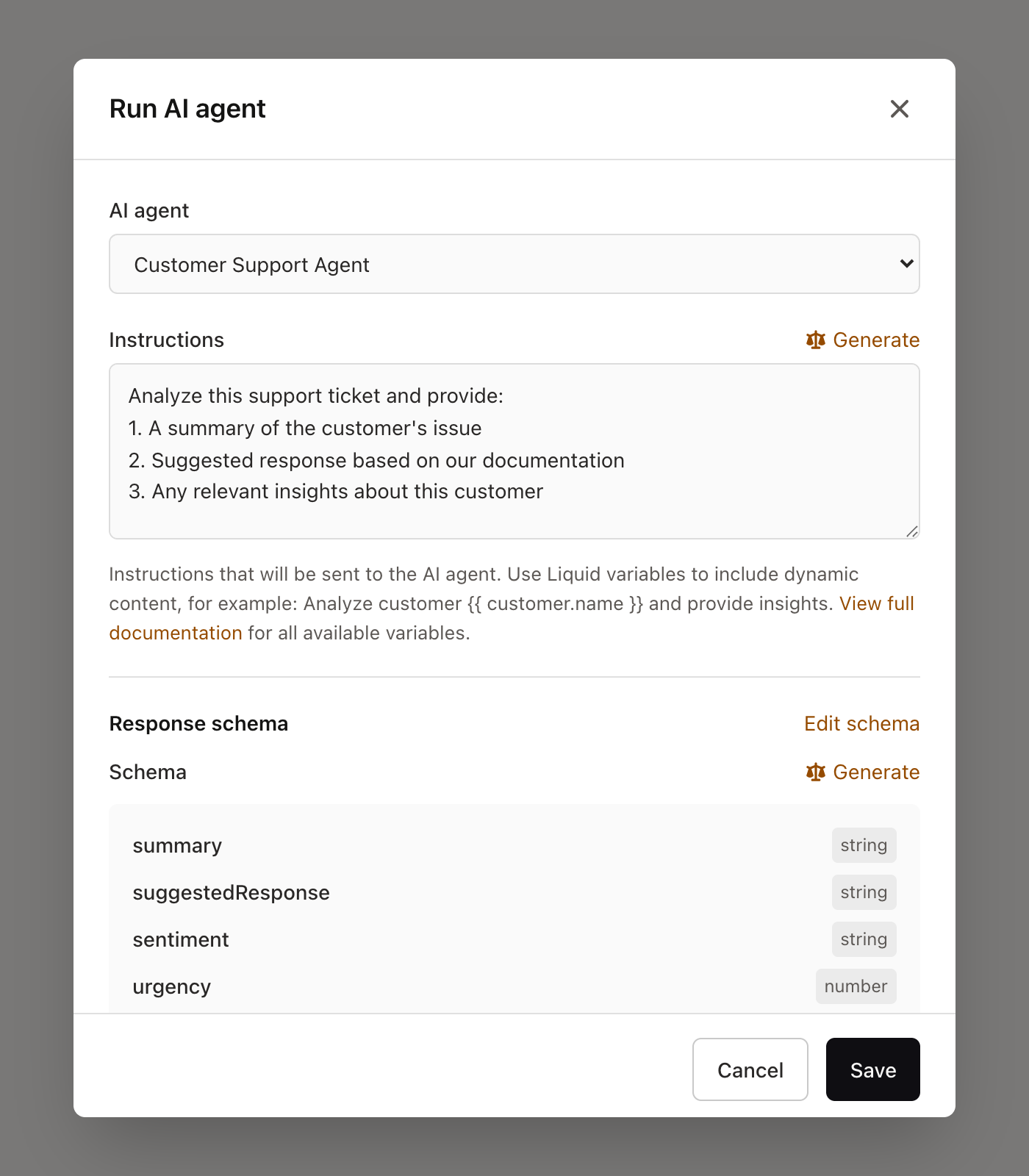
Configure the action:
Select your agent — Choose which agent should run. It will use all its configured tools, rules, and mandate.
Write instructions — Tell the agent exactly what to do. Use Liquid variables to inject dynamic data from the triggering resource (customer, ticket, affiliate).
Example instructions for a customer flow:
Analyze customer {{ customer.name }} ({{ customer.email }}).

Look at their usage patterns over the last 30 days and determine:
1. Are they actively using the product?
2. What's their likelihood of converting from trial?
3. What would be the best approach for outreach?

Their current plan is {{ customer.subscription.plan.name }} and they installed {{ customer.daysSinceInstall }} days ago.
Example instructions for a ticket flow:
Analyze this support ticket from {{ customer.name }}.

Content: {{ ticket.message }}

Determine:
1. What's the customer's issue?
2. Should this be escalated?
3. What's the recommended response approach?

Refer to our support guidelines and product knowledge.
2. Define an output schema
This is the key to making AI outputs usable in your flow. The schema tells the agent to return structured data in a predictable format.
To add a schema:
Save your AI agent action
Click on the action to expand it
Click Edit schema
Define each field you want the agent to return
Example schema fields:
| Field name | Type | Description |
|---|---|---|
conversion_likelihood | String | "high", "medium", or "low" |
engagement_score | Number | 0-100 based on usage |
recommended_action | String | What to do next |
summary | String | Brief explanation |
When the agent runs, it will format its response to match your schema. This makes the output reliable and predictable for the next step.
3. Create a second step to use the output
Here's where things come together. Add a new step to your flow with:
Trigger: Action completed
Then select which action should trigger this step — choose your AI agent action from Step 1.
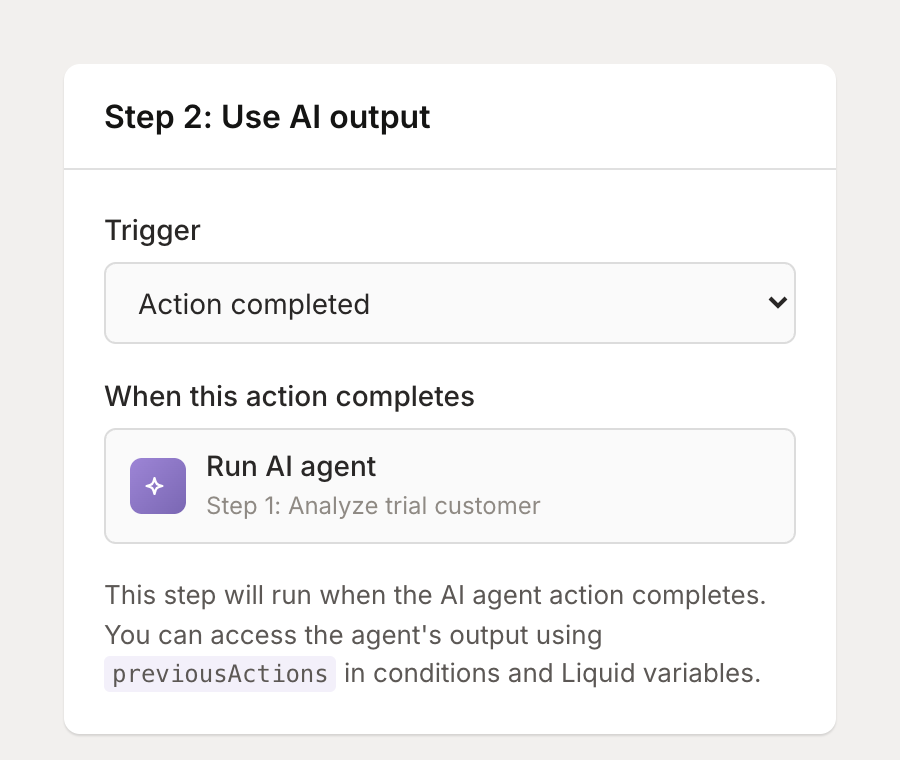
This second step will only run after the AI agent finishes and has output ready to use.
4. Access the output in conditions and actions
Now you can use the agent's output in two ways:
In conditions (for branching logic):
Add a condition to your step to branch based on the agent's analysis:
previousActions["actionId"].outputs.data.response.conversion_likelihoodequalshigh→ Send personalized emailpreviousActions["actionId"].outputs.data.response.conversion_likelihoodequalslow→ Skip outreach
In Liquid variables (for dynamic content):
Reference the output in email content, Slack messages, or any action that supports variables:
Hi {{ customer.name }},

{{ previousActions["actionId"].outputs.data.response.summary }}

Based on your usage, we think {{ previousActions["actionId"].outputs.data.response.recommended_action }}.

Best,
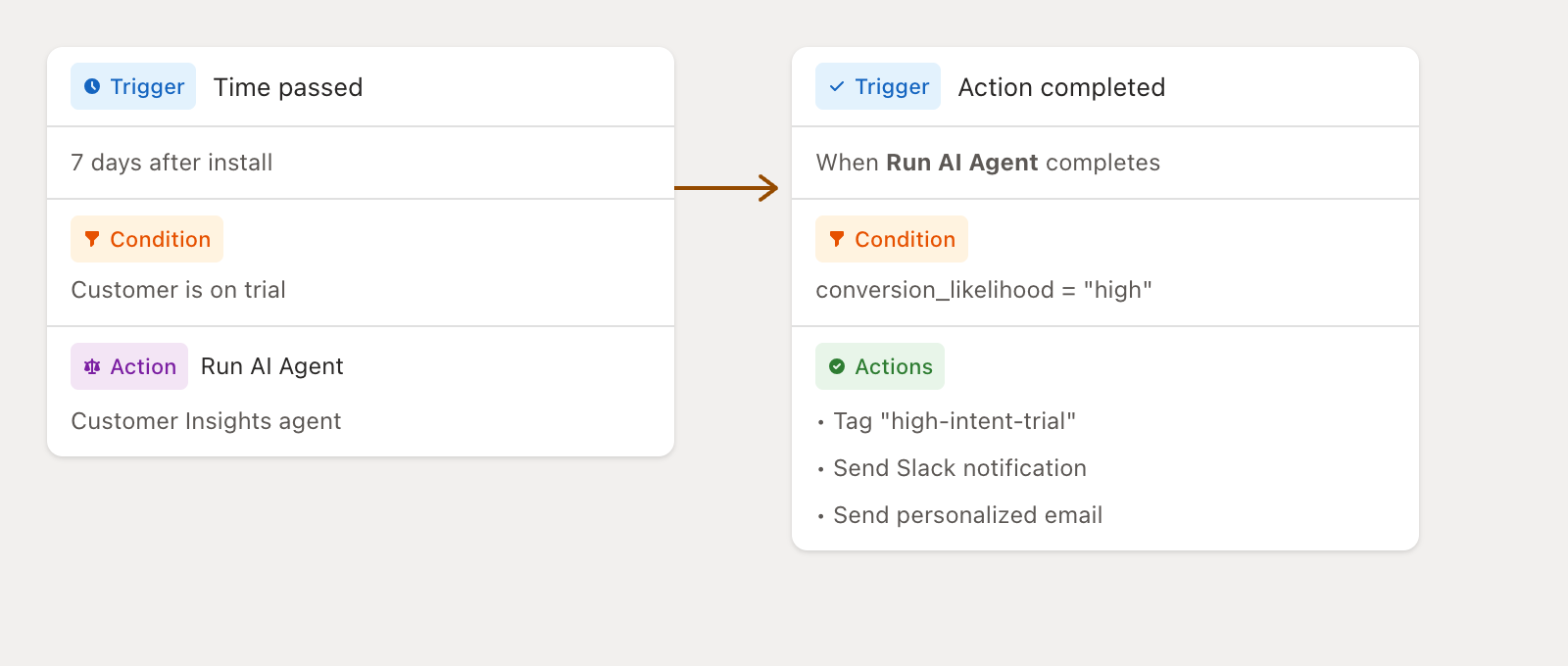
The TeamComplete example: Trial conversion flow
Here's a full example putting it all together (customer flow):
Step 1: Analyze trial customer
Trigger: Time passed (7 days after install)
Condition: Customer is on trial
Action: Run AI Agent (Customer Insights agent)
Instructions: "Analyze {{ customer.name }}'s trial usage. Check their feature adoption, session frequency, and any support tickets. Rate their conversion likelihood as high/medium/low and suggest the best conversion approach."
Output schema:
conversion_likelihood(string),key_features_used(string),suggested_approach(string),summary(string)
Step 2: Take action based on AI analysis
Trigger: Action completed (the AI agent from Step 1)
Condition:
previousActions["actionId"].outputs.data.response.conversion_likelihoodequalshighActions:
Tag customer with "high-intent-trial"
Send Slack notification: "High-intent trial: {{ customer.name }} - {{ previousActions["actionId"].outputs.data.response.summary }}"
Send personalized email using the AI's suggested approach
Step 3: Handle low-intent trials differently
Trigger: Action completed (same AI agent from Step 1)
Condition:
previousActions["actionId"].outputs.data.response.conversion_likelihoodequalslowActions:
Tag customer with "needs-nurturing"
Add to educational email sequence
Tips for success
Be specific in your instructions. The more context you give the agent, the better its output. Include relevant data using Liquid variables specific to your resource type.
Design your schema carefully. Think about what data you'll need in the next step. Use simple types (string, number) and clear field names.
Test with real data. Use the flow testing tools to see exactly what the agent returns before going live.
Start with one output action. Get the AI analysis working first, then add more branches and actions as needed.
Ready to add AI to your flows? Head to Flows, create a new flow, and add a "Run AI Agent" action to get started.
Liquid variables in flows — Full reference for dynamic content
Agent use cases — See more examples of agents in action