

Docs landing page
Your docs site needs a front door. The landing page (or homepage) is the first thing visitors see when they arrive at your documentation site. It sets the tone, helps people find what they need, and can be as simple or as polished as you want.
Mantle gives you six display formats to choose from, ranging from auto-generated layouts that organize your content automatically to a fully custom page you write yourself in the rich text editor.
How the landing page works
Every docs repository has a landing page at its root URL. By default, it automatically displays your collections and groups so visitors can browse your content. You can change the display format at any time from the repository settings or the Home page card on your repository detail page.
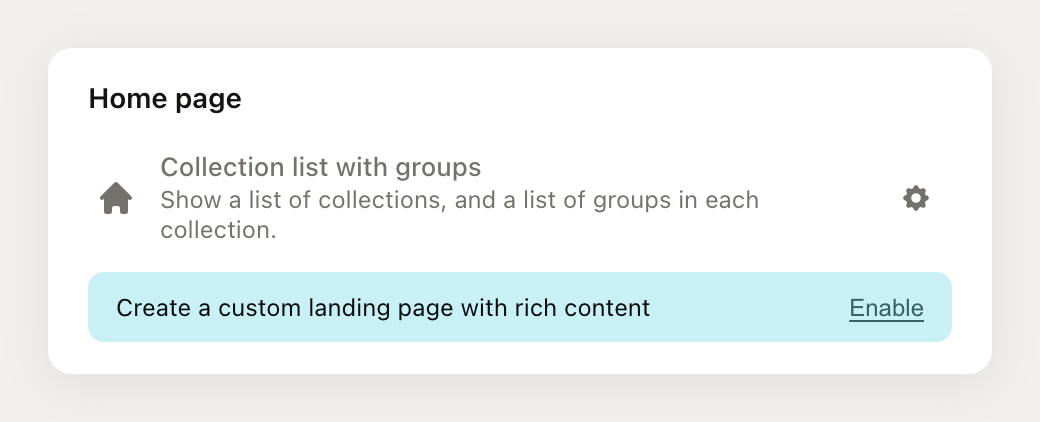
The Home page card shows your current display format and gives you quick access to settings. If you are using a custom landing page, you will also see an edit button to jump straight into the page editor.
Display formats
Your landing page can display content in one of six formats. Each one is designed for a different size and structure of documentation.
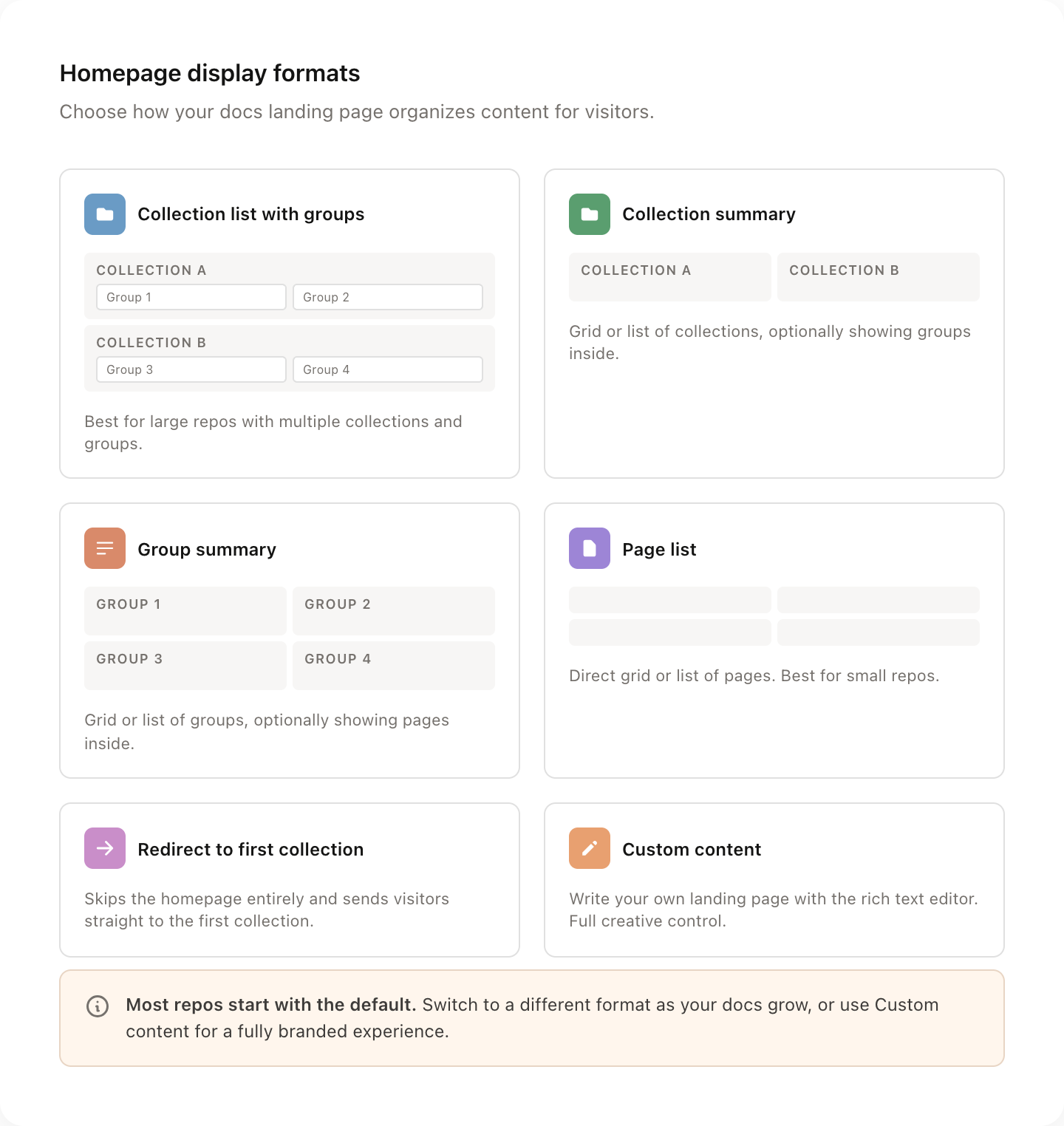
| Format | What it shows | Best for |
|---|---|---|
| Collection list with groups | Each collection displayed as a section, with its groups shown as cards underneath | Large repos with multiple collections and many groups |
| Collection summary | A grid or list of collection cards, optionally showing groups inside each card | Repos with several collections that need a clean overview |
| Group summary | A grid or list of group cards across all collections, optionally showing pages inside each card | Medium-to-large repos where groups are the main organizing unit |
| Page list | A direct grid or list of individual pages | Small repos with just a handful of pages |
| Redirect to first collection | No landing page at all. Visitors are redirected straight to the first collection. | When you want to skip the homepage entirely |
| Custom content | A rich text page you write yourself in the page editor | When you want full creative control over the landing experience |
Format-specific options
Several formats have additional settings that appear when you select them:
Collection list with groups and Group summary let you choose between a list or grid layout for group cards, toggle whether pages are listed inside each group card, and set the maximum number of pages to show (3, 4, 5, or all).
Collection summary lets you choose between a list or grid layout for collection cards, toggle whether groups are listed inside each collection card, and set the maximum number of groups to show.
Page list lets you choose between a grid or list display mode and set a limit on the number of pages shown.
Changing the display format
There are two ways to change your landing page display format:
From the repository detail page
Go to Help desk > Docs and select your repository.
Find the Home page card.
Click the settings icon (gear) to open the homepage settings.
From the website editor
Go to Help desk > Settings > Docs and select your repository.
Click Edit website.
Select the Homepage section in the left panel.
Choose your display format and configure any additional options.
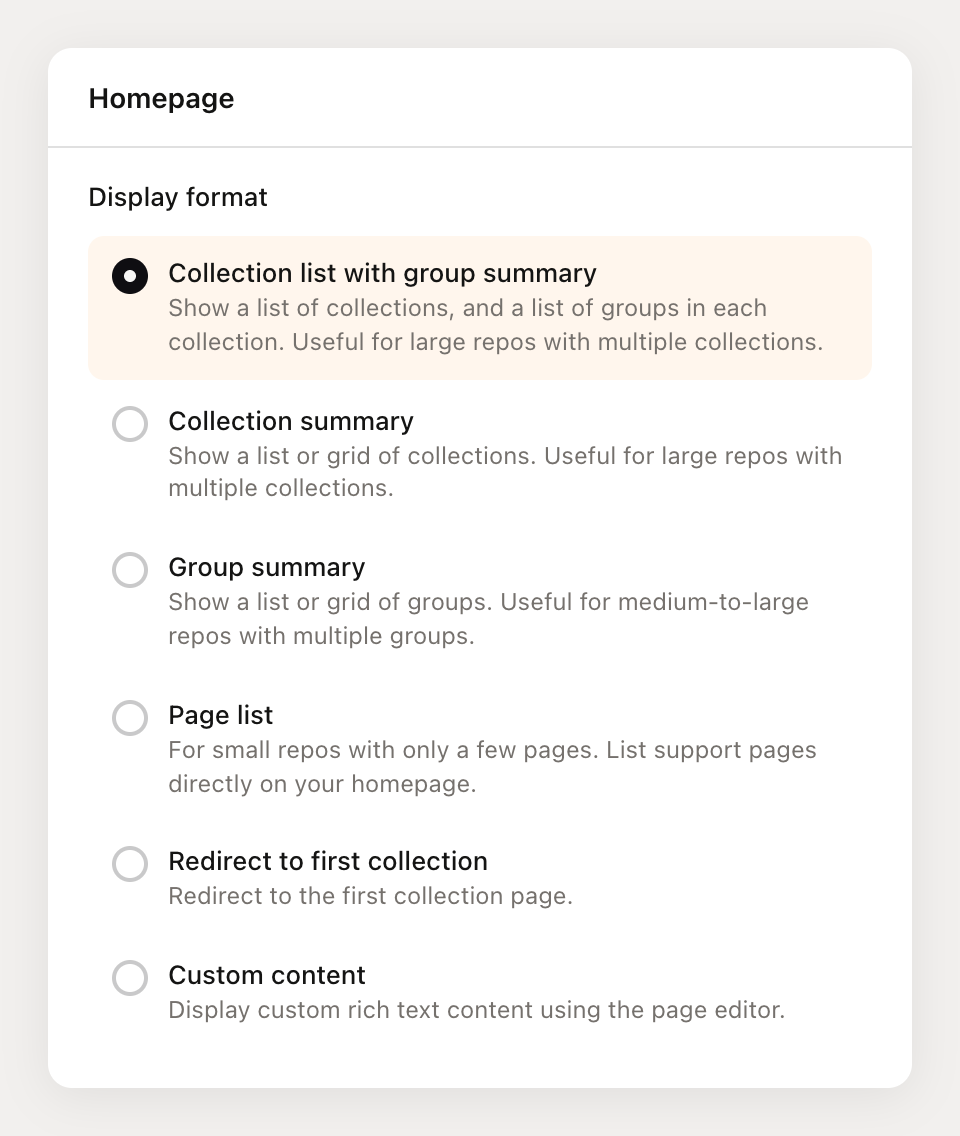
Changes take effect when you click Save. The live preview in the website editor updates as you make changes so you can see exactly how your homepage will look.
Using a custom landing page
The Custom content format gives you full control over your landing page. Instead of an auto-generated layout, you get a rich text editor where you can write whatever you want: a welcome message, links to key sections, getting started guides, images, or anything else.
Enabling custom content
You can enable a custom landing page in two ways:
Quick enable: On the repository detail page, find the Home page card and click the Enable button in the tip bar. This creates the custom homepage and opens the editor immediately.
From settings: Open the homepage settings (as described above) and select the Custom content display format.
When you enable custom content for the first time, Mantle creates a special homepage page with default starter content:
Welcome to our documentation. Get started by exploring our guides and resources below.
Editing your custom landing page
Once enabled, you can edit the custom homepage the same way you edit any docs page. The full rich text editor is available with all the formatting tools: headings, lists, links, images, code blocks, callouts, and more.
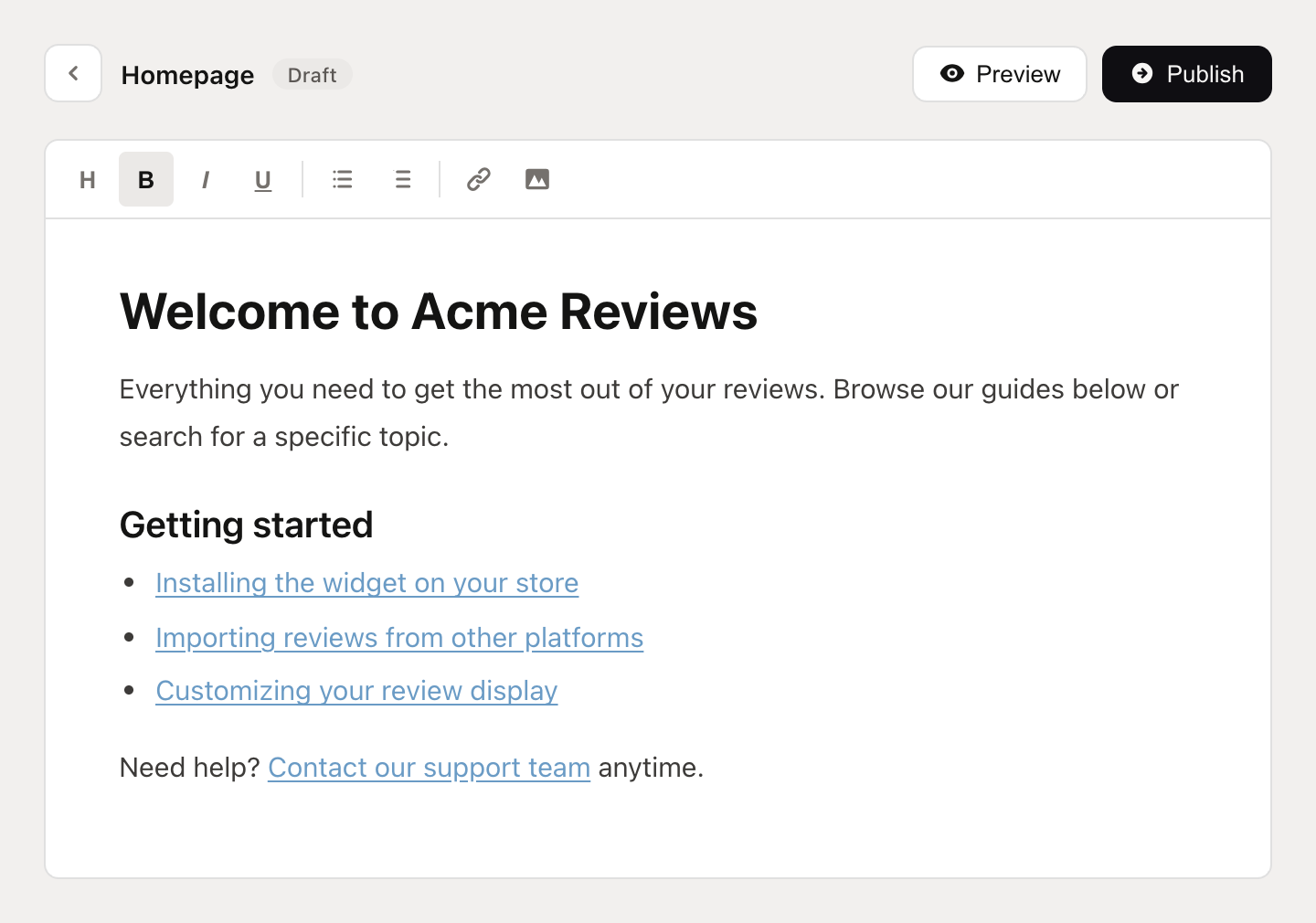
To edit your custom homepage:
Go to your repository detail page.
In the Home page card, click the edit icon (pencil).
Write your content in the editor.
Click Publish when you are ready to make it live.
Choosing the right format
Not sure which format to use? Here is a quick guide:
Just getting started with a few pages? Use Page list. It keeps things simple and puts your content front and center.
Have a single collection with several groups? Use Group summary. It gives visitors a clear overview of your content areas.
Multiple collections? Use Collection list with groups (the default) or Collection summary. The first shows more detail; the second is more compact.
Want to skip the homepage? Use Redirect to first collection. Good when your docs only have one collection and you want visitors to jump straight into it.
Want a branded experience? Use Custom content. Write a welcome message, add links to key resources, and make your docs site feel like your own.
You can switch between formats at any time. If you have a custom homepage and switch to an auto-generated format, your custom content is preserved. Switch back to custom whenever you want, and it will still be there.
Go further
Documentation & knowledge base -- Overview of the docs product and how to organize your content
Getting started with Helpdesk -- Set up your help desk and docs from scratch