

Segments & filters
Turn your customer data into actionable insights! Segmentation is one of Mantle’s most powerful features – you can slice and dice your customer list to find exactly the right people for your campaigns, analysis, and business decisions.
From the Customers screen, you can filter using:
Quick filters: Apply common filters like customer status (Subscribed, Cancelled, etc.) with one click
Advanced filters: Build complex combinations with multiple criteria
Saved segments: Access your previously created segments for consistent analysis
Building powerful filters
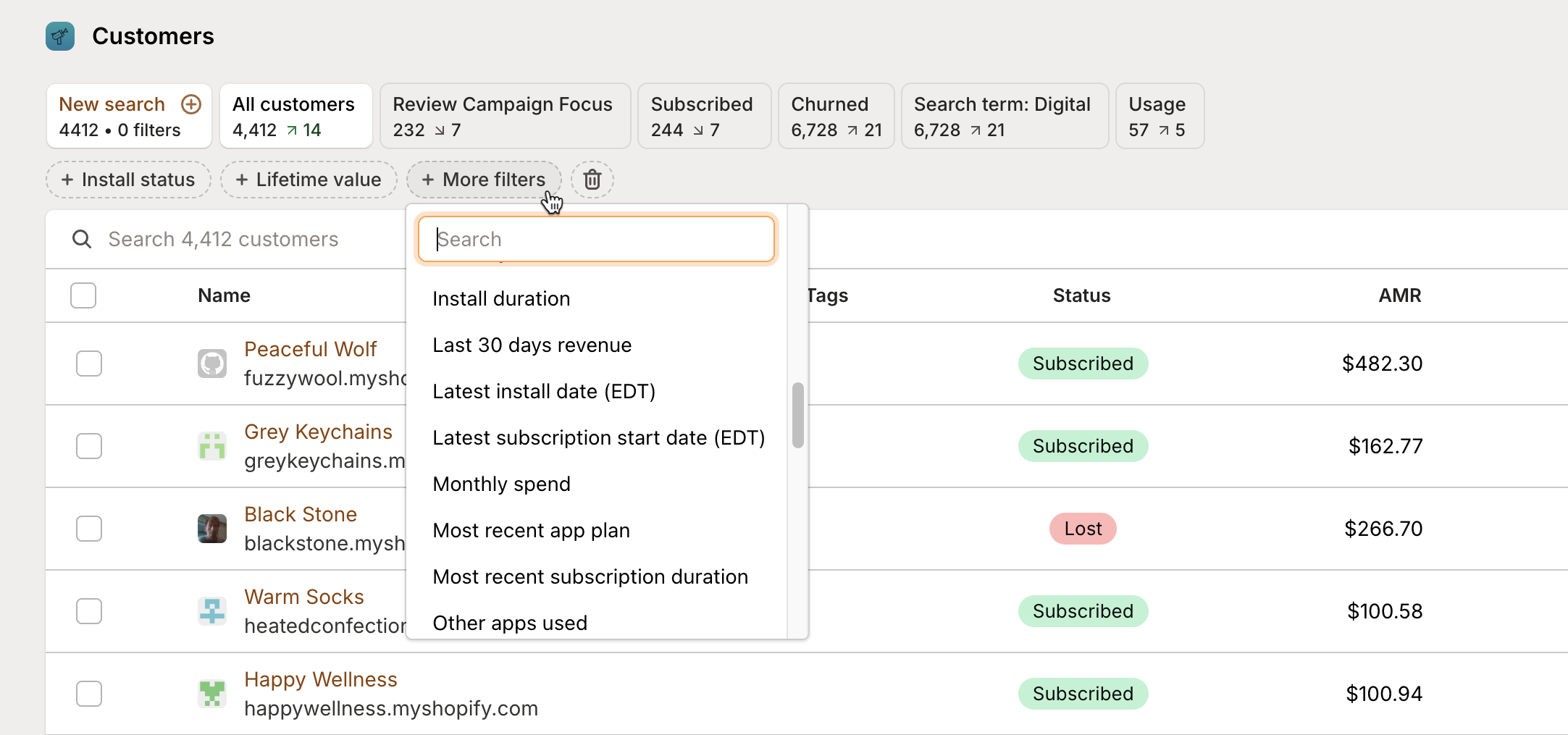
Here’s where the magic happens – combining filters to find exactly the customer groups you need:
From the Customers screen, click More filters to see all your filtering options
Pick the criteria you want to apply – you can stack as many as you need
Adjust each filter’s parameters to narrow down your results
Watch the customer list update in real-time as you add or change filters
Want to see all the filtering options? Mantle’s got you covered with filters for everything:
Category | Filter | Description |
|---|---|---|
Customer & account | Account owner | Specific account managers or representatives |
Customer source | Acquisition channel | |
Email address | Specific customer email addresses | |
Custom fields | Any custom data fields you’ve defined | |
Tags | Customers with specific tags | |
Exclude tags | Customers without specific tags | |
Exclude test customers | Remove test accounts from results | |
Has active test subscription | Accounts with active test subscriptions | |
Archived | Show or hide archived customer accounts | |
Stripe customer | Customers using Stripe as their payment processor | |
Financial | Monthly spend | Customer’s monthly payment amount |
Last 30 days revenue | Recent revenue generation | |
Abandoned charge | Customers with failed payment attempts | |
Abandoned charge date (EDT) | When payment issues occurred | |
Billing provider | Payment processor (Stripe, etc.) | |
Billing status | Current billing state | |
Time since last payment | Recency of successful payments | |
Frozen subscription(s) | Customers with frozen or paused subscriptions | |
App & subscription | Current apps installed | Which apps customers have installed |
Other apps used | Specific combinations of apps | |
App plan | Specific subscription plan | |
App plan filters | Advanced options for plan details | |
App plan interval | Billing frequency (monthly, annual, etc.) | |
Most recent app plan | Latest selected plan | |
First install date (EDT) | When customers first installed | |
Latest install date (EDT) | Most recent installation | |
Install duration | How long they’ve had the app installed | |
Latest subscription start date (EDT) | When current subscription began | |
Most recent subscription duration | Length of current subscription | |
Trial status | Customers currently in or completed trials | |
Trial expires in days | Customers nearing trial expiration | |
Shopify-specific | Shopify plan | Customer’s Shopify plan tier |
Shopify development plan | Development stores | |
Shopify access token | API access token status | |
Country | Specific geographic locations | |
Industry | Retail category or industry segment | |
Engagement & behavioral | Features | Product features customers are using |
Churn risk | Customers showing indicators of potential churn | |
Time to uninstall | Recently uninstalled customers | |
Uninstall date (EDT) | When customers removed the app | |
Uninstall reason | Specific reasons given for uninstalling | |
Uninstall reason search | Keywords in uninstall feedback | |
Traffic source | Where customers originally came from | |
Traffic source medium | Marketing medium (social, email, etc.) | |
Traffic source page type | Landing page types | |
Traffic source search term | Search keywords that led to acquisition | |
Traffic source surface detail | Specific traffic source details | |
Intake attributions | Marketing attribution data | |
Usage metrics | How customers engage with your app |
Saving your segments
Found a filter combination that’s useful? Save it as a segment so you can use it again:
After you’ve applied your filters, click Save as segment
Give your segment a descriptive name that tells you what it’s for
Add a description if you want (totally optional)
Click Save
Your saved segments show up in the Segments list for quick access. From there, you can:

View a segment by clicking its name
Edit a segment’s filters by clicking the edit icon
Duplicate a segment to create variations
Delete segments you no longer need
See those arrows next to each saved segment? They show trends in your data:
Up arrows mean the segment’s customer count has grown over the past 30 days
Down arrows mean it’s shrunk over the past 30 days
These trend indicators help you quickly spot growing or shrinking customer segments without having to dig into each one.
Managing your segments
When you click on a saved segment, you’ll see a detailed management interface:
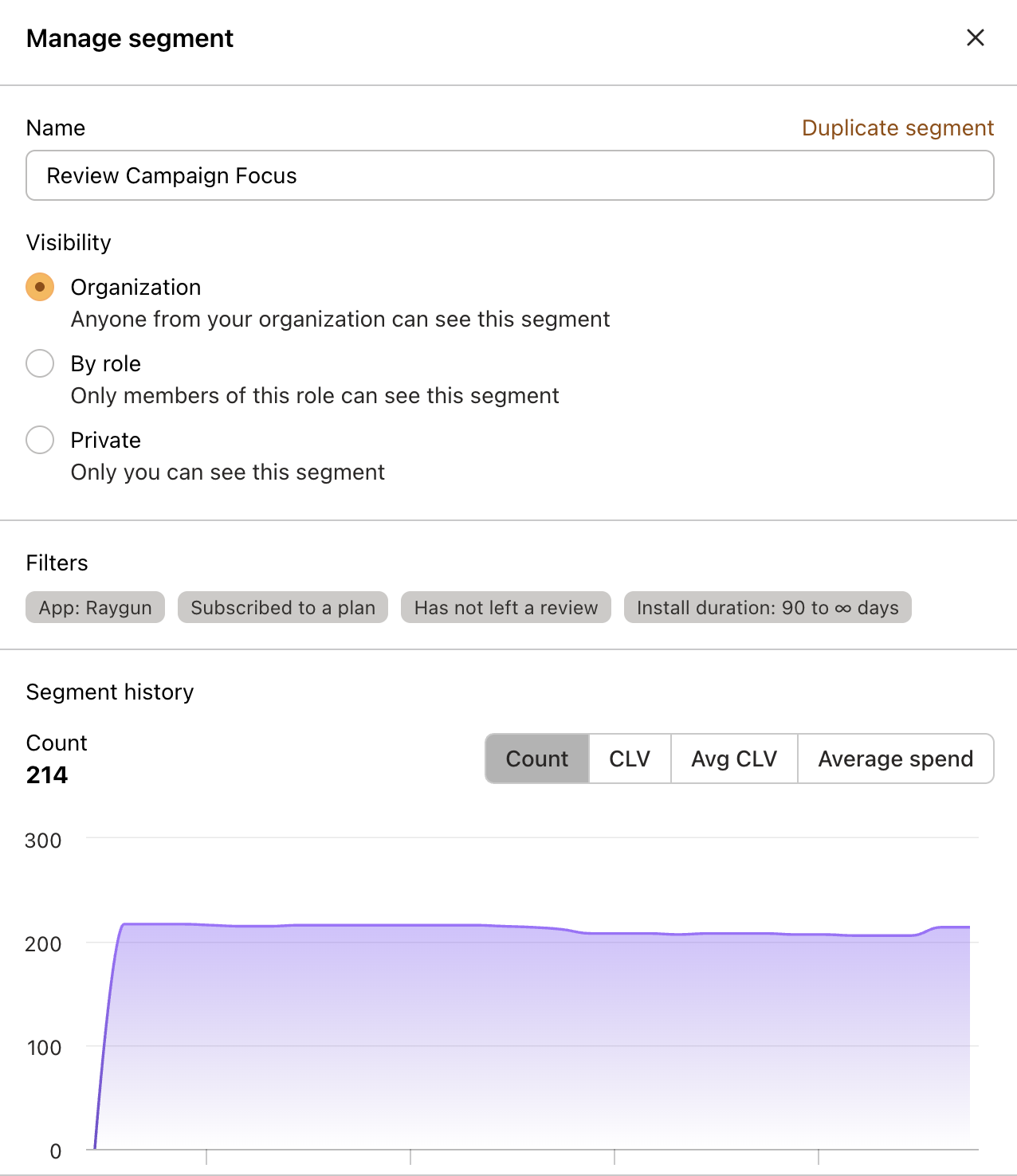
Segment details:
Edit the segment name and control who can see it (Organization, By role, or Private)
Duplicate the segment to create variations
Active filters: See all the current filters defining your customer group
Segment history: Track performance over time with metrics like customer count, CLV, average spend, and a visual trend chart to understand how your segment is changing.
Segment ideas that actually work
Here are some segments you can create to drive real business results:
Revenue growth segments
Trial conversion targets: Find users nearing the end of their trial for timely conversion outreach
Upgrade candidates: Spot free or basic users showing high engagement who might want premium features
Payment issue resolution: Quickly address customers with abandoned charges or billing problems
High-value customer retention: Give special attention to your most valuable customers
Churn prevention segments
At-risk customers: Identify subscribed customers showing warning signs of potential churn
Recent uninstalls: Reach out to customers who uninstalled recently for valuable feedback
Re-engagement opportunities: Target previously active customers who’ve gone quiet
Long-term retention: Recognize and reward your most loyal, long-term customers
Marketing effectiveness segments
New customer onboarding: Ensure smooth initial experiences for recently installed customers
Industry-specific messaging: Tailor communications to customers in specific retail categories
Geographic campaigns: Create region-specific promotions or support for international customers
Acquisition channel optimization: Analyze performance by traffic source to optimize marketing spend
Customer experience segments
Review encouragement: Identify satisfied customers who haven’t left reviews yet
Customer advocacy: Leverage customers who’ve provided positive feedback
Support prioritization: Give additional attention to enterprise or high-value customers
Feature education: Target users who aren’t taking advantage of valuable features
Taking action with segments
Segments become really powerful when you use them to drive business actions:
Email campaigns
Send targeted communications to specific customer groups:
From your segment, click Actions → Send Email
Create your email content targeted specifically to this customer group
Schedule or send immediately
Automated workflows
Use segments as triggers or conditions in Mantle Flows:
Create a Flow that targets a specific segment
Set up automated actions based on segment membership
As customers enter or leave the segment, your workflow responds automatically
Export for external use
Export segment data for use in other tools:
From your segment, click Actions → Export
Select the fields you want to include
Download the CSV file for use in spreadsheets or other systems
Best practices
Get the most from your segments with these tips:
Start broad, then narrow: Begin with wider criteria and add filters to refine your segment
Name strategically: Use clear, action-oriented names like “Q1 Retention Target” or “Enterprise Upgrade Candidates”
Review regularly: Update your segments as your business needs change
Combine with metrics: Use segments with the Insights dashboard to compare performance across different customer groups
Test before action: Always verify your segment returns the expected customers before taking action
Ready to start building segments? Head to Customers and start filtering your way to better insights!